
When a partition, especially the C: drive, is running out of space, it would be ideal if the partition could be extended by moving free space from another partition. No one wants to waste time recreating partitions and restoring everything from a backup. To extend a partition in Windows Server 2012 R2, there are two options: the native Windows tools and third-party software. Similar to previous versions, Server 2012 includes two native tools: the Diskpart command-line tool and Disk Management with a GUI. This article explains how to extend a volume in Windows Server 2012 R2 using these tools.
1. Extend Partition with Server 2012 Diskpart Command Tool
Diskpart is a command-line tool included since Windows XP with a set of commands. It is able to expand a partition quickly and without losing data. However, not all partitions can be extended; the major disadvantages include:
- The partition must be formatted with the NTFS file system or be unformatted (RAW).
- There must be adjacent unallocated space on the right side of the partition you want to expand.
Diskpart has a shrink command, but it cannot generate the required unallocated space to extend another partition. For example, if you shrink the D drive with Diskpart, unallocated space is generated on the right side of D. This space is non-adjacent to C and is on the left side of the E drive; therefore, it cannot be added to another partition using the Diskpart extend command. If you want to extend the C drive partition with the Diskpart command, you must delete the contiguous partition D in advance.
To extend a partition in Windows Server 2012 R2 with the Diskpart command:
- Press Windows and R on the keyboard, type diskpart and press "Enter".
- Input list volume and press Enter in the Diskpart command prompt window, then you'll see all single partitions in a list.
- Input select volume D and press Enter. (D is the drive letter or number of the adjacent partition)
- Input delete volume and press Enter.
- Input select volume C and press Enter. (C is the drive letter or number of the left contiguous partition; the right contiguous E drive cannot be extended with this tool.)
- Input extend and press Enter.
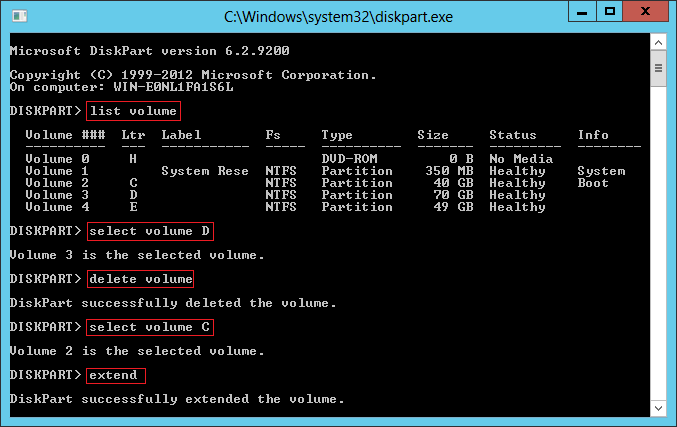
Make sure there are no programs or Windows services installed on the D drive; otherwise, do not delete it.
2. Extend Partition in Windows Server 2012 with Disk Management
Unlike Diskpart, which runs via the command prompt, Disk Management has a graphical interface. You can see all storage devices with their partition layout visually. In addition, you'll see detailed information for each partition as well as unallocated space. Starting from Windows Server 2008, the advanced "Shrink Volume" and "Extend Volume" functions were added to help resize partitions without losing data.
Disk Management is easier to use, but similar to the Diskpart command, it cannot extend a partition by shrinking another one. That means you also need to delete the contiguous volume on the right. Otherwise, Extend Volume is greyed out.
How to extend a volume in Server 2012 R2 with Disk Management:
- Back up or transfer files in the D: drive (adjacent partition on the right) manually.
- Press Windows and X together, then click Disk Management in the list.
- Right click D: drive and select "Delete Volume".
- Right click C: drive (adjacent partition on the left) and click "Extend Volume".
- Click Next till Finish in the pop-up "Extend Volume Wizard" window.
If D is a logical drive, you cannot extend the C drive even if you delete D in Disk Management.
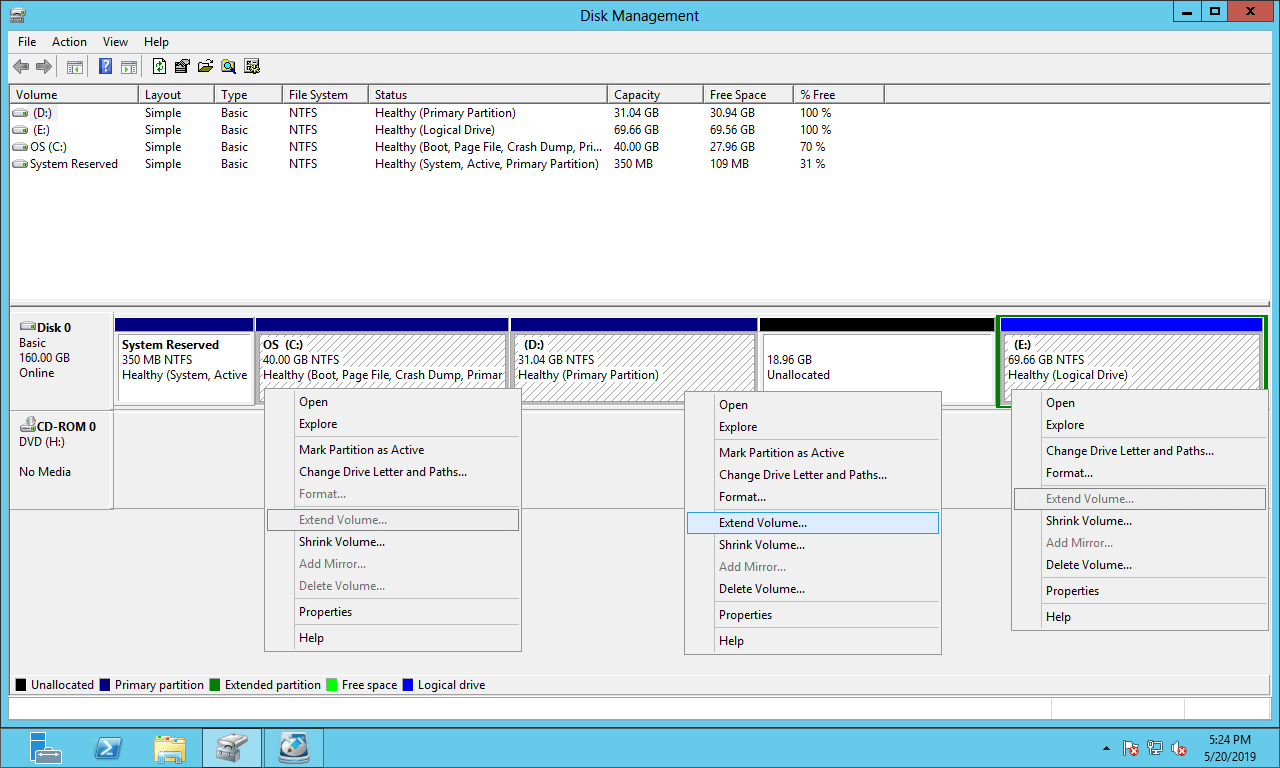
When using server partition software, it does not matter whether the partitions are primary or logical. More importantly, there is no need to delete any partition.
3. Extend Volume in Server 2012 R2 with Safe Partition Software
To extend a volume in Windows Server 2012 R2, NIUBI Partition Editor is a better choice. Compared with Windows native tools, it offers more advantages:
- It can resize both NTFS and FAT32 partitions.
- It can generate unallocated space on either the left or right side when shrinking a partition.
- It can combine unallocated space into either contiguous partition in 1 step.
- It can move and merge unallocated space into a non-adjacent partition on the same disk.
- It is able to merge two adjacent partitions in 1 step.
- It can clone, convert, defrag, hide, wipe, scan partitions, and much more.
Better than other tools, NIUBI Partition Editor offers powerful technologies to resize partitions more safely and efficiently.
- Hot Clone - Clone disk partitions in Windows for backup, migration, and fast disk swapping.
- Virtual Mode - All operations are listed as pending for preview, and real disk partitions won't be modified until you click "Apply" to confirm.
- Cancel-at-Will - If you applied incorrect operations, you can safely cancel the ongoing operations at any stage before completion.
- 1 Second Rollback - If any error is detected while resizing partitions, it can immediately and automatically revert the disk partitions to their previous state.
- Advanced File-Moving Algorithm: Resize and move partitions 30% to 300% faster, saving significant time, especially when handling a large number of files.
Download NIUBI Partition Editor and follow the steps in the video to extend a partition in Windows Server 2012 R2.
How to extend partition C by shrinking other volumes:
How to extend partition D by shrinking other volumes:
In this way, the Operating System, programs, associated settings, and everything else remain the same as before. You won't see any difference except for the partition size.
If you want to extend a RAID 1/5/6/10 partition in Windows Server 2012, do not break the array or perform any operations on the RAID controller, simply follow the steps in the video. If you want to extend a Server 2012 virtual partition in VMware/Hyper-V, install NIUBI Partition Editor to the virtual machine and follow the same methods.
Extend Volume for Windows Server 2012 with Another Disk
When there's no other partition or no available free space on the same disk, no software can transfer space from a separate disk, because the size of a physical disk is fixed. A 500GB physical disk cannot be decreased to 300GB or increased to 1TB. In this situation, there are 2 options for you to extend a Server 2012 volume using another disk:
- Clone the disk to a larger one and expand the partition with extra disk space.
- Move a partition to another disk, delete it and add its space to another volume.
Select the corresponding method above according to your own disk partition configuration. Besides shrinking and extending partitions in Windows Server 2012/2016/2019/2022/2025, NIUBI Partition Editor helps you perform many other disk and partition management operations.
 © 2009 - NIUBI Technology All Rights Reserved. |