
When the C drive is getting full in Windows Server 2012, extending it is the best solution. Nobody likes to spend a long time recreating partitions and restoring everything from a backup. With the right tool, you can enlarge the C drive using free space from another partition quickly and safely. To increase C drive space in Server 2012 R2, there are 3 kinds of tools: Diskpart (native command tool), Disk Management (native GUI tool) and NIUBI Partition Editor (third party program). This article introduces how to extend C drive in Windows Server 2012 R2 with these tools, select the corresponding method according to your own disk partition configuration.
1. Increase C Drive Space in Server 2012 with Diskpart Command
There are two kinds of Windows native tools to help resize partition in Server 2012 R2 - DiskPart and Disk Management. Diskpart works via the command prompt, while Disk Management uses a graphical interface. Because these tools only work under restricted conditions, they are not the best choice.
To expand C drive in Windows 2012 server with either native tool, you must delete the contiguous partition on the right in advance.
Steps to extend C drive in Windows Server 2012 R2 with Diskpart command:
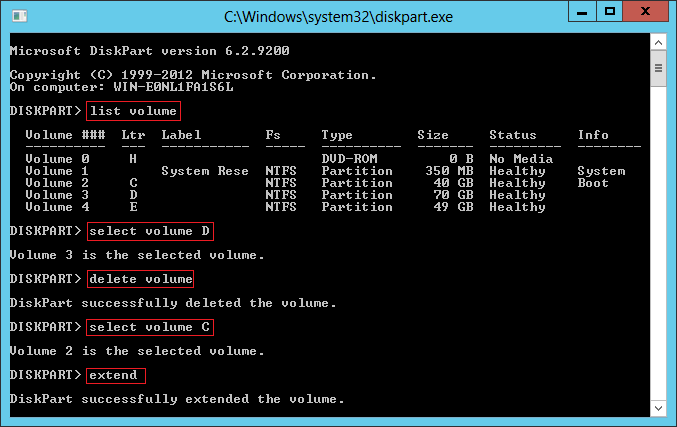
- Press Windows and R together on your keyboard, type diskpart and press Enter.
- Input list volume and press "Enter" in the command prompt window, then you'll see all single partitions in a list.
- Input select volume D and press "Enter" to give focus to D drive. (Here D is the contiguous volume on the right of C drive.)
- Input delete volume and press "Enter", then this partition will be deleted and its disk space will be changed to "unallocated".
- Input select volume C and press "Enter" to give focus to C.
- Input extend and press Enter.
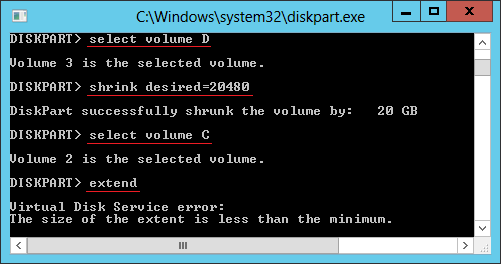
If you shrink the D drive instead of deleting it, the subsequent attempt to extend the C drive will fail with the error: "The size of the extend is less than minimum."
2. Extend C Drive in Server 2012 via Disk Management
Disk Management has a graphical interface, making it more user-friendly than the Diskpart command. However, similar to Diskpart, you must delete the D: drive before expanding the C drive. This is because:
- Both native tools can only make unallocated space on the right when shrinking a partition.
- Both native tools can only extend unallocated space to the left contiguous partition.
The unallocated space shrunk from the D drive is always non-adjacent to the C drive; therefore, the "Extend Volume" option is greyed out.
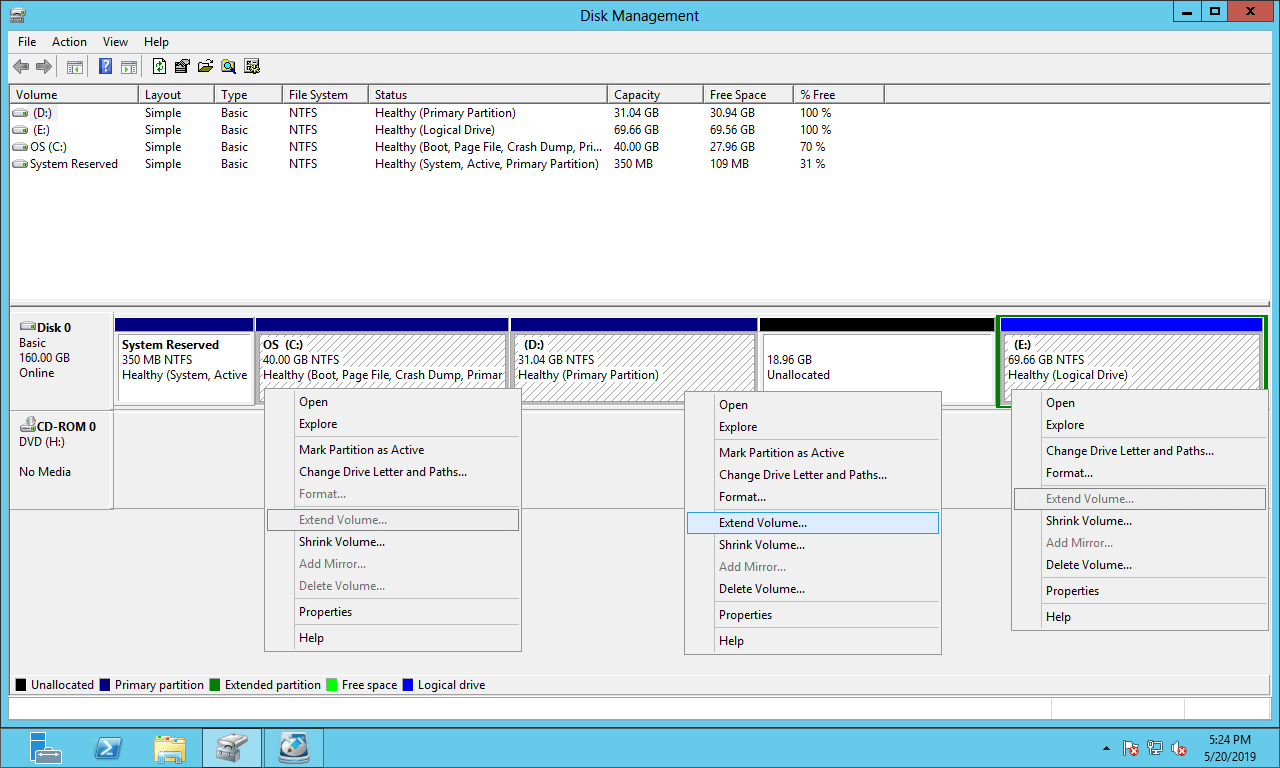
If you want to enlarge C drive in Server 2012 R2 without any software, you must delete D to get adjacent unallocated space. In addition, the contiguous D drive must be a primary partition, otherwise, "Extend Volume" is still disabled for C drive after deleting D.
How to extend C drive in Server 2012 R2 with Disk Management:
- Press Windows and X together on the keyboard and click Disk Management in the list.
- Right click D: drive and select "Delete Volume".
- Right click C: drive and select "Extend Volume", then simply click Next till Finish in pop-up dialog boxes.
Make sure there are no programs or Windows services installed on the D drive. If D is a Primary partition and you can delete it, remember to transfer files in advance.
3. Extend C Drive in Server 2012 R2 with Safe Software
With server partition software, you can make unallocated space on either left or right when shrinking partition, and combine unallocated space to either contiguous or nonadjacent partition on the same disk. The Operating System, programs, and everything else remain the same after shrinking and extending partitions.
Better than other disk partition tools, NIUBI Partition Editor features unique technologies like 1-Second Rollback, Virtual Mode, Cancel-at-Will, and Hot Clone to protect your system and data. It is able to clone disk/partition without server interruption. In addition, its advanced file-moving algorithm helps resize partition 30% to 300% faster.
Methods to extend C drive in Windows 2012 server with NIUBI Partition Editor:
- Check if there's plenty of free space in the adjacent partition D (or E), if yes, shrink it and make unallocated space on the left.
- If there's not enough free space in adjacent partition D (or E), check if you can shrink a nonadjacent partition on the same disk.
- If there are one or more data partitions on the system disk but they are full, copy a partition to another disk, delete it and add its space to C drive.
- If there's only C drive on system disk, clone disk to a larger one and extend C drive with extra disk space.
Select one of the methods above according to your own disk partition configuration.
① How to Increase C Drive with Free Space in D/E
Download NIUBI Partition Editor and you'll see the main window with disk partition layout and detailed information of each volume. Right click any partition or front of a disk, you'll see available operations. To keep the interface clean, unavailable operations are hidden automatically.
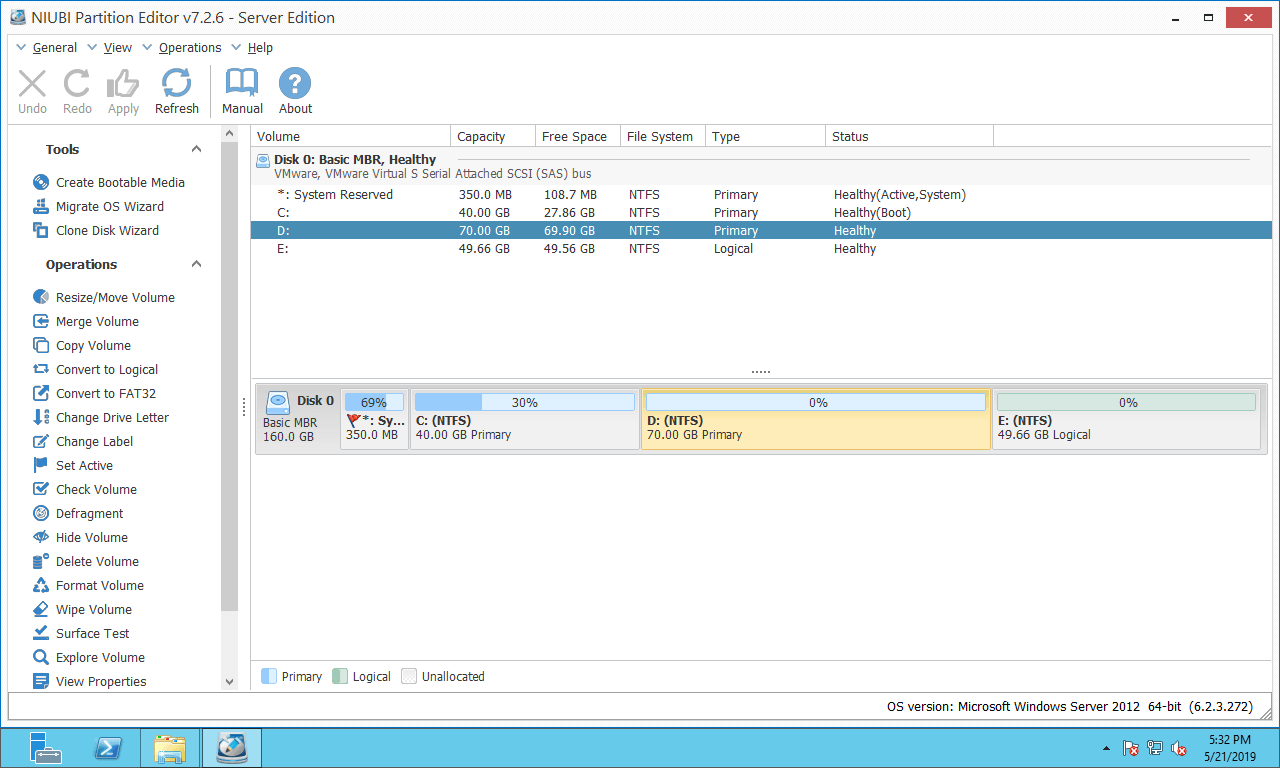
On most servers, there are other partitions on the same disk. You just need to shrink one or more partitions to get unallocated space and then add to C drive. To do this, you just need to click, drag and drop on the disk map.
How to extend C drive in Windows Server 2012 R2 with NIUBI Partition Editor:
- Right click D: drive and select "Resize/Move Volume", drag the left border to the right in the pop-up window, then a portion of the free space will be converted to unallocated space on the left side.
- Right click C: drive and select "Resize/Move Volume" again, drag the right border to the right to combine this unallocated space.
- Click "Apply" on the top left to take effect, done.
If you already shrunk the D drive with Disk Management, or if you want to get free space from the non-adjacent partition E, you should move the unallocated space to the left before extending the C drive.
Watch the video to increase C drive space in Server 2012:
If you use any types of hardware RAID array such as RAID 1/5/6/10, do not break array or perform any operations on the RAID controller, simply follow the same steps above.
② How to Enlarge Server 2012 C Drive with Another Disk
If there is no available free space on the same disk, no software can extend C drive by moving free or unallocated space from another separate disk. You have 2 choices in this situation, follow the steps in the videos.
1: Clone disk to a larger one and expand C drive with extra disk space.
2: Move a partition to another disk, then delete it and add its space to C drive.
③ How to Extend C Drive in Server 2012 VMware/Hyper-V
Nowadays, virtual machines are widely used. If you want to extend C drive in VMware/Hyper-V running Server 2012, the steps are the same except when the entire virtual disk is full. In that case, follow the methods below to expand virtual disk:
The additional space will appear as unallocated at the end of the original virtual disk, so there's no need to copy the disk to another one.
To extend C drive in Windows Server 2012/2016/2019/2022/2025 and previous Server 2003/2008, select one of the methods according to your own disk partition configuration. Besides shrinking, moving and extending partition, NIUBI Partition Editor helps you perform many other disk partition management operations.
 © 2009 - NIUBI Technology All Rights Reserved. |