
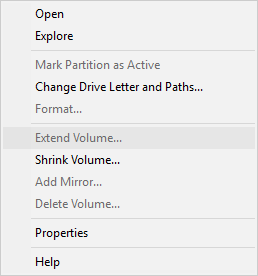
Like other versions, Windows Server 2012 includes the native Disk Management tool to help manage storage devices. With this tool, you can create, delete, format volumes, and change drive letters. In addition to these basic functions, it offers advanced options such as 'Shrink Volume' and 'Extend Volume' to adjust partition sizes. 'Extend Volume' allows you to expand system partition and data volumes without losing data (in most cases). However, it only works under certain conditions. Many users report that the 'Extend Volume' is greyed out in Server 2012 R2 Disk Management. This article explains why 'Extend Volume' is disabled in Windows Server 2012 R2 and provides easy solutions to fix the issue.
Why Extend Volume Is Disabled in Server 2012 Disk Management
There are 6 reasons why Extend Volume is greyed out in Windows Server 2012 R2 Disk Management:
- No unallocated space on a disk
- Unallocated space is non-adjacent to the partition
- File System is not supported
- Free space can't be extended to a primary partition
- Unallocated space can't be extended to a logical drive
- 2TB restriction on MBR disk
Below is a detailed explanation to help you identify the exact reason on your server.
Reason 1: No Unallocated Space on a Disk
Explanation:
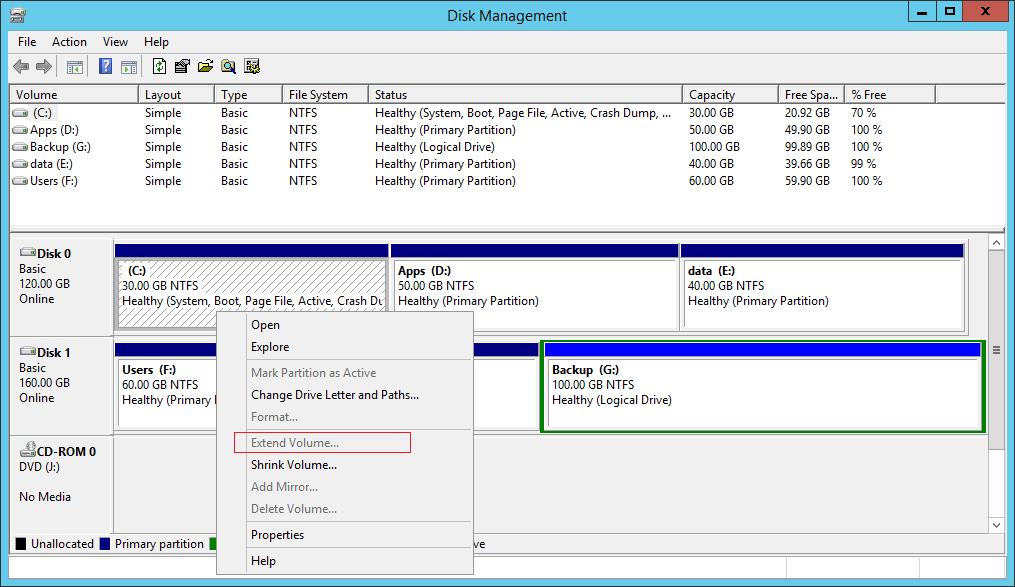
The size of a physical disk is fixed. Before extending a partition, there must be unallocated space. A 500GB physical disk cannot be decreased to 400GB or increased to 600GB. You can resize a partition, but you can't resize a disk (except a virtual disk). To get unallocated space, you may either delete or shrink an existing partition.
If you right click a volume without unallocated space on this disk, Extend Volume will naturally be greyed out in Server 2012 Disk Management.
Reason 2: Unallocated Space Is Nonadjacent
Explanation:
This is the most common reason why Extend Volume is greyed out in Server 2012 r2 Disk Management.
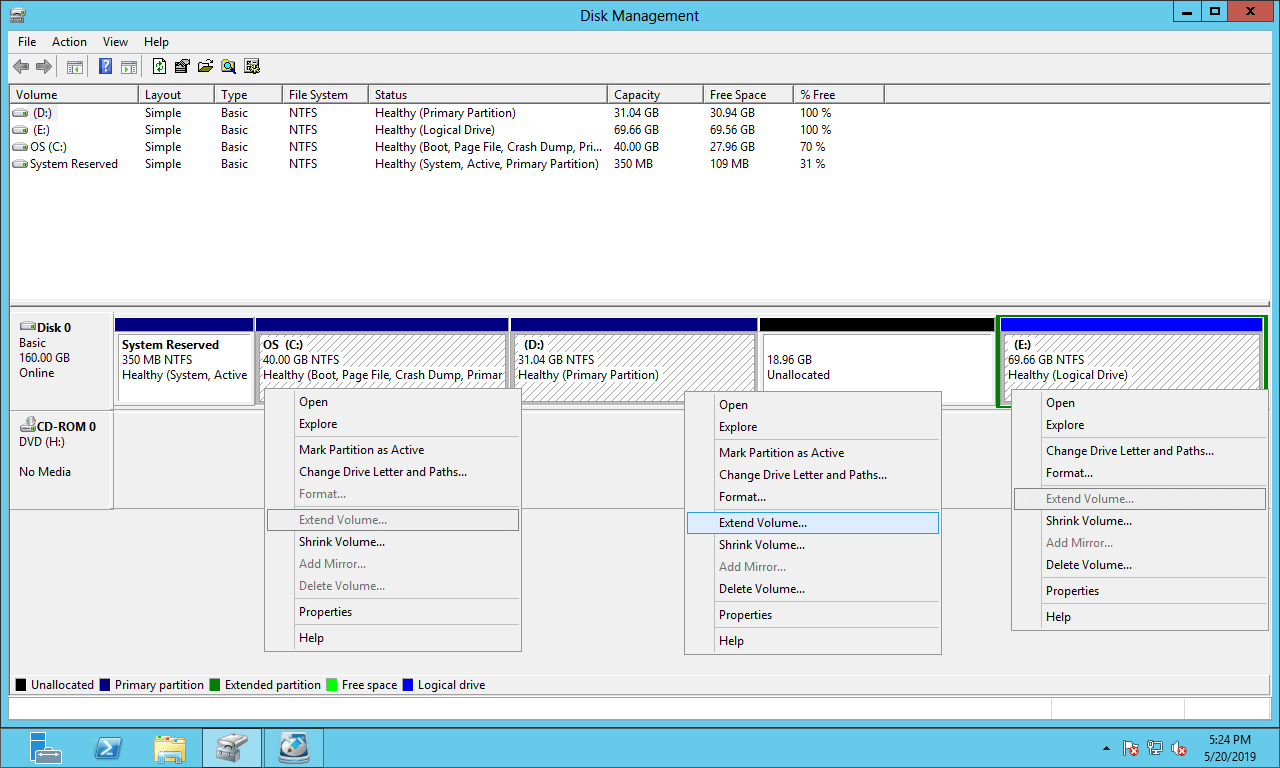
The "Extend Volume" function can only add unallocated space to the contiguous partition on its left. The "Shrink Volume" function can only generate unallocated space on the right side while shrinking a partition.
As shown in the screenshot, the unallocated space shrunk from the D drive is non-adjacent to the C drive and is on the left of the E drive. Therefore, Extend Volume is disabled for C: and E: after shrinking the D: drive.
Reason 3: File System Is Not Supported
Explanation:
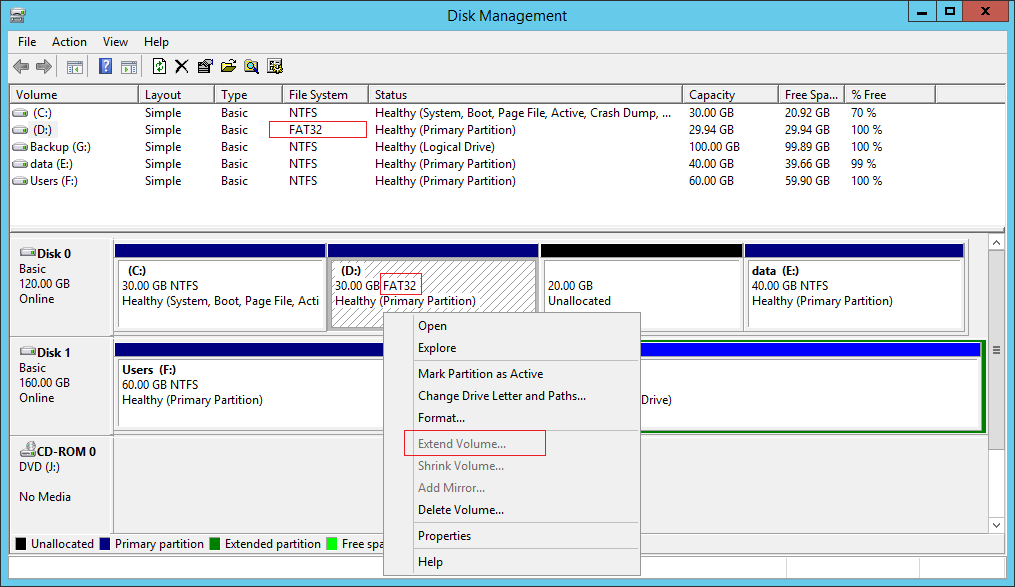
According to Microsoft, the Extend Volume function only supports expanding the partitions that are formatted with NTFS or without a file system (RAW).
If this partition is FAT32 or any other type, the Extend Volume option is greyed out even if there is adjacent unallocated space on the right.
Reason 4: Free Space Can't Be Extended to Primary Partition
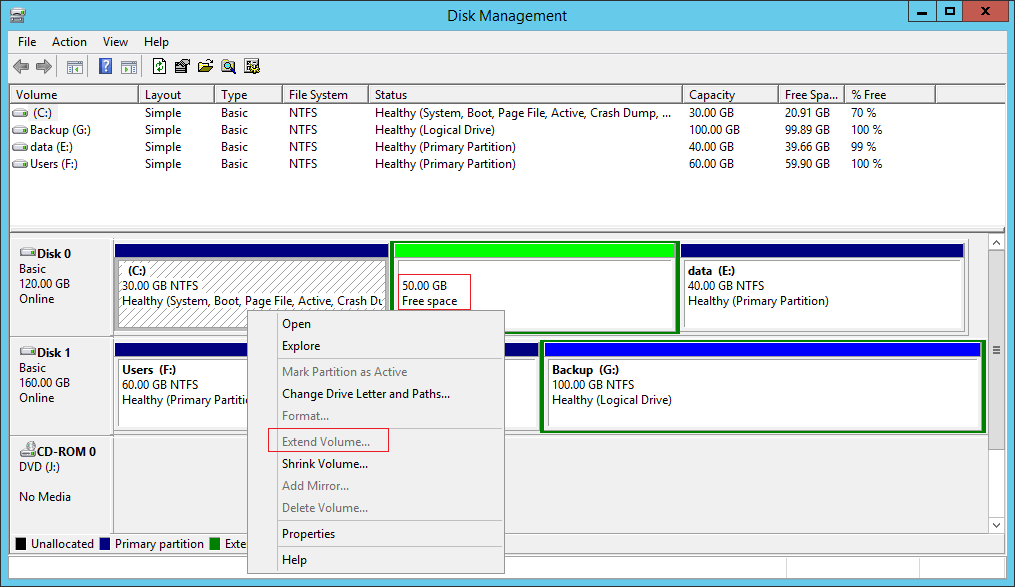
Explanation:
On most servers, the system partition C is NTFS and primary. If the right-contiguous volume D is a logical drive, Extend Volume remains greyed out for the C drive even after you delete D.
After deleting a logical drive, its disk space will be converted to "Free space". This kind of space is still part of the extended partition. To convert it to unallocated space, you must delete all other logical drives and the entire extended partition.
Reason 5: Unallocated Space Can't Be Extended to Logical Drive
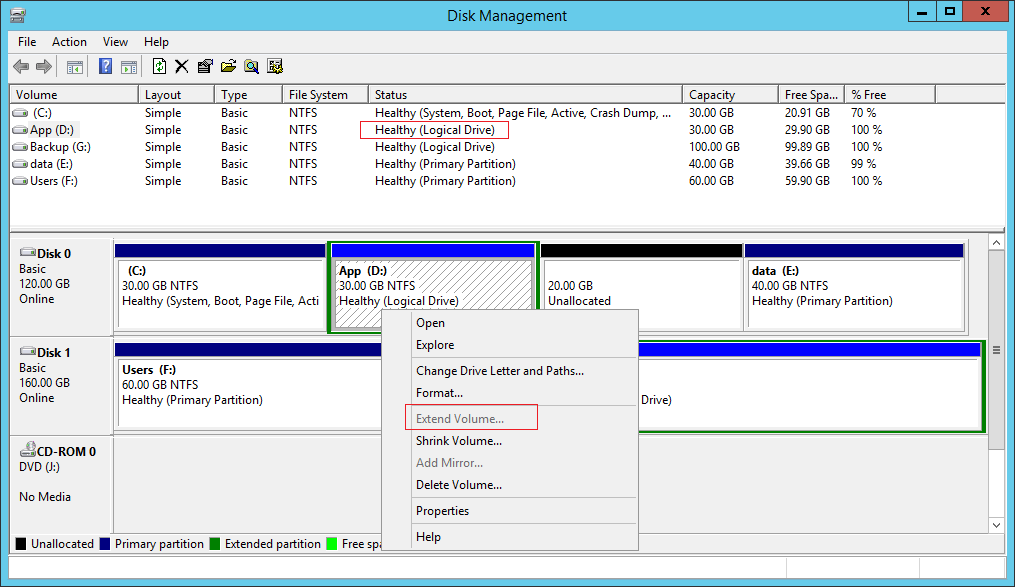
Explanation:
Similarly, unallocated space deleted from a primary partition cannot be extended to any logical drive with Disk Management.
Reason 6: 2TB Restriction on MBR Disk
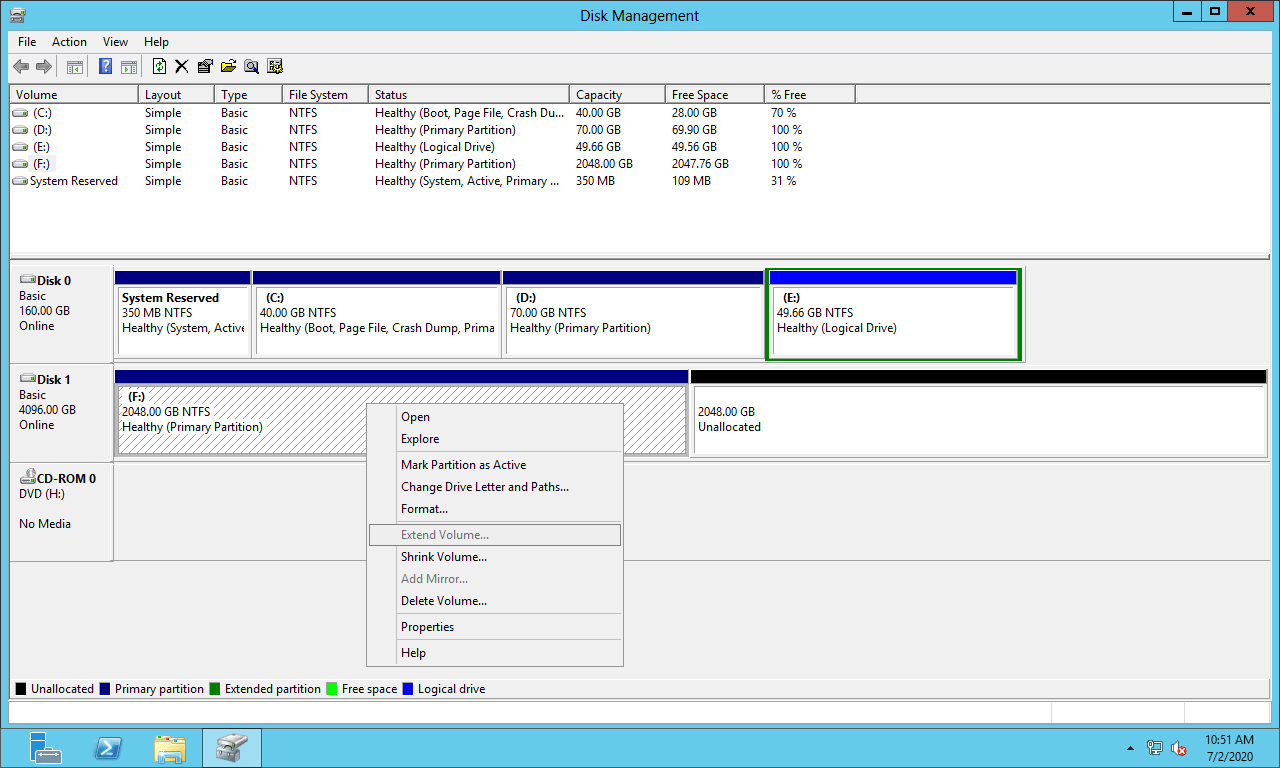
Explanation:
If you initialize a 2TB+ disk as MBR, you can only use 2TB of space; the remaining disk space is shown as unallocated. It cannot be used to create new volumes or be added to other volumes in Disk Management. When you right click this unallocated space, all options are greyed out.
As the screenshot shows, the F: drive is formatted with NTFS and there is right-adjacent unallocated space, but the Extend Volume option is greyed out in Server 2012 Disk Management.
How to Fix Windows Server 2012 R2 Extend Volume Greyed Out Issue
If you got unallocated space by shrinking the adjacent D drive, you need to move partition D to the right and make the unallocated space contiguous to the C drive; then Extend Volume will be enabled.
Download NIUBI Partition Editor and you'll see the main window with disk partition structure and other information. In the example below, there is 20GB of unallocated space shrunk from the D drive via Disk Management.
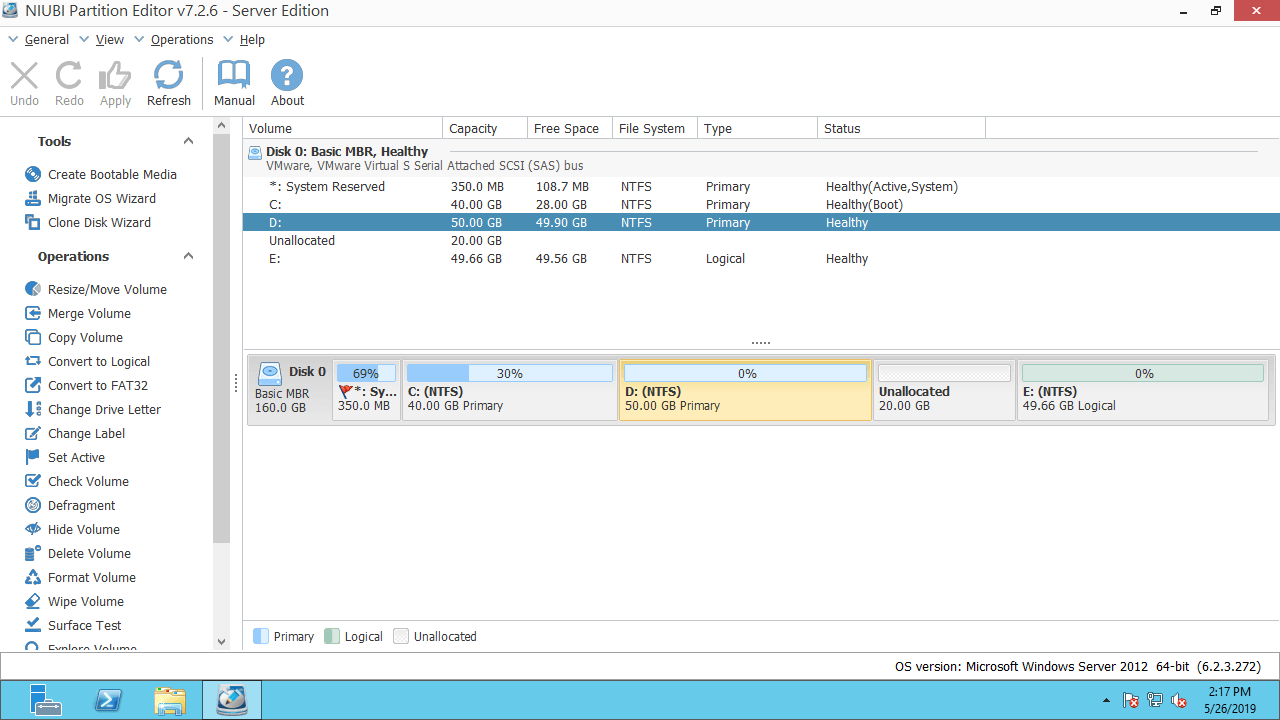
To address "Extend Volume" greyed out in Server 2012 R2 by moving partition:
Step 1: Right click D: drive and select "Resize/Move Volume", put the mouse pointer in the middle of the D drive and drag it to the right in the pop-up window:
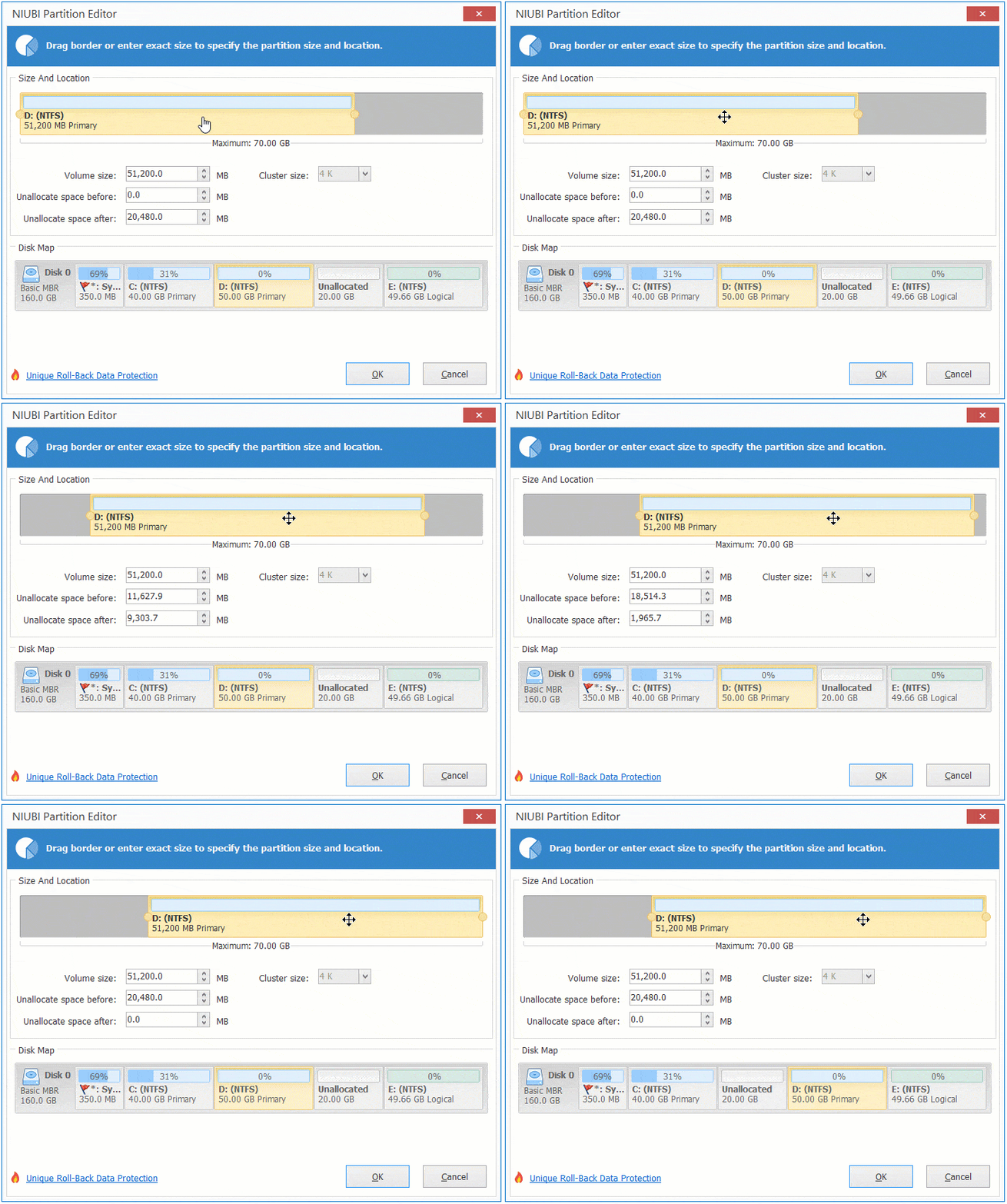
Then, the unallocated space is moved to the left side.
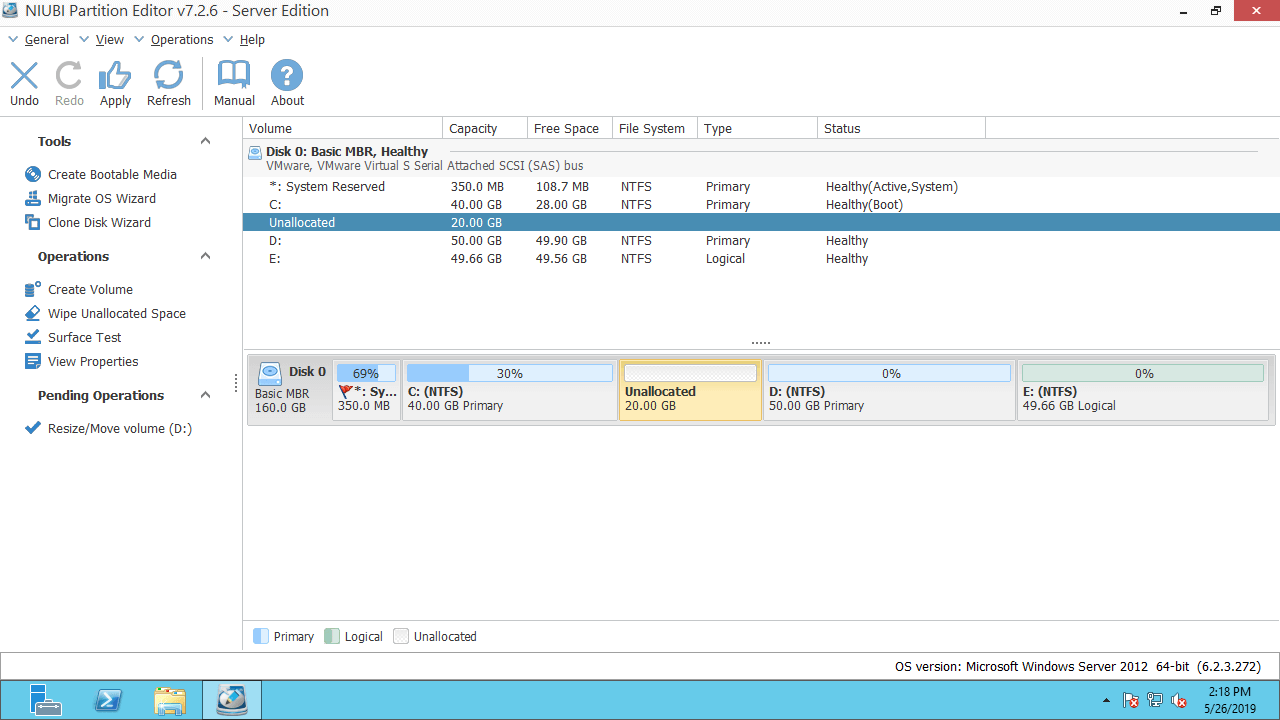
Step 2: Right click C: and select "Resize/Move Volume" again, drag the right border to the right in the pop-up window.
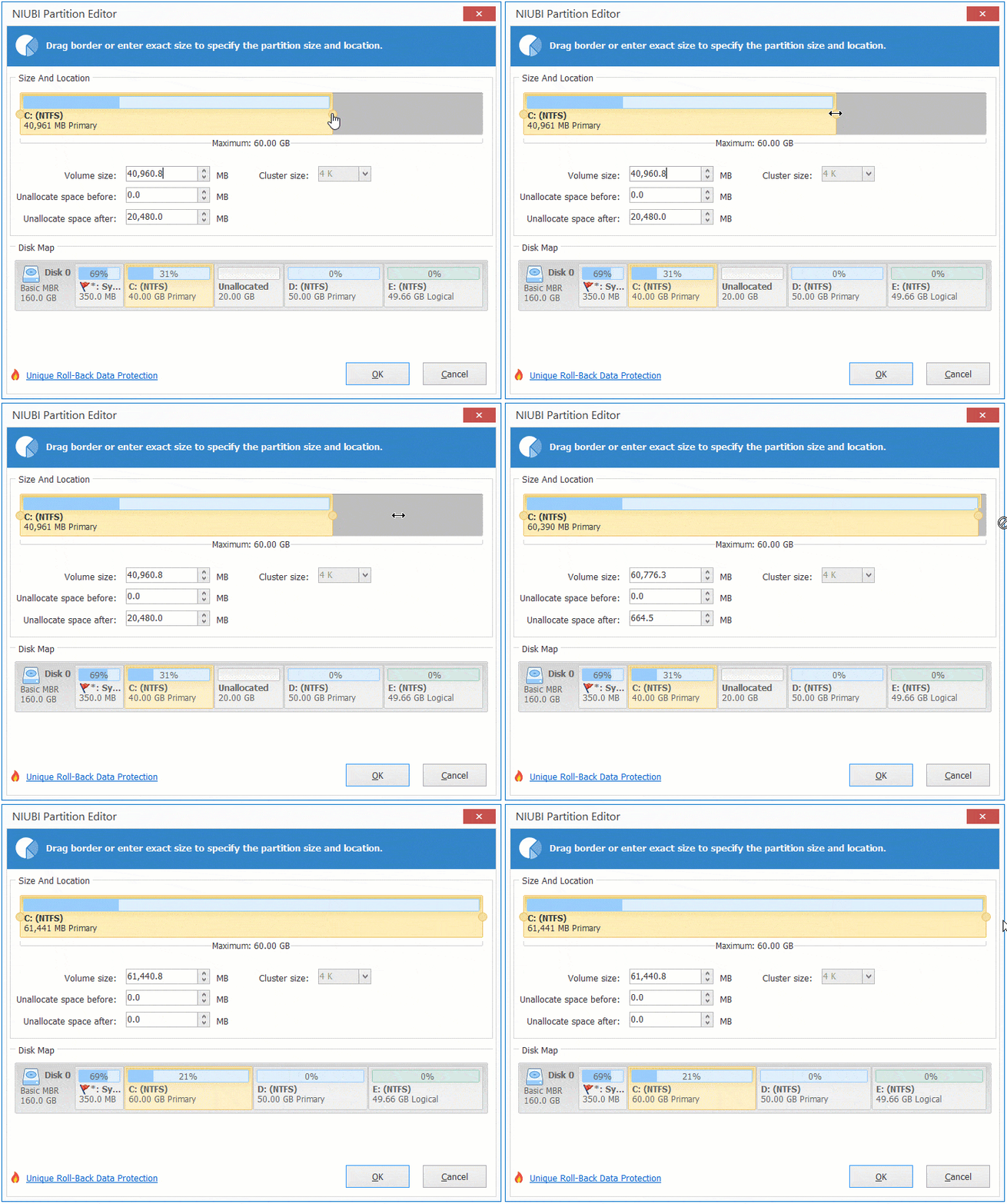
Then, the unallocated space is merged into the C: drive.
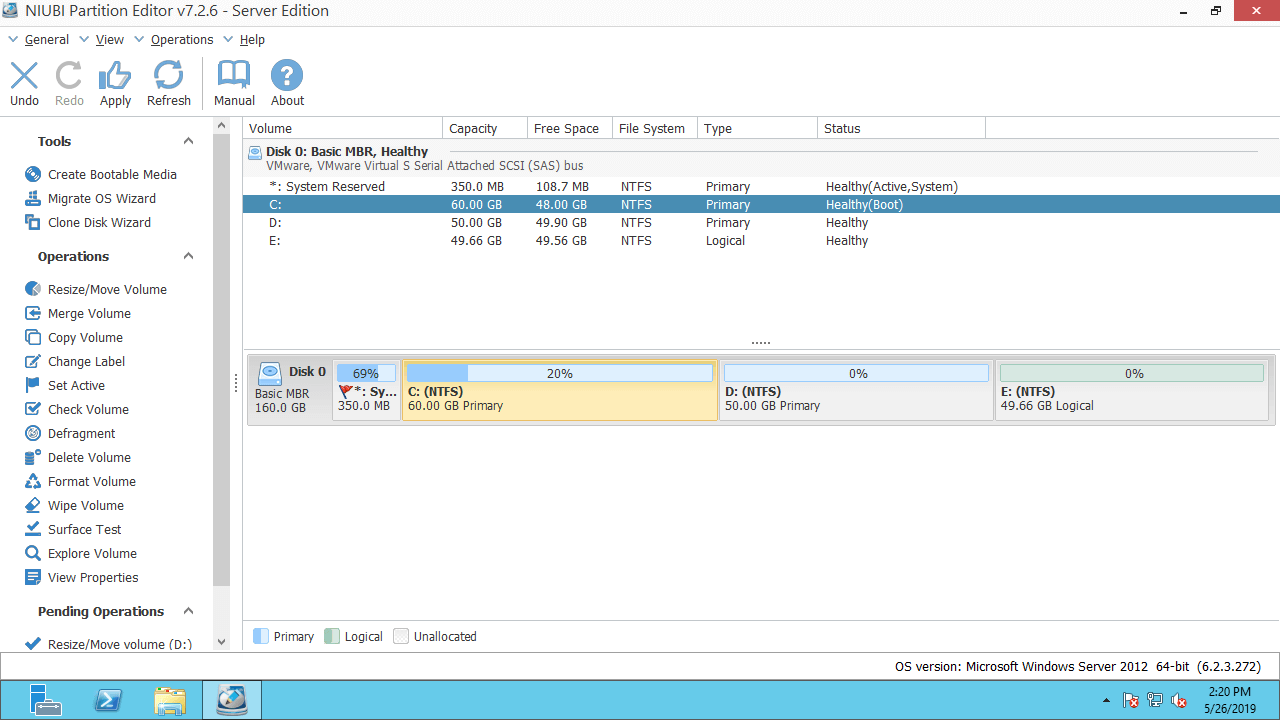
Step 3: Click "Apply" on the top left to execute.
When there is contiguous unallocated space either to the left or right of the partition you want to extend, you can combine it with the partition in just one step using NIUBI Partition Editor, regardless of whether the partition is NTFS or FAT32, or a logical or primary partition. If the unallocated space is nonadjacent, you can move it and then merge it with the partition.
Follow the video to fix Windows Server 2012 Extend Volume greyed out issue:
If Extend Volume is greyed out for a 2TB partition on an MBR disk, follow the steps in the video to convert MBR to GPT and then extend the partition with unallocated space.
In Summary
When Extend Volume is greyed out in Windows Server 2012 Disk Management, find out the associated reason on your server and follow the corresponding method above. Besides shrinking, moving, and extending partitions, NIUBI Partition Editor helps you merge, copy, convert, hide, wipe, defrag, scan partitions, and much more.
 © 2009 - NIUBI Technology All Rights Reserved. |