
When a partition is running low on disk space, you can extend it without wasting time recreating partitions and restoring from a backup. Some users prefer to use Windows native tools, believing they offer the best compatibility. To extend a volume on Server 2012 R2 and other versions, there is indeed a Disk Management tool to help. It includes the "Extend Volume" function to increase partition size without losing data. However, due to certain limitations, it only works under specific conditions. This article explains how to extend a partition in Windows Server 2012/2016/2019/2022 using safe disk partition software.
Extend Windows Server Partition with Disk Management
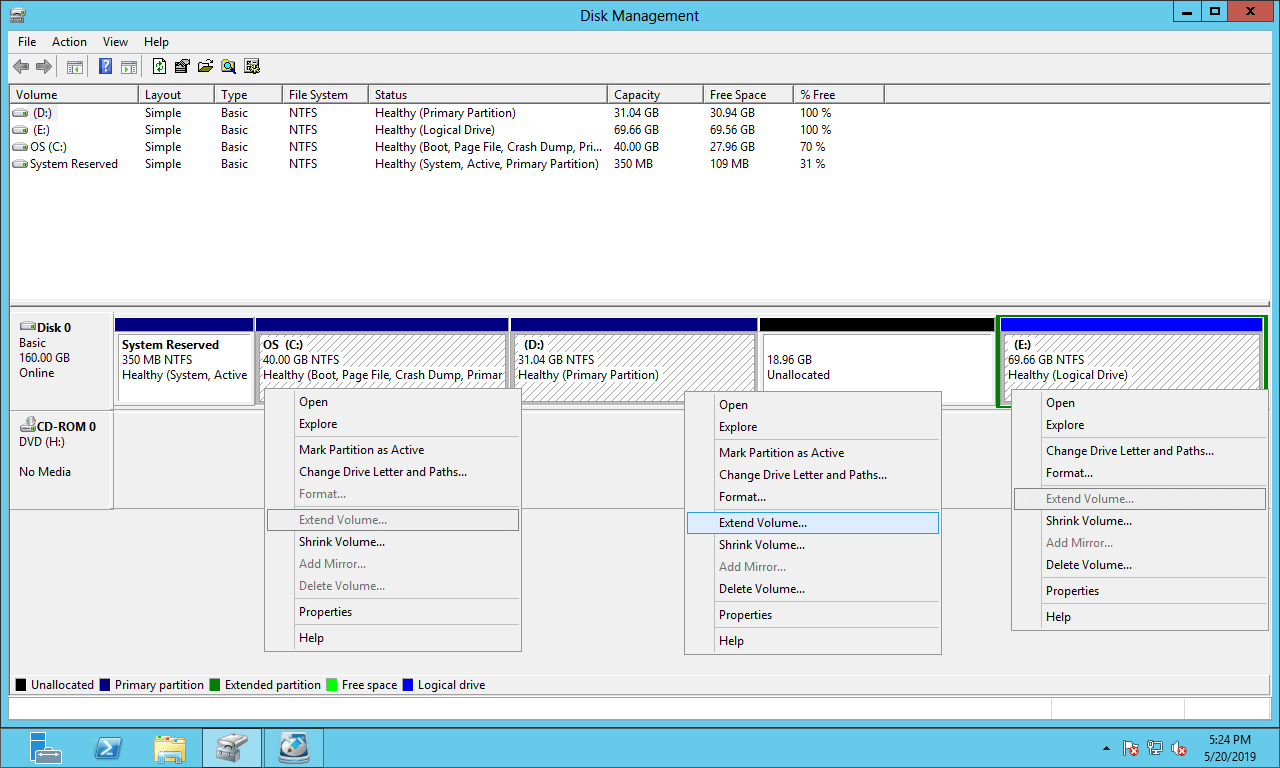
The size of a physical disk is fixed, so before extending a volume, you must delete or shrink another one on the same disk to generate unallocated space. A significant limitation of Disk Management is that it cannot extend a partition by shrinking another one.
In the Disk Management console:
- The "Shrink Volume" function can only shrink an NTFS partition toward the left and generate unallocated space on the right side.
- The "Extend Volume" function can only extend an NTFS partition when there is adjacent unallocated space on the right.
As shown in the screenshot, after shrinking the D drive, unallocated space is generated on the right side of the D drive. This unallocated space is not adjacent to the C drive and is located to the left of the E drive. Therefore, "Extend Volume" is disabled for the C and E drives.
To extend a partition in Windows Server 2012/2016/2019/2022, third-party software is required. Compared to other disk partition software, NIUBI Partition Editor offers powerful technology to resize partitions more safely and efficiently.
- Hot Clone - Clone disk partitions in Windows for backup, migration, and fast disk swapping.
- Virtual Mode - All operations are listed as pending for preview, and real disk partitions won't be modified until you click "Apply" to confirm.
- Cancel-at-Will - If you applied incorrect operations, you can safely cancel the ongoing operations at any stage before completion.
- 1 Second Rollback - If any error is detected while resizing partitions, it can immediately and automatically revert the disk partitions to their previous state.
- Advanced file-moving algorithm: Resize and move partitions 30% to 300% faster, saving significant time, especially when handling a large number of files.
Whether you want to extend a partition on a physical HDD/SSD, any type of hardware RAID array, or a virtual disk in VMware/Hyper-V, there are three methods available. Choose the appropriate method based on your disk partition configuration.
Method 1: Extend C Drive by Shrinking Adjacent Partition
For example, to extend the C partition, there is often free space in the adjacent D: drive on most servers. In this case, you can shrink the adjacent partition to generate unallocated space on its left, and then add this unallocated space to the C: drive.
Download NIUBI Partition Editor and you will see all disks with partition layouts and other information in the main window.
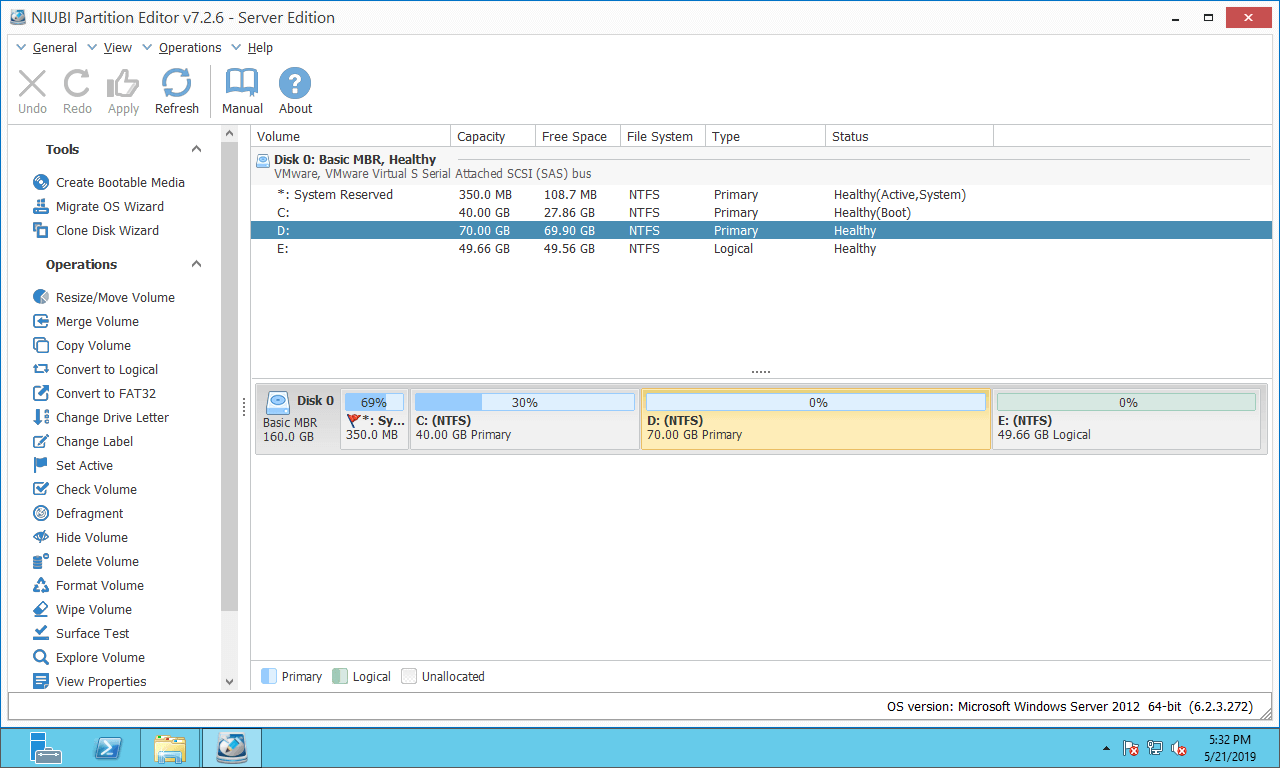
How to extend partition C in Windows Server 2012/2016/2019/2022:
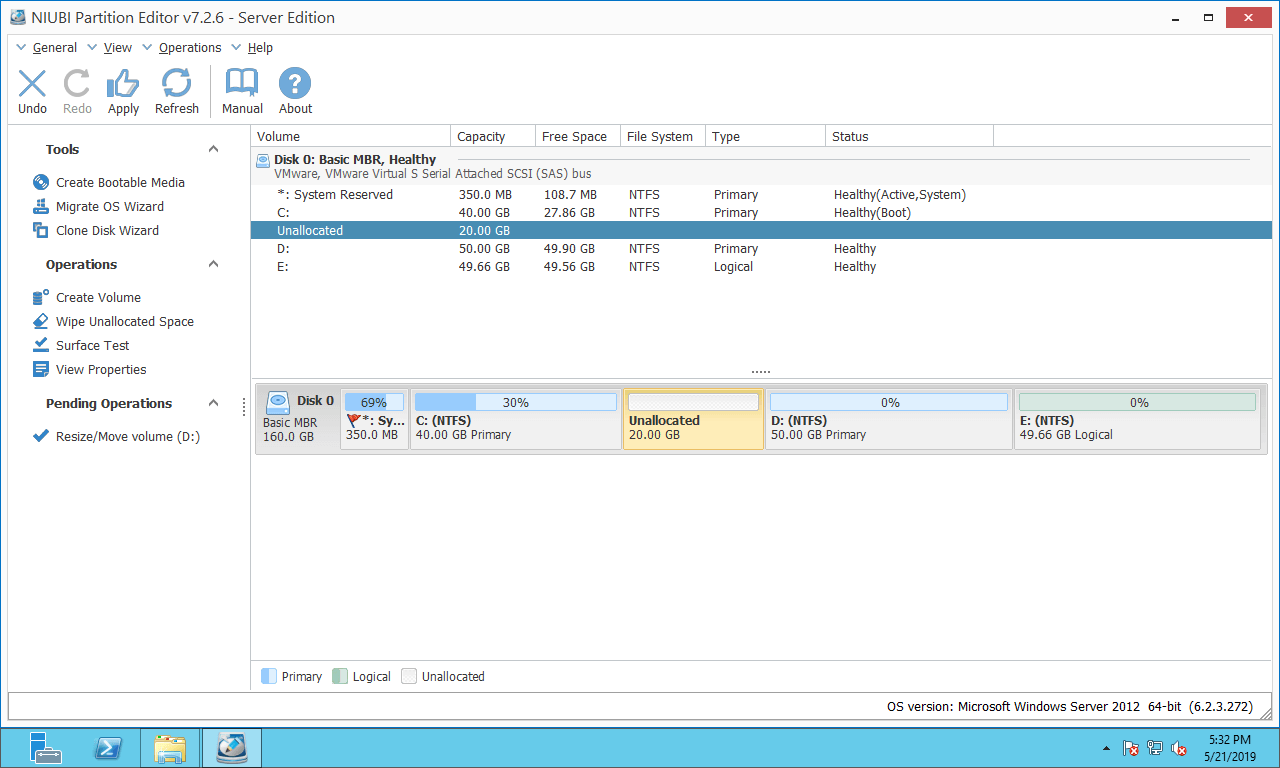
Step 1: Right-click the D: drive and select "Resize/Move Volume", then drag the left border to the right in the pop-up window. (Or enter an amount in "Unallocated space before".)
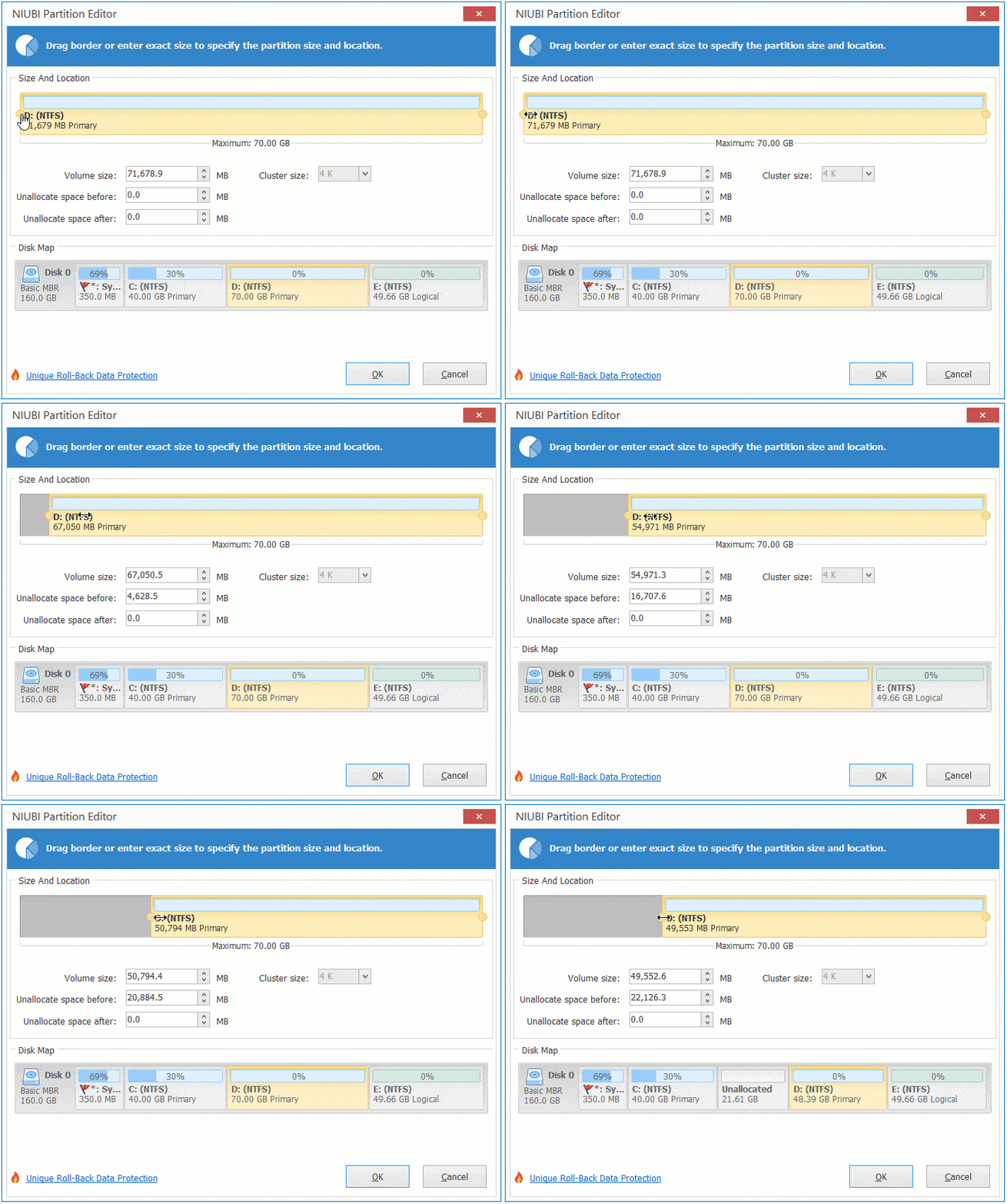
Then, the D partition will be shrunk and unallocated space will be generated on its left side.
Step 2: Right-click the C: drive and select "Resize/Move Volume" again, then drag the right border to the right.
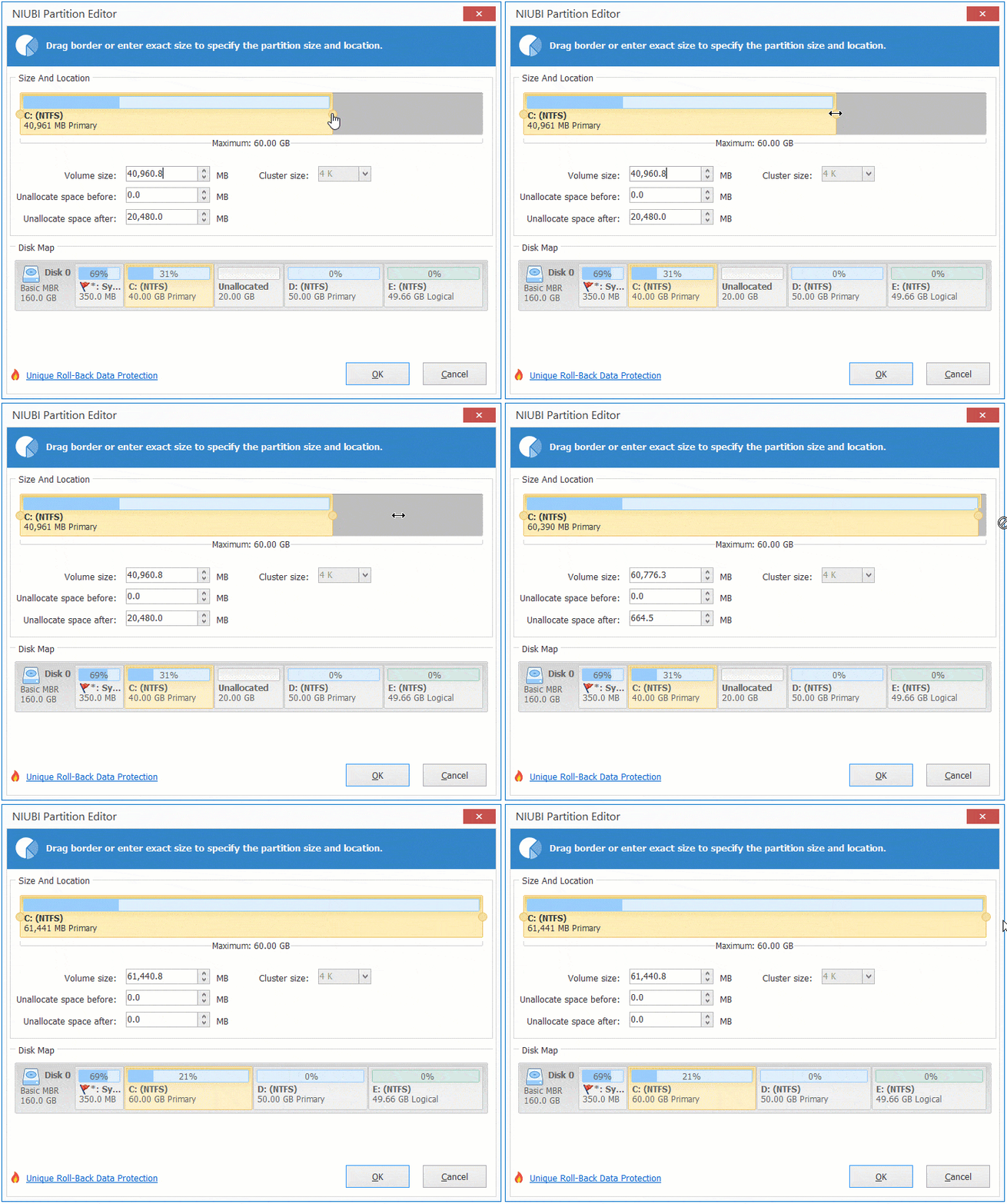
Then, the C drive will be extended by merging this adjacent unallocated space.
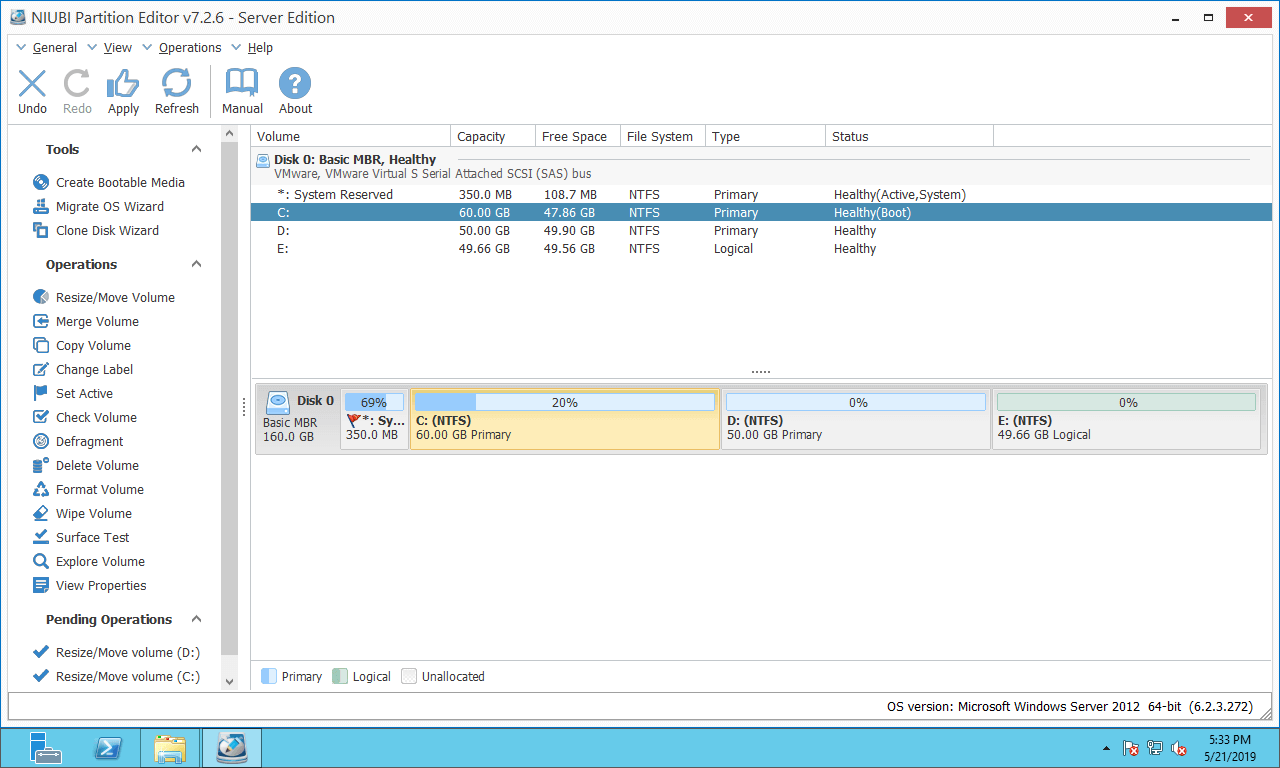
Step 3: Click "Apply" on the top left to execute.
NIUBI Partition Editor is designed to work in virtual mode; real disk partitions will not be modified until you click "Apply" to confirm.
Method 2: Extend C Drive by Shrinking a Non-Adjacent Partition
If there is insufficient free space in the adjacent partition (the D: drive), you can shrink a non-adjacent partition (the E: drive) on the same disk. Unlike Method 1, there is an additional step to move the unallocated space to the left before merging it into the C drive.
To do this, right-click the D: drive and select "Resize/Move Volume", then drag the middle of this partition to the right in the pop-up window:
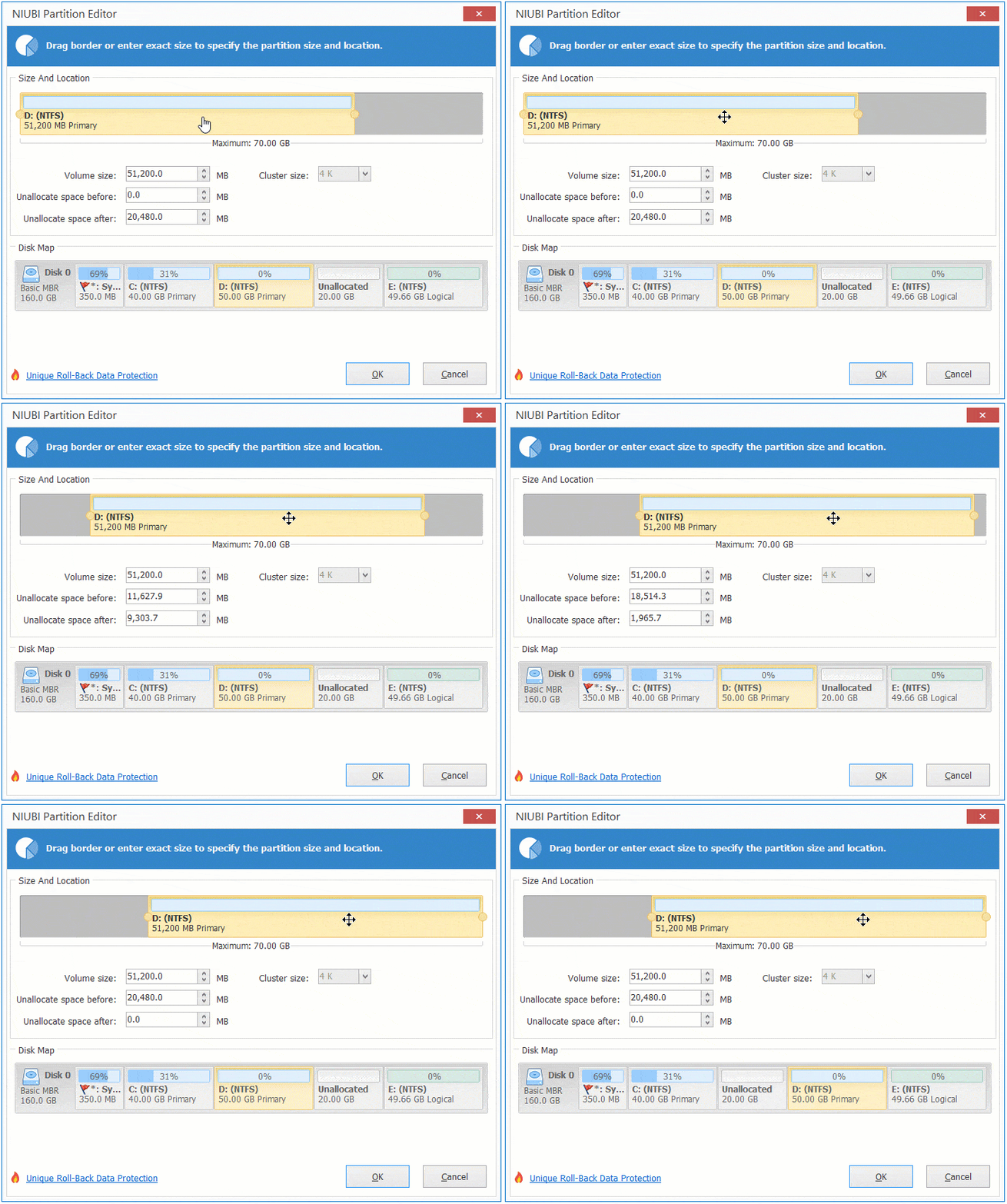
How to extend a volume in Windows Server 2012/2016/2019/2022:
Extend Drive D by Shrinking C or E
To extend a data volume, the process is similar; you can shrink either the C: drive or another data volume, such as E. Follow the steps in the video to extend the D partition in Windows Server 2012:
Method 3: Extend Partition with Another Disk
On some servers, there may be insufficient free space on the system disk. For example, the C: drive is full, but there is no data partition on the system disk, or all partitions on the system disk are nearly full. In this case, no software can move free space from another separate disk. However, NIUBI Partition Editor still offers two options for you.
Option 1: If you want to extend partition C: but there is no other volume on the same disk, you can clone the disk to a larger one and extend the partition with the additional disk space. Follow the steps in the video.
It is suggested to click the option to turn off the computer after clicking "Apply". After the clone is complete, replace the smaller disk or change the BIOS to boot from the larger disk.
Option 2: When there are data volumes on the system disk, in addition to cloning the entire disk, you can clone only one data volume to another disk. Then, delete the data volume to generate unallocated space, which can be merged into the C: drive.
In Summary
To extend a partition in Windows Server 2012/2016/2019/2022/2025, the built-in Disk Management tool offers limited help due to its many restrictions. To accomplish this task, NIUBI Partition Editor is the best choice. It provides powerful technology to resize partitions more safely and efficiently. No matter how your disk partitions are configured, there is always a way to extend them.
 © 2009 - NIUBI Technology All Rights Reserved. |