
This article explains why Extend Volume is disabled in Windows Server 2012/2016/2019/2022, and what to do when Extend Volume is disabled for the C: or D: drive.

Why Extend Volume Is Disabled for the C: Drive
The most common issue on a server is the system partition (the C: drive) running out of space. It would be ideal if you could expand it quickly without reinstalling the operating system or programs. To address this, Microsoft offers the "Extend Volume" function in Disk Management, which allows you to extend the system partition and data partitions without losing data.
As we know, the size of a physical disk is fixed, so unallocated space is required before extending a partition. To create this space, you can either delete or shrink another partition. Shrinking a partition converts only a portion of its unused space into unallocated space while keeping its files intact. Deleting a partition is generally avoided unless absolutely necessary.
The Shrink Volume function in Server 2012 Disk Management is available, but it can only generate unallocated space on the right side of a partition. This limitation prevents the Extend Volume function from working in many cases.
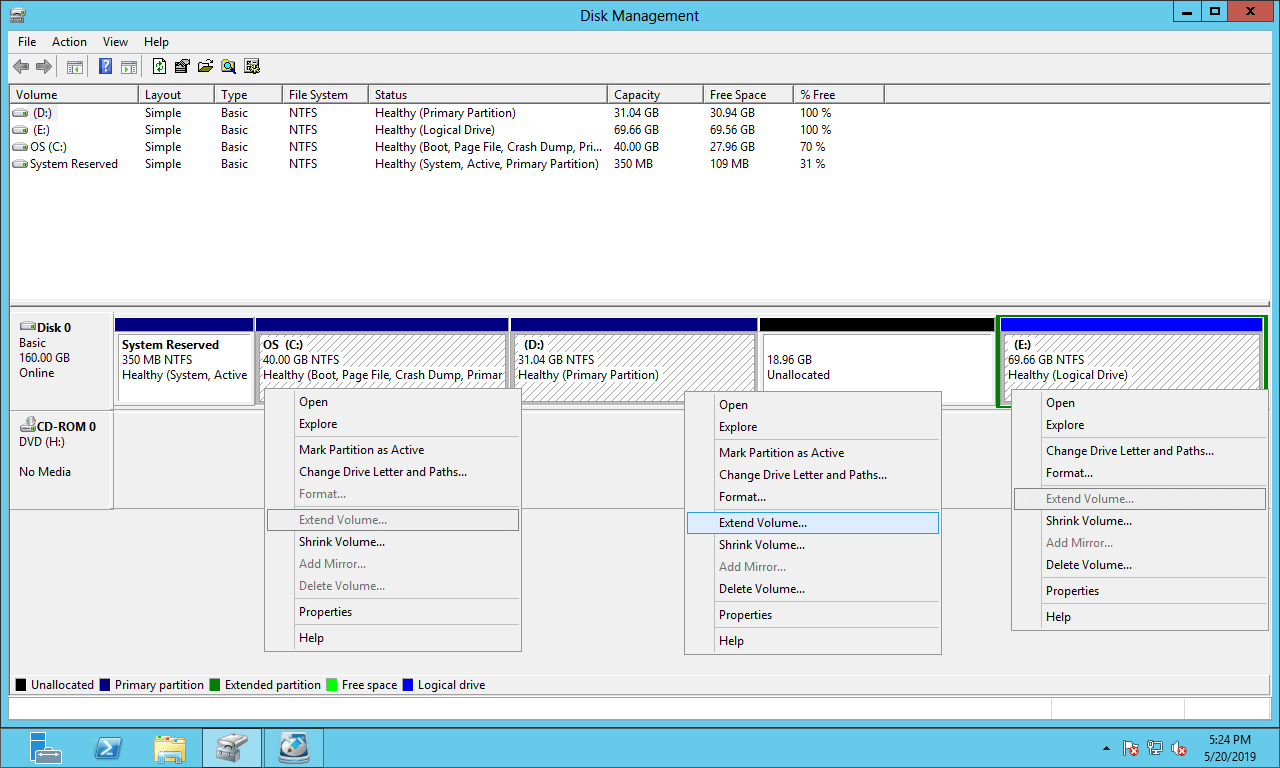
As shown in the test server:
18.96GB of unallocated space is generated on the right side of the D: drive after shrinking it.
Extend Volume is disabled for the C: drive because this function can only merge unallocated space into the left contiguous partition. The C drive is non-adjacent, so it is not supported.
If Disk Management could generate unallocated space on the left side or move the D partition to the right, there would be no such issue. To do either operation, third-party partitioning software is required.
Some users attempt to delete the D partition to create contiguous unallocated space on the right, enabling the Extend Volume option for the C drive. While this method works on GPT disks, its success on MBR-style disks depends on specific conditions.
Do not delete the D drive if you installed programs or any Windows services on it.
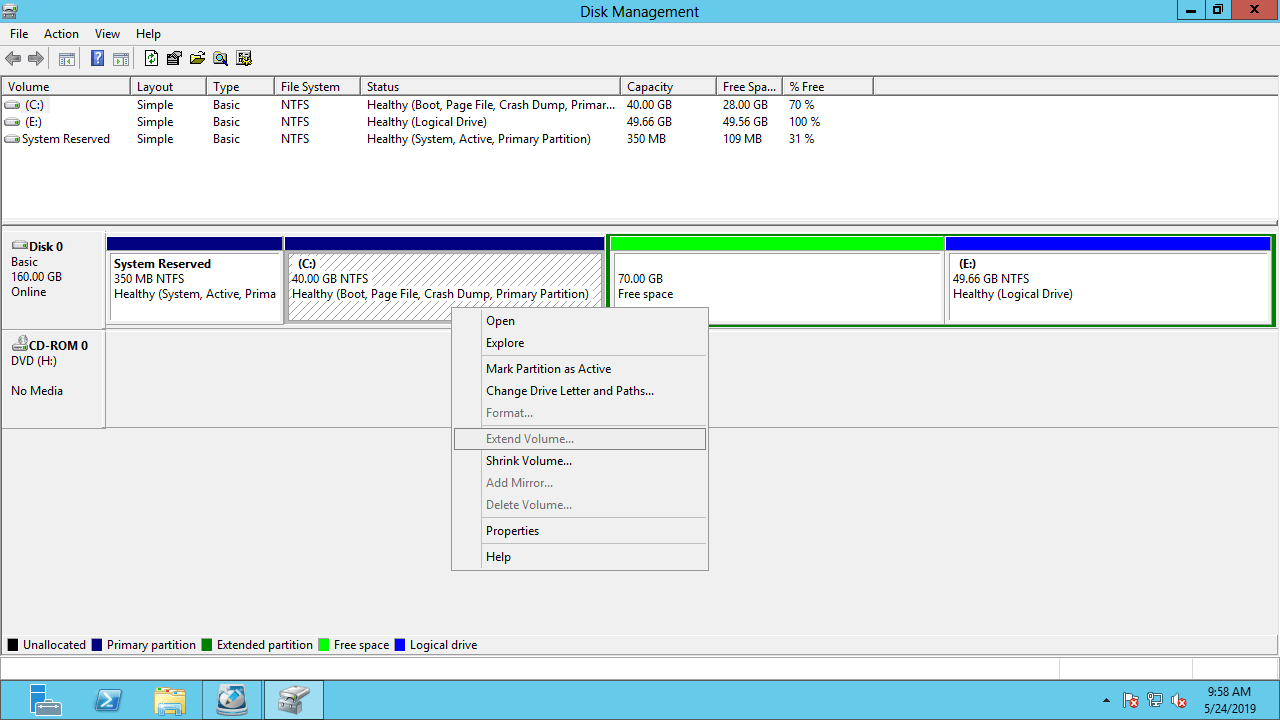
To illustrate the reason, partition D was converted from primary to logical.
After deleting the D drive, the disk space is shown as free space instead of unallocated. Extend Volume is still disabled for the C: drive.
On an MBR disk, "Unallocated space" generated from a primary partition cannot be extended into any logical drive, and "Free space" generated from a logical drive cannot be extended into any primary partition. This is another significant limitation of the Disk Management tool.
To convert the 70GB of free space to unallocated space, you have to delete another logical drives and then delete the entire Extended partition.
Why Extend Volume Is Disabled for the D: or E: Drive
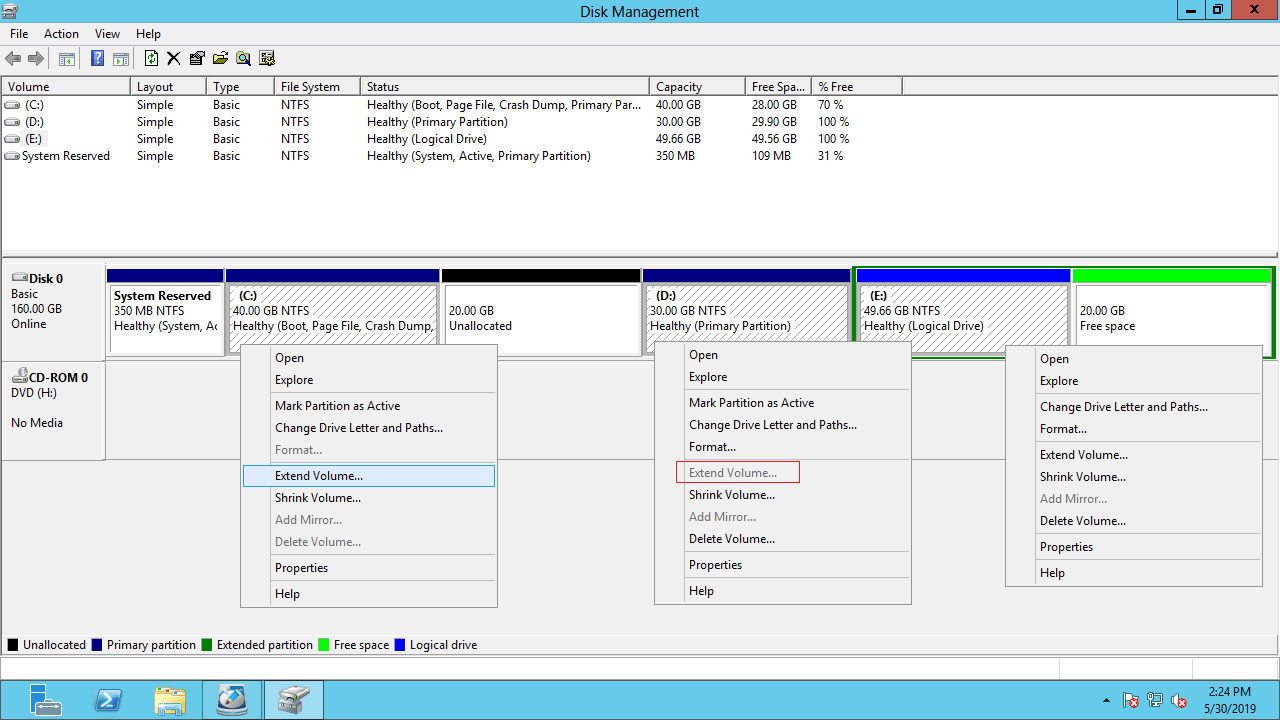
For data volumes D or E, the first reason is the same as for system partition C—there is no adjacent unallocated space on the right.
For example, there is no adjacent unallocated space generated on the right side of the D drive after shrinking both the C and E drives. Therefore, "Extend Volume" is disabled for the D drive.
Another reason why the Extend Volume option is disabled for the D or E drive is that the partition type may not be supported by Disk Management.
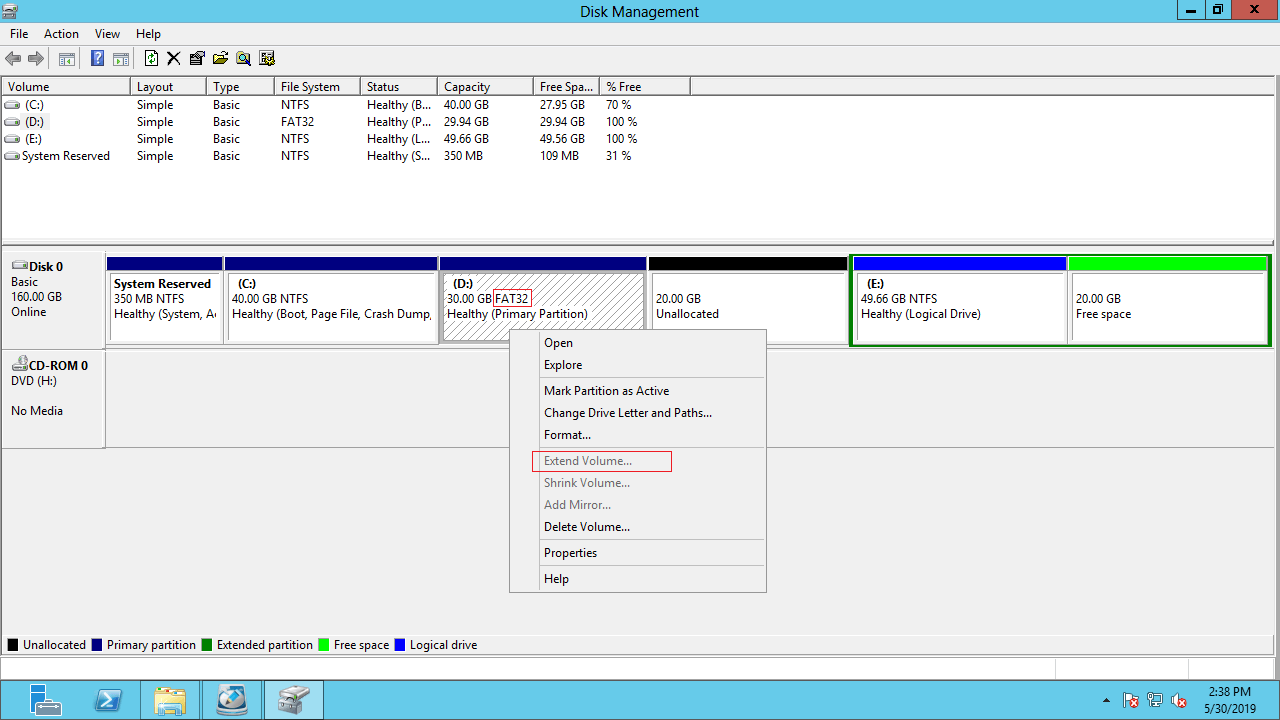
Both the Shrink and Extend Volume functions only support partitions that are formatted with NTFS or are unformatted (RAW). FAT32 and other types of partitions cannot be shrunk or extended using this built-in tool.
To illustrate this restriction, the D drive was converted to FAT32. As shown in the screenshot, Extend Volume is disabled, although there is 20GB of unallocated space next to it.
What to Do When Extend Volume Does Not Work
NIUBI Partition Editor can solve these problems quickly and easily.
- You just need to drag and drop on the disk map to shrink and extend partitions.
- Both NTFS and FAT32 partitions are supported.
- Unallocated space can be generated on either the left or right side when shrinking a partition.
- Unallocated space can be moved and merged into a contiguous or non-adjacent partition on the same disk.
Download NIUBI Partition Editor and follow the steps in the video to address the "Extend Volume is disabled" issue on Windows Server 2012/2016/2019/2022/2025:
Right-click a partition and select the "Resize/Move Volume" feature. If you drag the border inward, you can shrink this partition and generate unallocated space on either side. If you drag the middle of the partition horizontally, you can move this partition along with the adjacent unallocated space. If you drag the border outward toward the other partition, you can extend this partition into the adjacent unallocated space.
 © 2009 - NIUBI Technology All Rights Reserved. |