
Many Windows Server 2012 systems have been running for several years, and a common issue is the system partition (C:) running out of space. In this situation, no one wants to spend a long time recreating partitions, restoring from backups, and verifying data. The ideal solution is to extend the system partition quickly and without losing data. To extend the system partition in Windows Server 2012, the native Disk Management tool is one option. However, due to its many limitations, it is not the best choice in most cases. Disk partition software is often required for more flexibility and safety. This article explains how to extend the system partition in Windows Server 2012 R2 using both Disk Management and reliable partitioning software.
Extend System Volume in Server 2012 with Disk Management
To extend the system partition in Server 2012 R2 via Disk Management, your disk partition configuration must meet the requirements: there must be adjacent unallocated space behind the system C: drive.
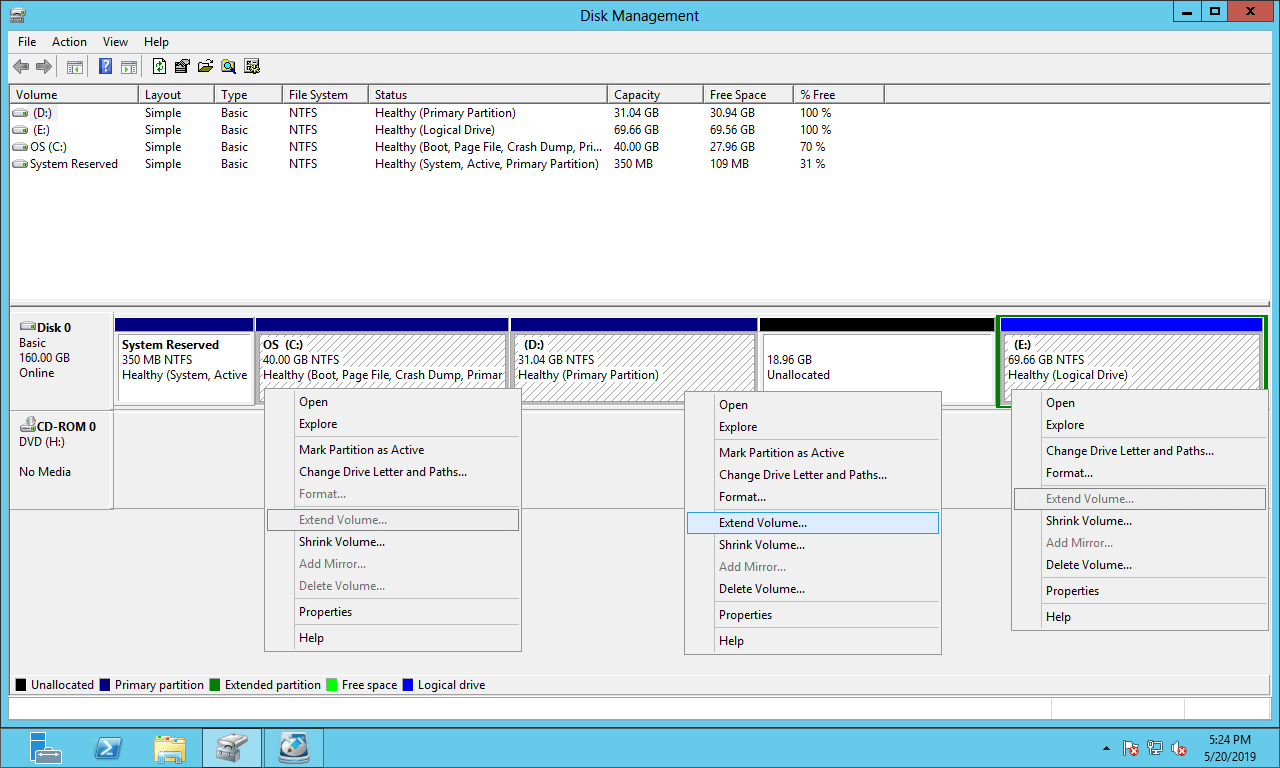
Although there are advanced "Shrink Volume" and "Extend Volume" functions, Disk Management cannot extend the system partition by shrinking other data volumes.
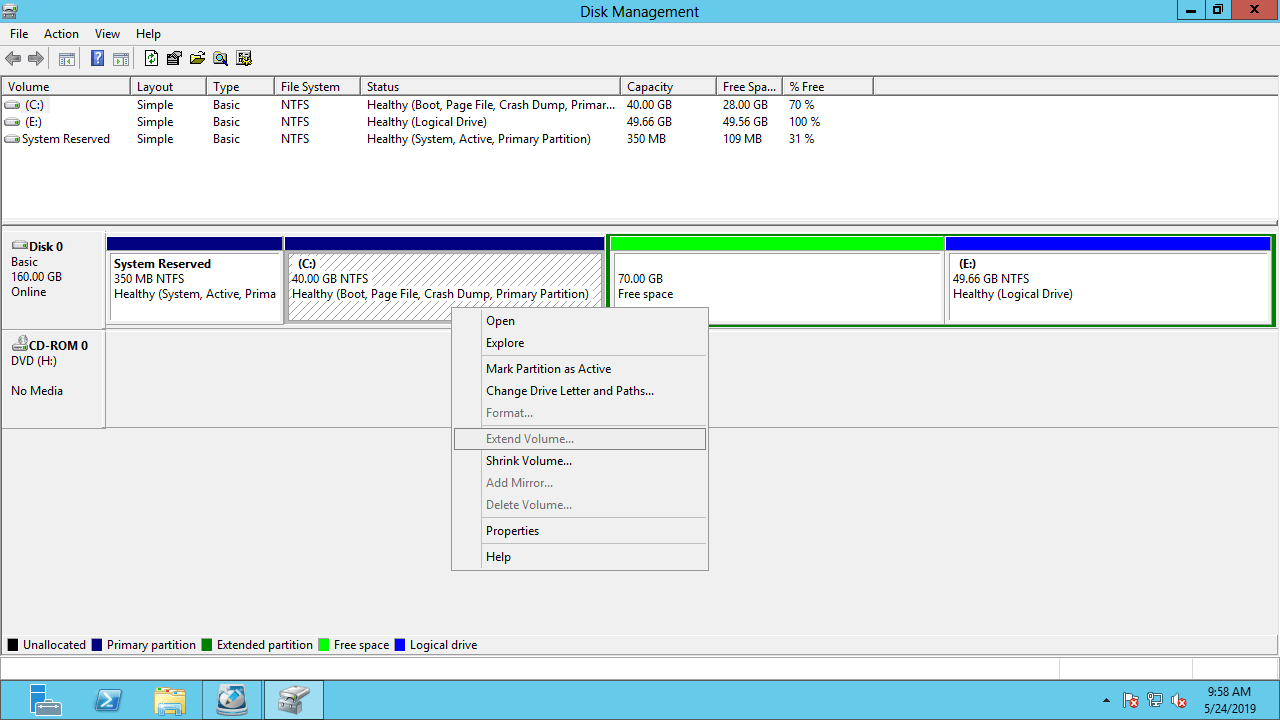
After shrinking the contiguous partition (D:), you'll find that "Extend Volume" is greyed out for the system C: drive and the other data drive E.
This is because:
- The "Shrink Volume" function can only shrink a partition to the left and create unallocated space on the right.
- "Extend Volume" can only merge unallocated space into the adjacent partition on its left.
The only way to enable "Extend Volume" for the system partition C is by deleting the adjacent partition D.
- Do not delete D if you installed programs or there are Windows services running from it.
- If partition D is logical, you still cannot extend the C drive in Server 2012 Disk Management even after deleting D.
How to extend the system volume in Windows Server 2012 without software:
- Right-click the adjacent drive D in Disk Management and select "Delete Volume".
- Right-click the C: drive and select "Extend Volume".
- Click Next until Finish in the next dialog box.
To extend the system partition in Server 2012/2016/2019/2022 without deleting a partition, disk partition software is required.
Extend System Partition by Shrinking D or E
Compared with the built-in Disk Management tool, NIUBI Partition Editor offers several advantages:
- Both NTFS and FAT32 partitions can be shrunk and extended.
- When shrinking a partition, unallocated space can be created on either the left or right.
- Unallocated space can be merged into either contiguous partition by 1 step.
- Unallocated space can be moved and then merged into any non-adjacent partition on the same disk.
- Data protection technology and more ability to merge, copy, convert, wipe, hide partitions, scan bad sectors, and more.
After shrinking and extending disk partitions with this tool, the operating system, programs, and associated settings, as well as everything else, remain exactly the same as before. There is no other operation needed even if you use any types of hardware RAID arrays, or run the server in VMware/Hyper-V.
Download NIUBI Partition Editor and you'll see all disk partitions with structure and other information. In the example below, there are C, D, E, and a system reserved partition on Disk 0. The original C: drive is 40GB and D: is 70GB.
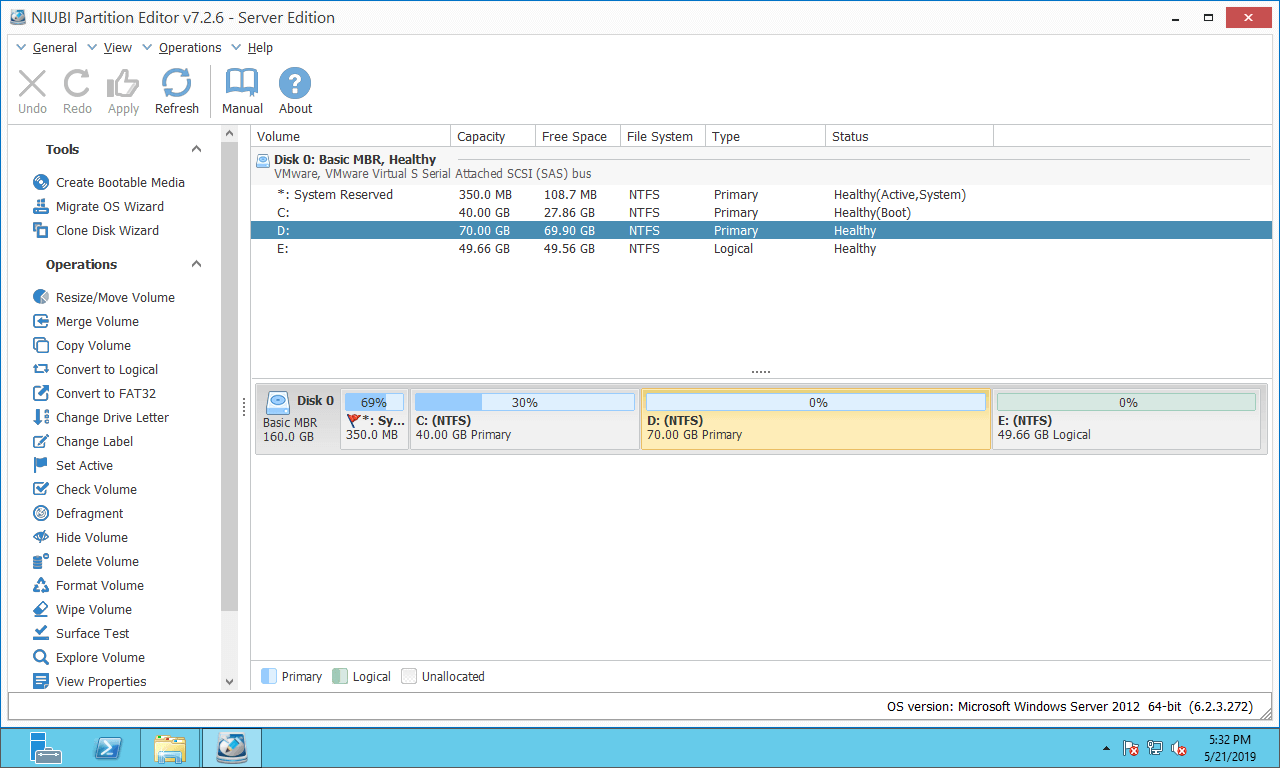
Steps to extend the system partition in Windows Server 2012 R2:
Step 1: Right-click drive D: and select "Resize/Move Volume", then drag the left border to the right in the pop-up window.
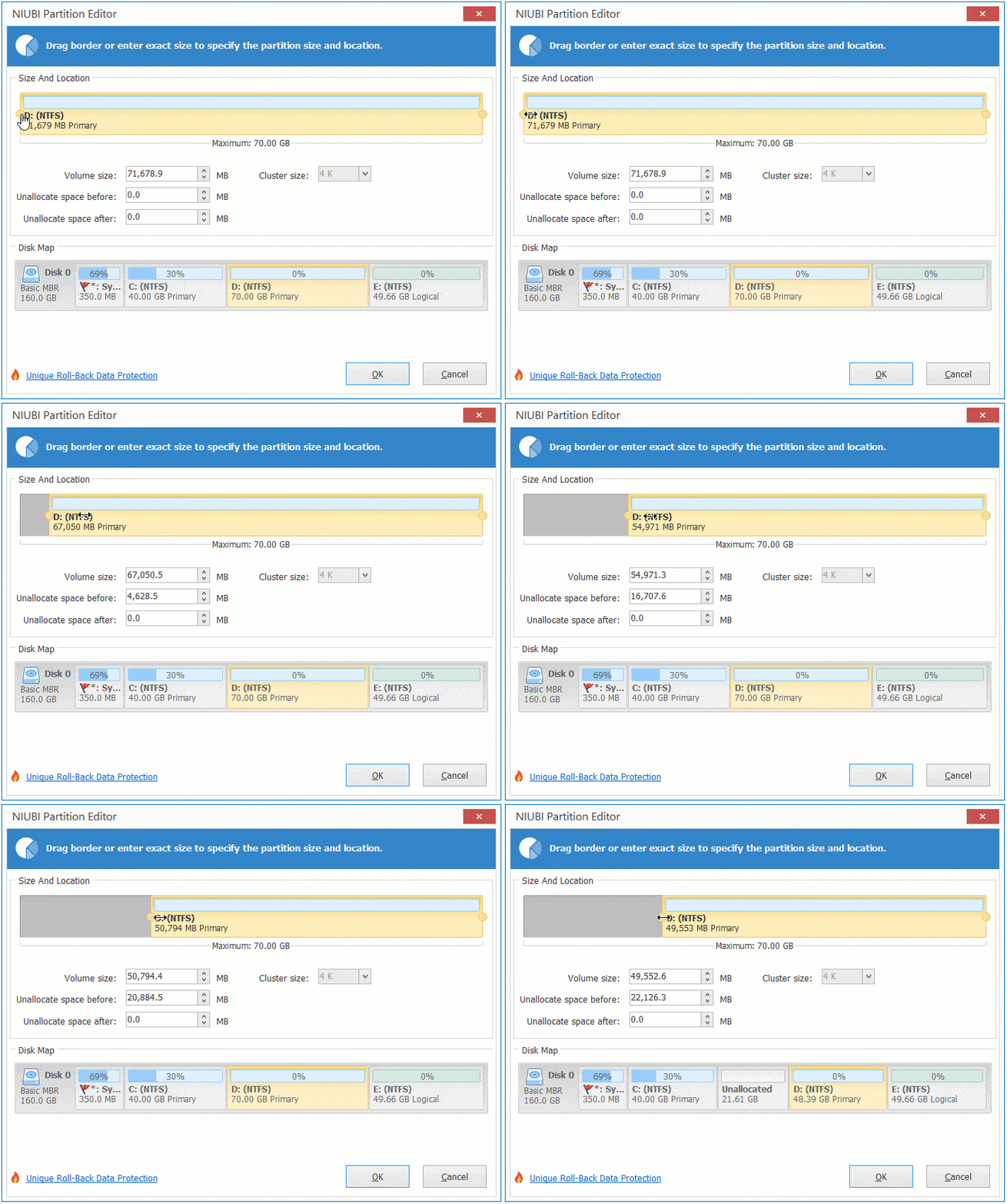
Then part of the unused space is converted to unallocated on the left side of D.
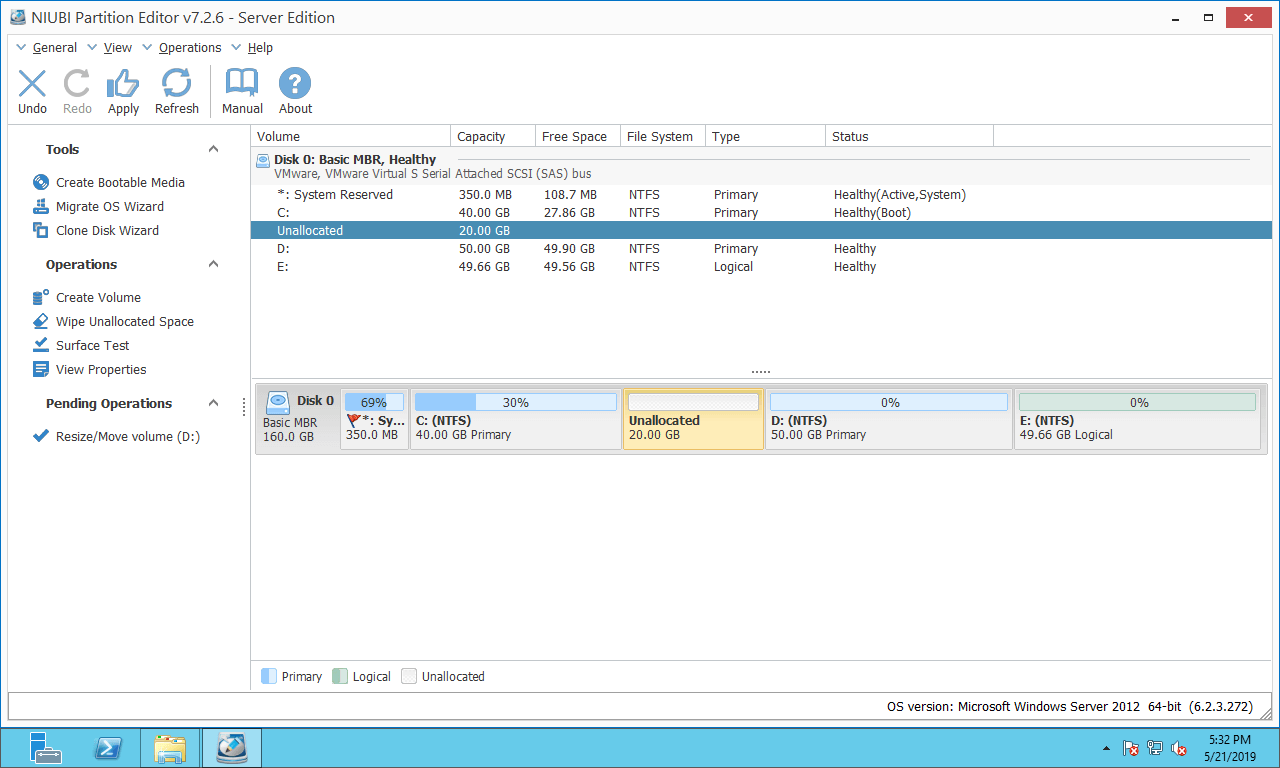
Step 2: Right-click the system partition C: and select "Resize/Move Volume" again, then drag the right border to the right to merge this unallocated space.
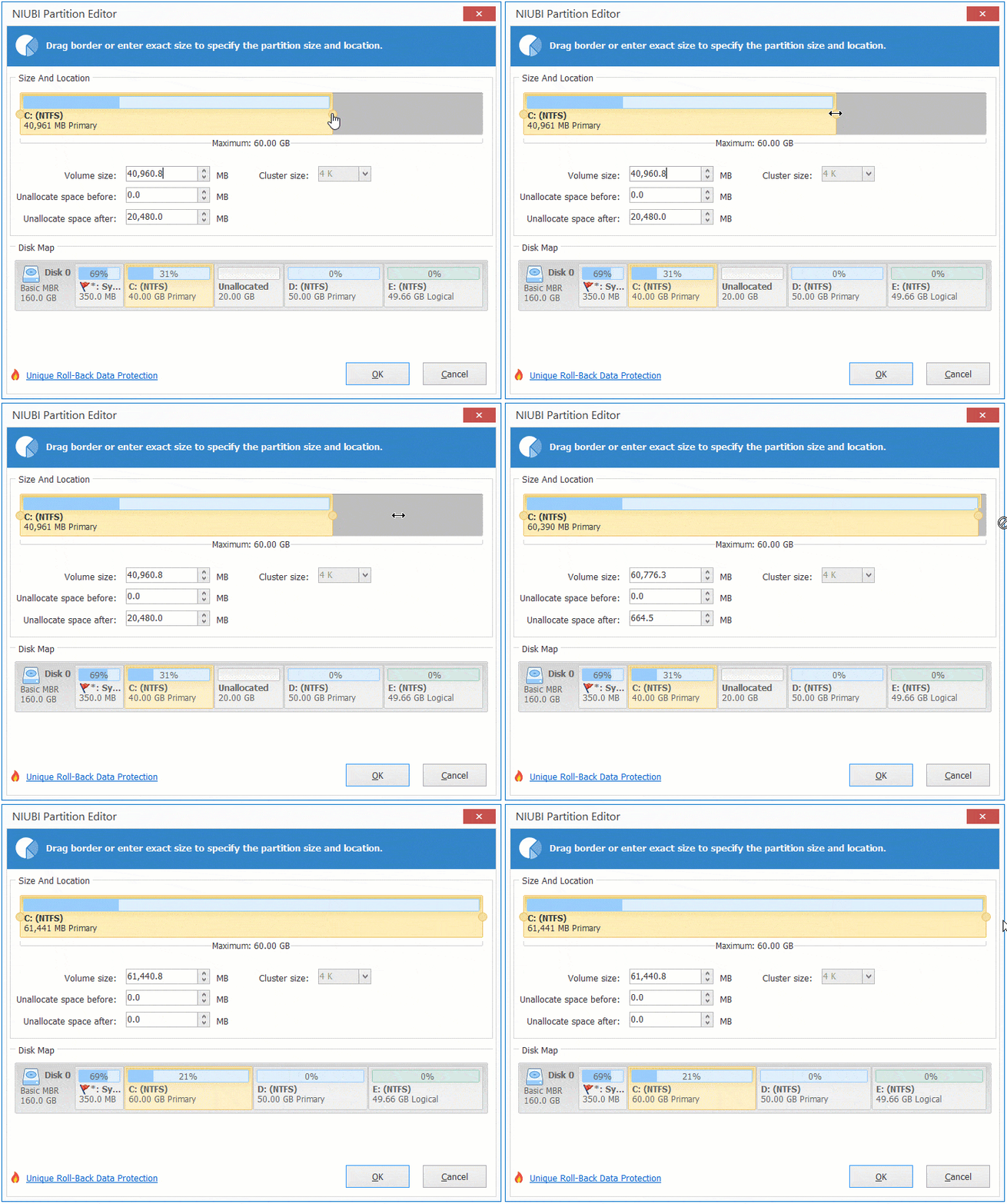
Then the system volume C is extended from 40GB to 60GB.
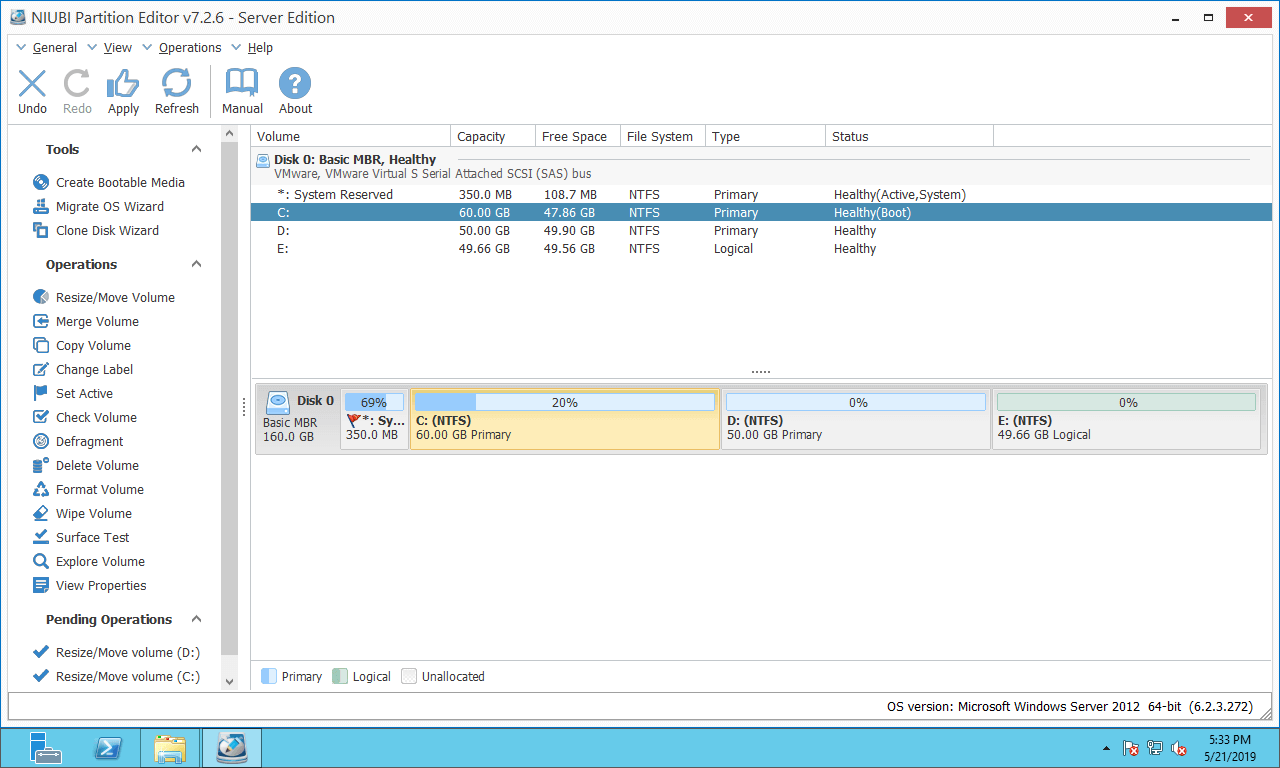
NIUBI Partition Editor is designed to work in its virtual mode; remember to click "Apply" on the top left to make changes to the real disk partitions.
If you want to get free space from a non-adjacent partition (E:), there is an additional step to move unallocated space. Watch the video on how to extend the system volume in Windows 2012 server by shrinking other volumes:
Enlarge System Partition with Another Disk
On some servers, there are no other volumes or insufficient free space on the same disk. In that case, no software can enlarge the system partition by moving space from another separate disk. However, there is still a way to extend the system partition by copying it to a larger disk. Follow the steps in the video:
Copying the single C: drive cannot ensure Windows is bootable. After the clone is complete, replace the original disk or change the BIOS boot order to boot from the cloned disk.
Compared with other tools, NIUBI Partition Editor offers powerful technology to resize partitions more safely and efficiently:
- Hot Clone - Clone disk partitions in Windows for backup, migration, and fast disk swapping.
- Virtual Mode - All operations are listed as pending for preview, and real disk partitions won't be modified until you click "Apply" to confirm.
- Cancel-at-Will - If you applied incorrect operations, you can safely cancel the ongoing operations at any stage before completion.
- 1 Second Rollback - If any error is detected while resizing partitions, it can immediately and automatically revert the disk partitions to their previous state.
- Advanced file-moving algorithm: Resize and move partitions 30% to 300% faster, saving significant time, especially when handling a large number of files.
 © 2009 - NIUBI Technology All Rights Reserved. |