
Low disk space on the C drive is a common issue in Windows Server 2012. When it happens, nobody wants to waste a long time recreating partitions and restoring everything from a backup. As with previous versions, there is an "Extend Volume" function in the Disk Management console. Some people tried to extend the C drive with this native tool but failed, because the "Extend Volume" option is greyed out. This article explains why Disk Management cannot extend the C drive in Windows Server 2012 R2 after shrinking the D drive or another partition, and what to do when you are unable to extend the C drive in Server 2012 R2.
Why Disk Management Cannot Extend C Drive in Server 2012
There are 2 native tools to help extend partitions in Server 2012: Diskpart and Disk Management. Diskpart is a command-line tool including "Extend" and many other commands. Disk Management has an "Extend Volume Wizard" with a graphical interface. Although these tools work in different ways, they have the same restrictions when shrinking and extending partitions. To better explain the reasons, the following examples will only use Disk Management.
Reasons Why You Cannot Extend C Drive in Windows Server 2012 R2:
1. No adjacent unallocated space on the right
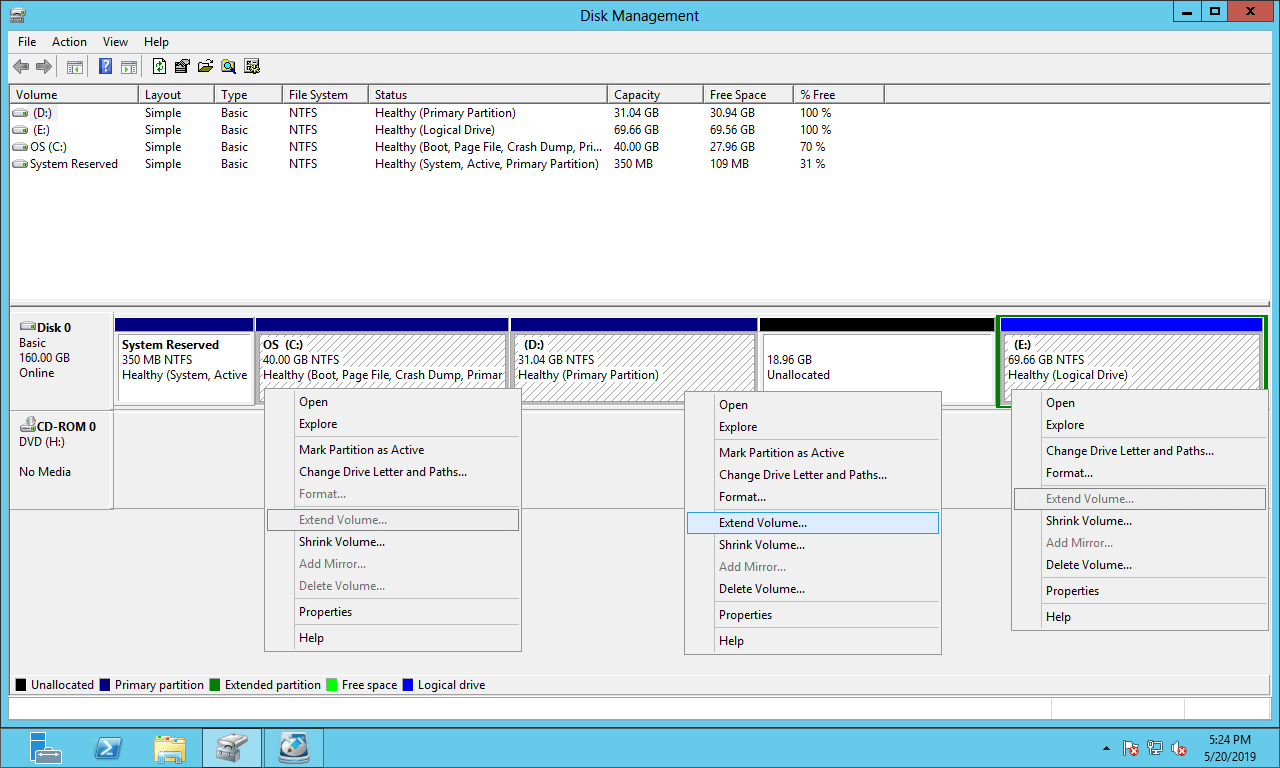
The size of a physical disk is fixed; thus, before extending the C drive, there must be unallocated space on the same disk. If you did not delete or shrink another volume to get such space, you naturally cannot extend the C drive.
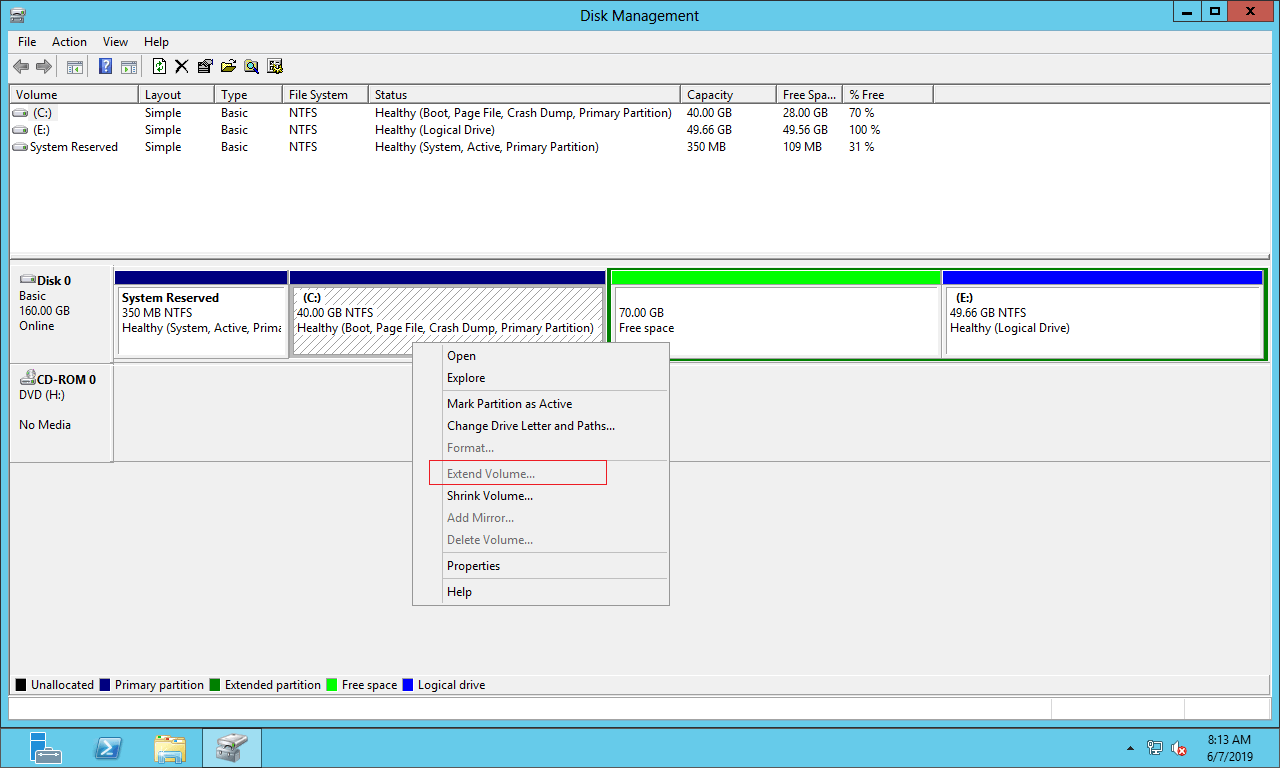
The major issue is that you still cannot expand the C drive in Server 2012 Disk Management after shrinking other partitions. As shown in the screenshot, Extend Volume is disabled for the C drive after shrinking D.
This is because:
- Unallocated space can only be generated on the right side while shrinking a partition with Disk Management.
- Unallocated space can only be merged into the left contiguous partition via the "Extend Volume" function.
2. Limitations of an MBR disk
This issue only exists on an MBR disk; you can ignore this section if you use a GPT disk.
If the contiguous partition D is logical, you still cannot extend the C drive on Server 2012 even after deleting D. This is because:
On an MBR disk, there is a maximum of 4 entries in the Master Boot Record sector. Therefore, you can create a maximum of 4 primary partitions, or 3 primary partitions plus an Extended partition. If you want to create more partitions, they must be created as logical inside of the Extended partition.
As shown in the test server, the disk space of the D drive is shown as "Free space" after deleting it; "Extend Volume" is still disabled for the C drive.
On an MBR disk, unallocated space generated from deleting a primary partition cannot be extended into any logical drives. "Free space" generated from deleting a logical drive cannot be extended into any primary partitions.
What to Do When Unable to Extend C Drive in Server 2012 R2
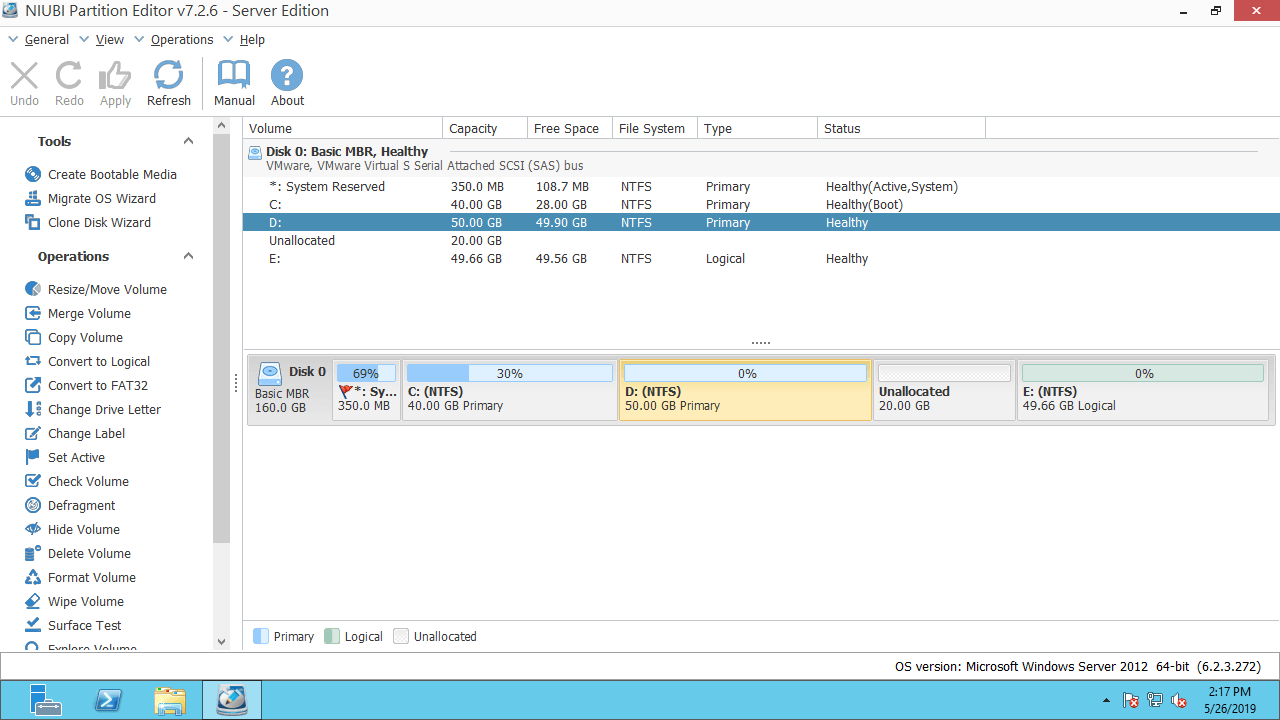
With NIUBI Partition Editor, this problem can be solved easily. It can combine unallocated space into either contiguous partition in 1 step, regardless of whether it is primary or logical. When the unallocated space is non-adjacent, it can move the partition to make the unallocated space adjacent.
Download this tool and you will see the main window with the disk partition structure and other information. There is 20GB of unallocated space that is shrunk from the D drive via Disk Management.
Steps when you cannot extend the C: drive in Windows Server 2012 R2 after shrinking D/E:
Step 1: Right-click the D: drive and select "Resize/Move Volume", then drag the middle of this partition to the right in the pop-up window:
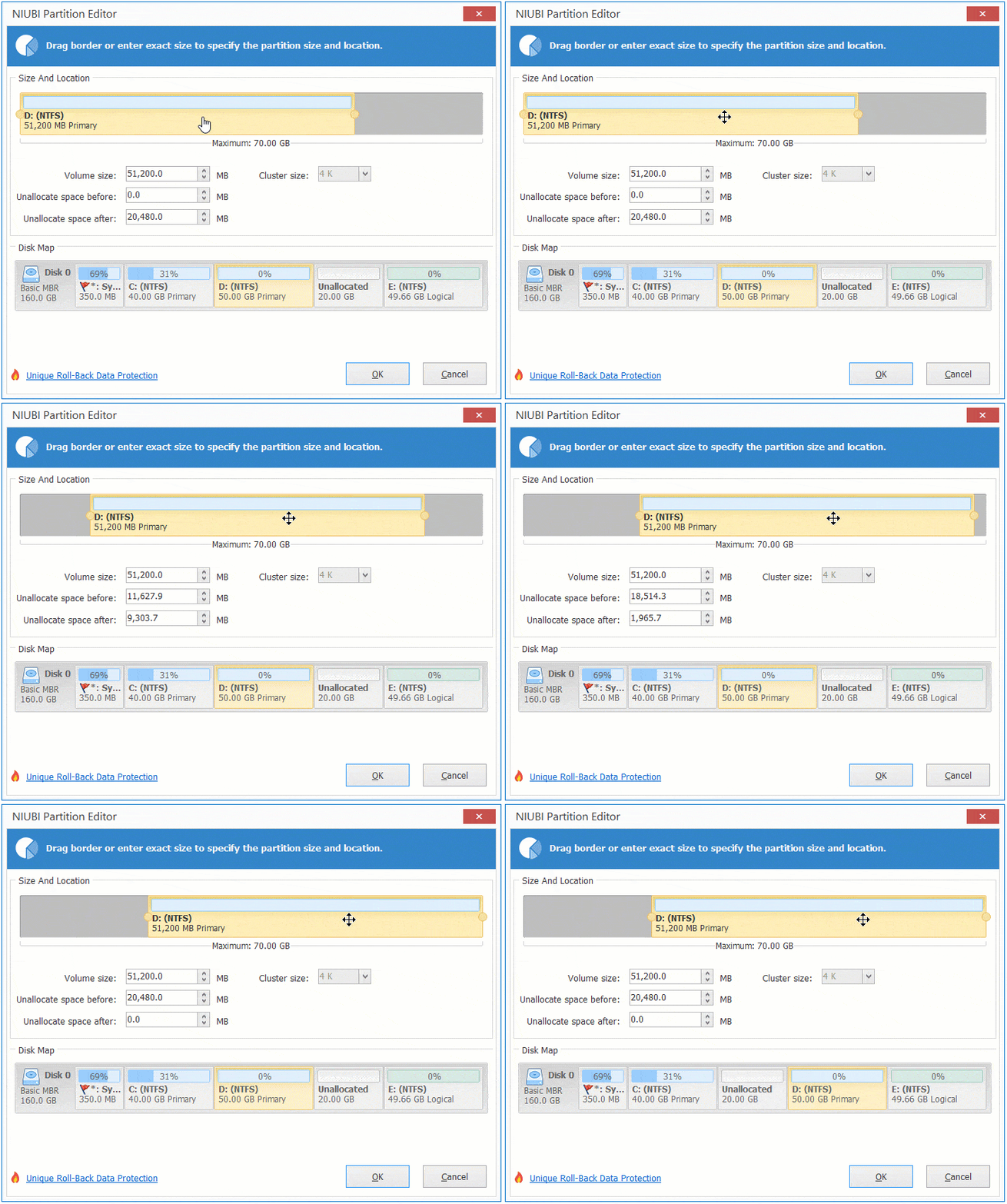
Then, the unallocated space is moved to the left side.
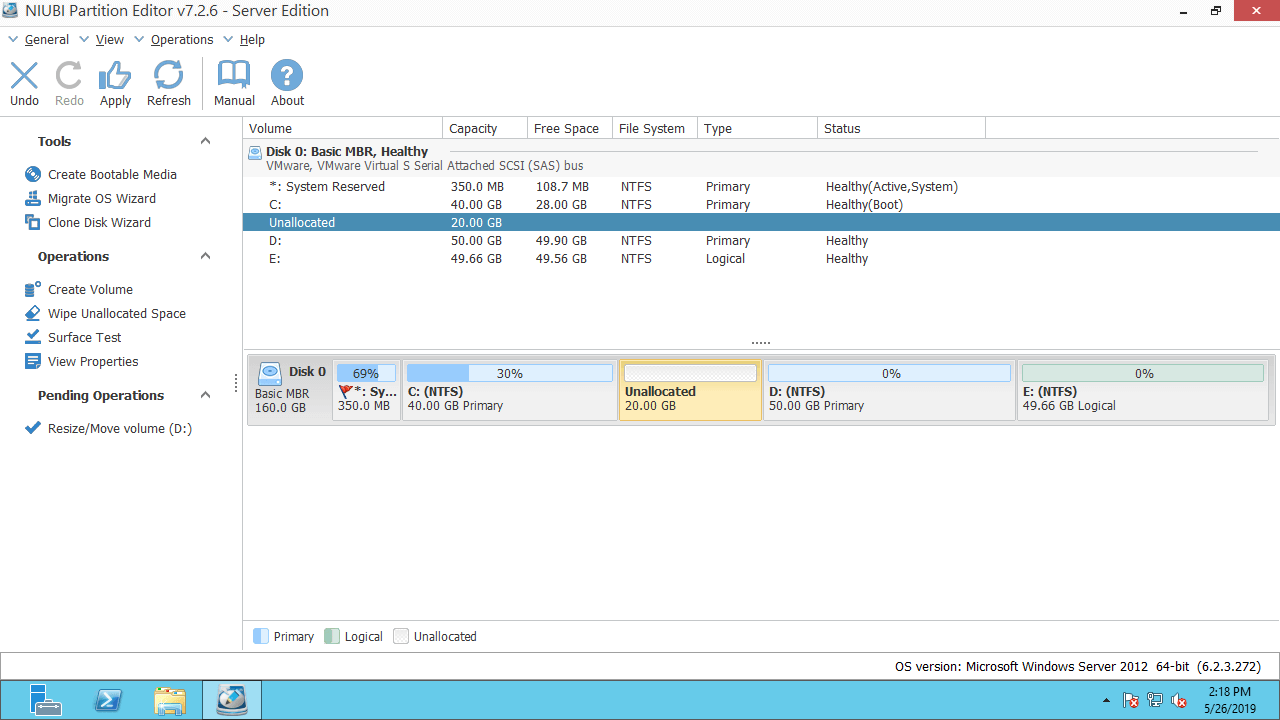
Step 2: Right-click the C: drive and select "Resize/Move Volume" again, then drag the right border to the right in the pop-up window.
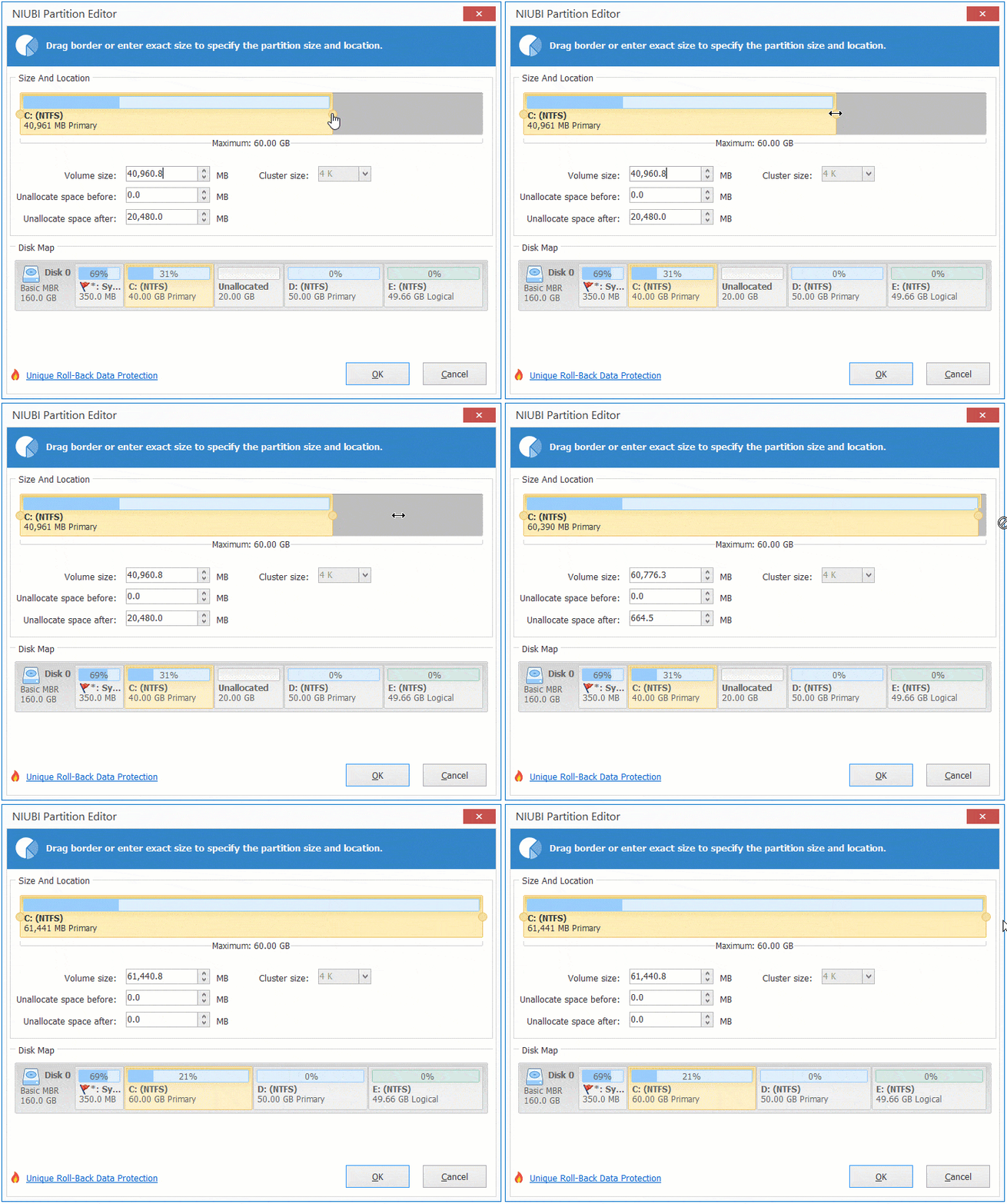
Then, the unallocated space is merged into the C: drive.
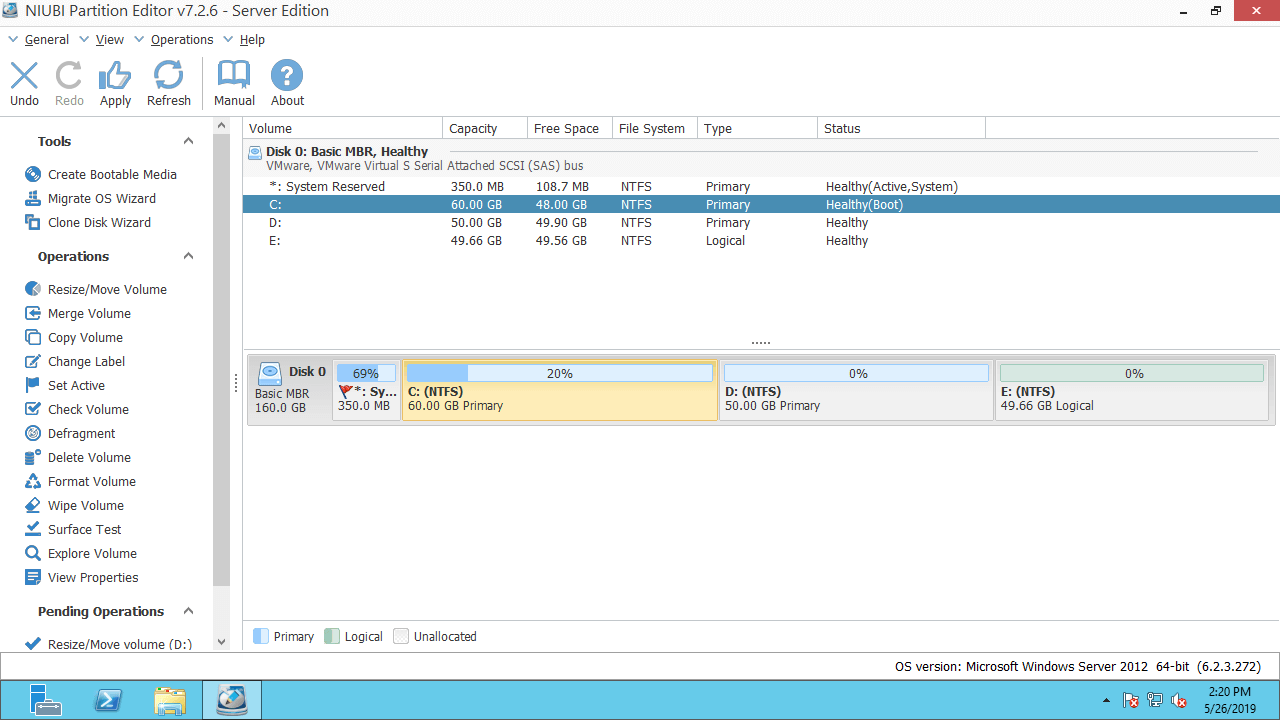
Step 3: Click "Apply" on the top left to take effect. (The operations before this step only work in virtual mode.)
If there is an EFI, Recovery, or OEM partition behind the C drive, you need to move these partitions to the right until the unallocated space is next to the C drive.
Watch the video on how to operate:
What to Do When You Cannot Extend C Drive to Another Disk
No disk partitioning software can extend a partition with free space from another separate disk. If there is no available space on the same disk, you can clone the disk to a larger one with NIUBI Partition Editor, and then expand the C drive with extra disk space.
Follow the steps in the video:
Besides moving, shrinking, and extending partitions on Windows Server 2012/2016/2019/2025, NIUBI Partition Editor helps you merge, convert, clone, and wipe partitions, scan bad sectors, and much more.
 © 2009 - NIUBI Technology All Rights Reserved. |