
This article explains how to extend a volume using the diskpart command on Windows Server 2012 R2, the limitations of the diskpart command, and a better method for extending partitions on Windows Server 2012/2016/2019/2022/2025.
How to Extend Volume with Diskpart Command
Besides the GUI-based Disk Management tool, Windows Server 2012 also includes DiskPart, which allows you to create, delete, format, shrink, and extend partitions, among other tasks. DiskPart operates via the command prompt, a feature that has been integrated into Windows since XP. Compared to Disk Management, the DiskPart command is more direct and faster for advanced administrators when extending partitions. However, both tools have limitations when extending hard drive partitions. To better demonstrate how the DiskPart Extend command works, the following examples will display both tools simultaneously.
- To open Disk Management, press the Windows key + X on your keyboard and select Disk Management from the list.
- To open the DiskPart command prompt: press the Windows key + R on the keyboard, type "diskpart" and press Enter.
Steps to extend partition with DiskPart on Windows Server 2012 R2:
Step 1: Type list volume and press Enter in the DiskPart command prompt window, then you will see all individual partitions without structure. The original C: drive is 30GB, and unallocated space is not shown by DiskPart.
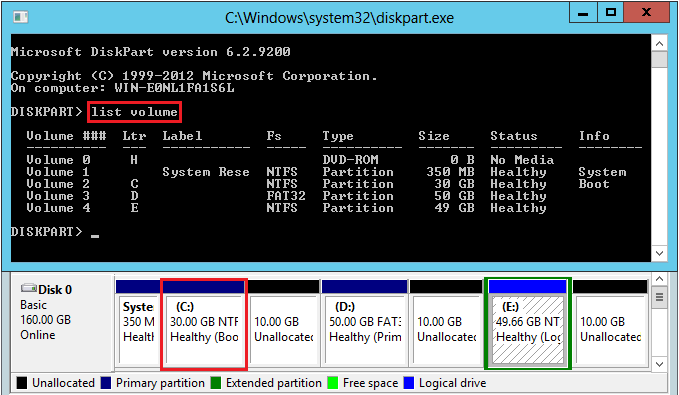
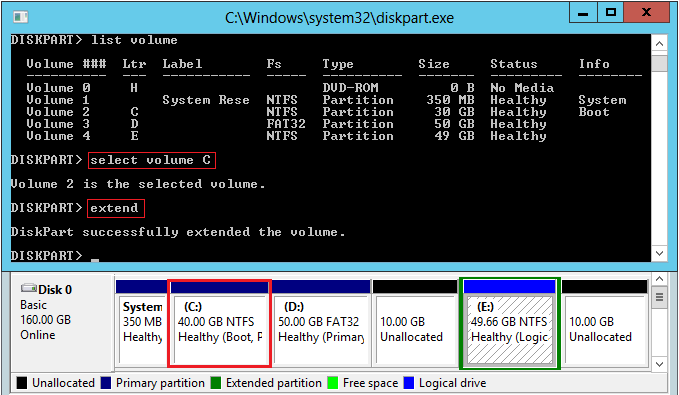
Step 2: Type select volume C or select volume 2 and press Enter.
Step 3: Type extend and press Enter. If you want to indicate an amount, type extend size=10240 in MB (for example, there is only 10GB of unallocated space behind the C drive in the test server).
The C: drive is extended to 40GB by merging the contiguous unallocated space.
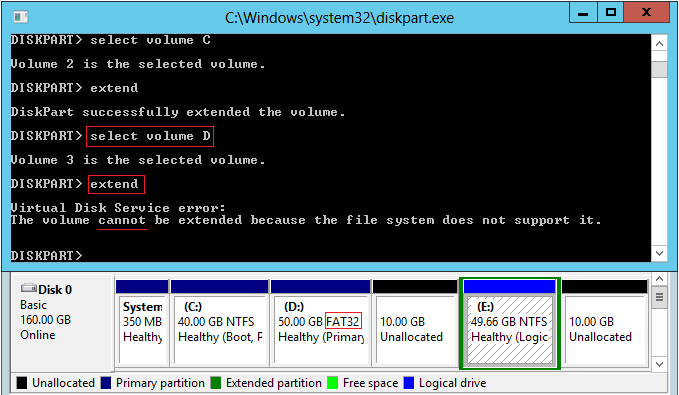
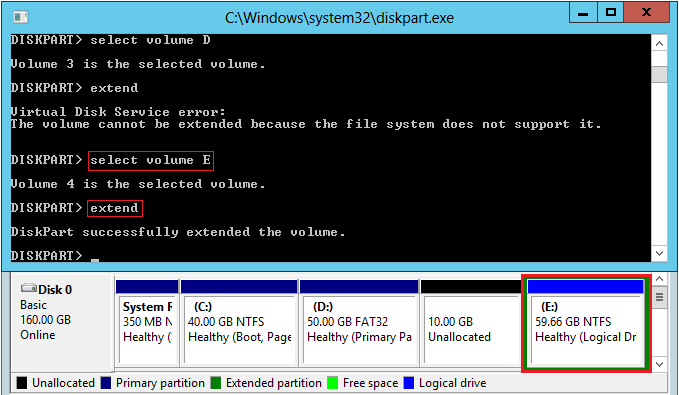
DiskPart cannot extend the D drive because it is a FAT32 partition.
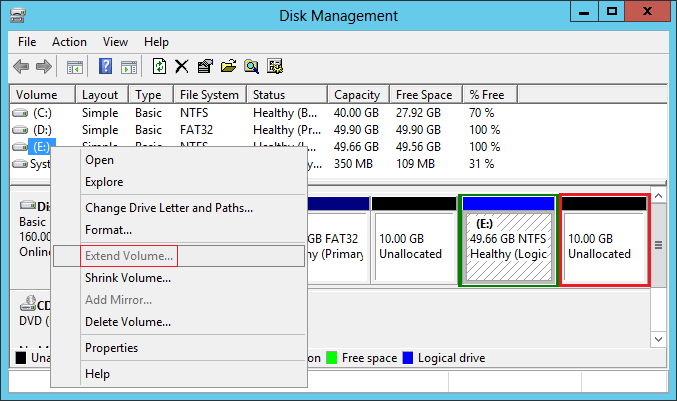
You will receive the error message: "The volume cannot be extended because the file system does not support it." When you right-click the D drive in Disk Management, the Extend Volume option is greyed out.
If you right-click the E drive in Disk Management, Extend Volume is also disabled.
In the Disk Management console, "Unallocated space" generated from a primary partition cannot be extended into any logical drive. "Free space" generated from a logical drive cannot be extended into any primary partition.
But DiskPart can extend the E drive successfully.
Restrictions When Extending Partition with Diskpart Cmd
Although DiskPart is better than the Disk Management tool for extending disk partitions, it also has restrictions. In the DiskPart command prompt window, type help extend and you will see these restrictions.
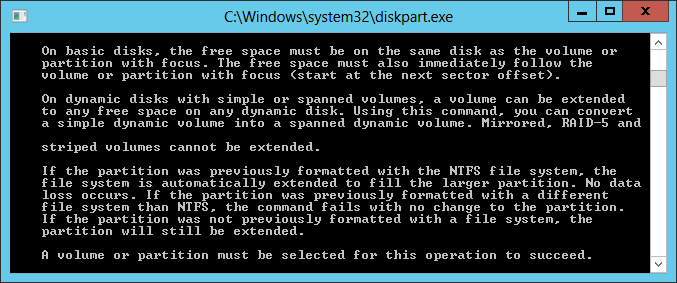
To be short:
- On a basic disk, there must be adjacent unallocated space on the right side of the volume that you want to extend.
- Only the partitions that are formatted as NTFS or without a filesystem (RAW) can be extended.
If you try to extend a partition without adjacent unallocated space on the right, you will receive the error message: "There is not enough usable free space on specified disk(s) to extend the volume."
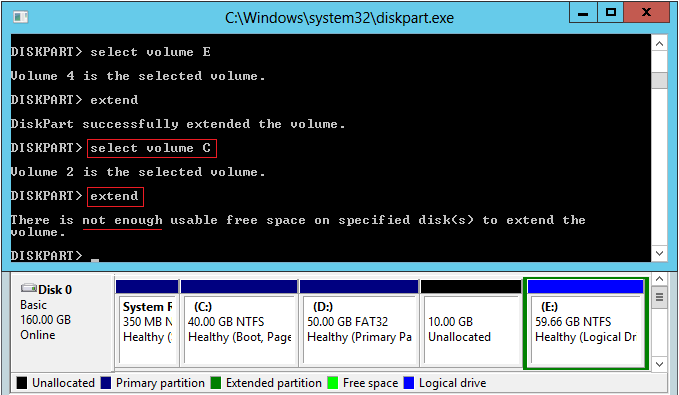
Whether you shrink a volume (such as D:) using the Disk Management tool or the DiskPart command, unallocated space can only be generated on the right side of D. As a result, this unallocated space cannot be extended into the non-adjacent drive C or the right contiguous partition E.
This means that if you want to extend the C: drive, you must delete the D partition to create adjacent unallocated space. However, in many servers, programs or Windows services are running from the D drive, so deleting it is not an option. In other words, both the DiskPart command and Disk Management are not useful if you want to extend a partition by shrinking another one.
Better Way to Extend Disk Partition on Server 2012 R2
Compared to the DiskPart command, NIUBI Partition Editor is the better choice because it is much more powerful.
- Both NTFS and FAT32 partitions can be shrunk and extended.
- Unallocated space can be generated on either the left or right side while shrinking a partition.
- Unallocated space can be merged into either adjacent partition in 1 step.
- Unallocated space can be moved and then combined into any non-adjacent partitions.
- It uses a simple click, drag, and drop interface; you will see the disk partition structure and other information at all times.
- You can cancel the operations if you make a mistake.
Download NIUBI Partition Editor and follow the steps in the video to shrink and extend a partition in Windows Server:
Compared to other disk partition software, NIUBI Partition Editor is much safer and faster because of its innovative technologies:
- Hot Clone - Clone disk partitions in Windows for backup, migration, and fast disk swapping.
- Virtual Mode - All operations are listed as pending for preview, and real disk partitions won't be modified until you click "Apply" to confirm.
- Cancel-at-Will - If you applied incorrect operations, you can safely cancel the ongoing operations at any stage before completion.
- 1 Second Rollback - If any error is detected while resizing partitions, it can immediately and automatically revert the disk partitions to their previous state.
- Advanced File-Moving Algorithm: Resize and move partitions 30% to 300% faster, saving significant time, especially when handling a large number of files.
 © 2009 - NIUBI Technology All Rights Reserved. |