
Unallocated space is disk space that does not belong to any volume. Besides creating a new volume, it can be merged into other partitions with certain tools. Then the unallocated space will be converted to part of the free space in another partition. When the system partition C runs out of space, many people want to extend it by shrinking D or another partition. If you shrink a partition with Disk Management, the unallocated space cannot be added to the C drive. You must transfer the unallocated space to the left. This article introduces how to move unallocated space in Windows Server 2012 R2 and merge it into another partition.
Cannot Move Unallocated Space in Server 2012 Disk Management
The native Windows Server 2012 Disk Management tool has a "Shrink Volume" function to decrease a partition's size and get unallocated space. It is able to shrink both the system partition and data volumes without losing data. However, it can only create unallocated space on the right side, which causes further issues.
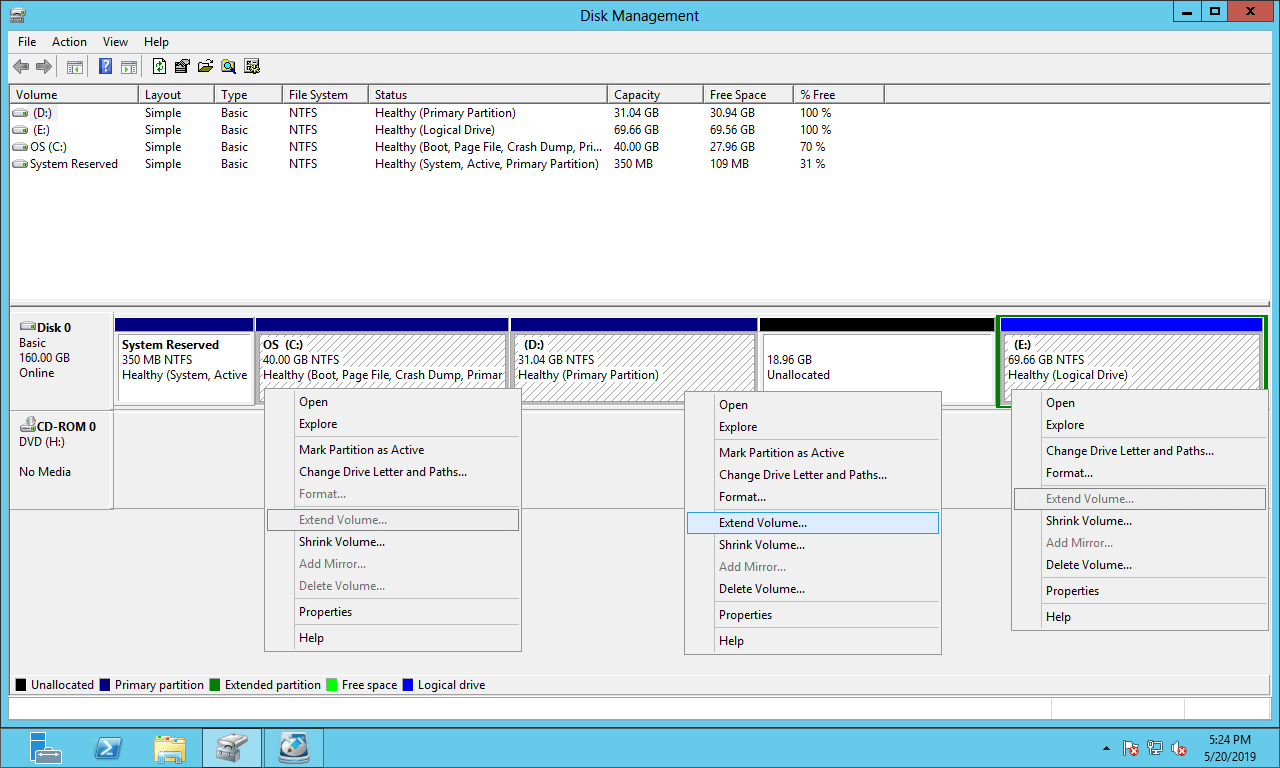
The "Extend Volume" function can only merge unallocated space into the left adjacent partition. So, neither drive C: nor E: can be extended after shrinking D.
- If you want to extend the C: drive in Server 2012 Disk Management, you must move the unallocated space next to the C: drive.
- If you want to extend drive E: via Disk Management, you must move the unallocated space to the end of the disk.
Move Unallocated Space to the Left or Right
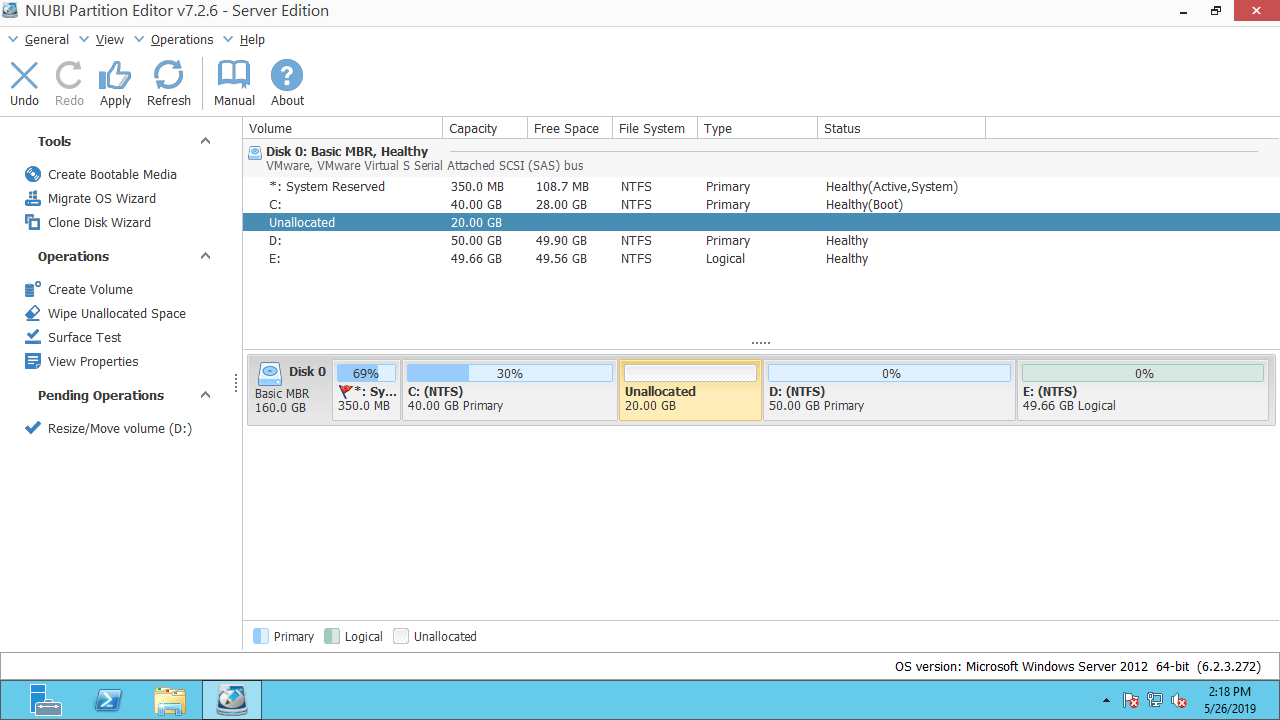
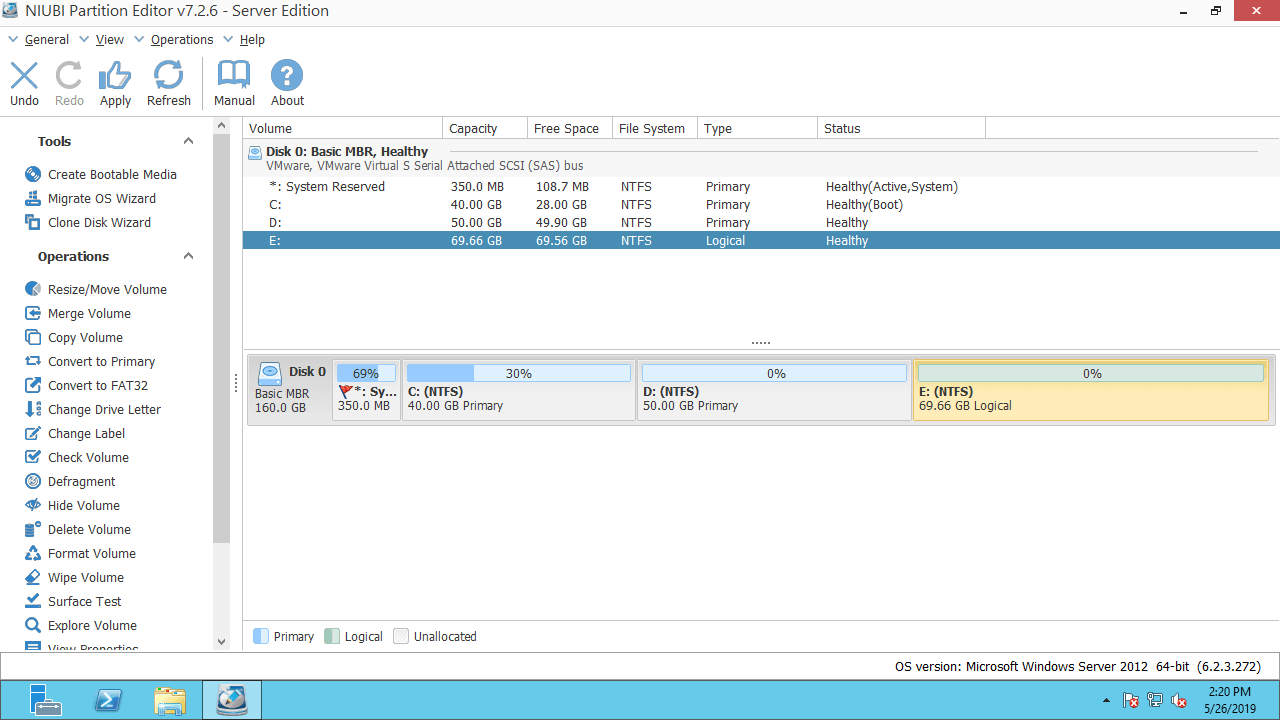
Download NIUBI Partition Editor and you'll see all disk partitions with structure and other information. In the example below, there is 20GB of unallocated space shrunk from drive D via Disk Management.
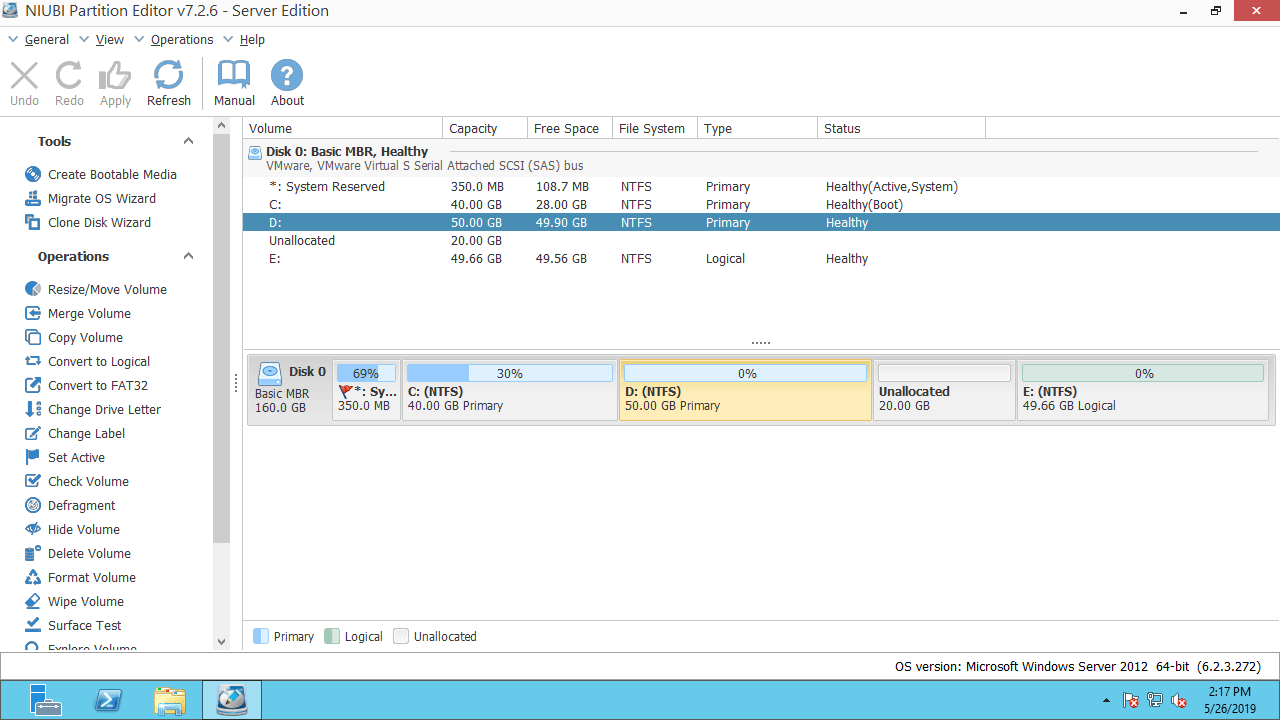
How to move unallocated space to the left in Server 2012 R2:
Right-click drive D: and select "Resize/Move Volume", then drag the middle of drive D to the right in the pop-up window:
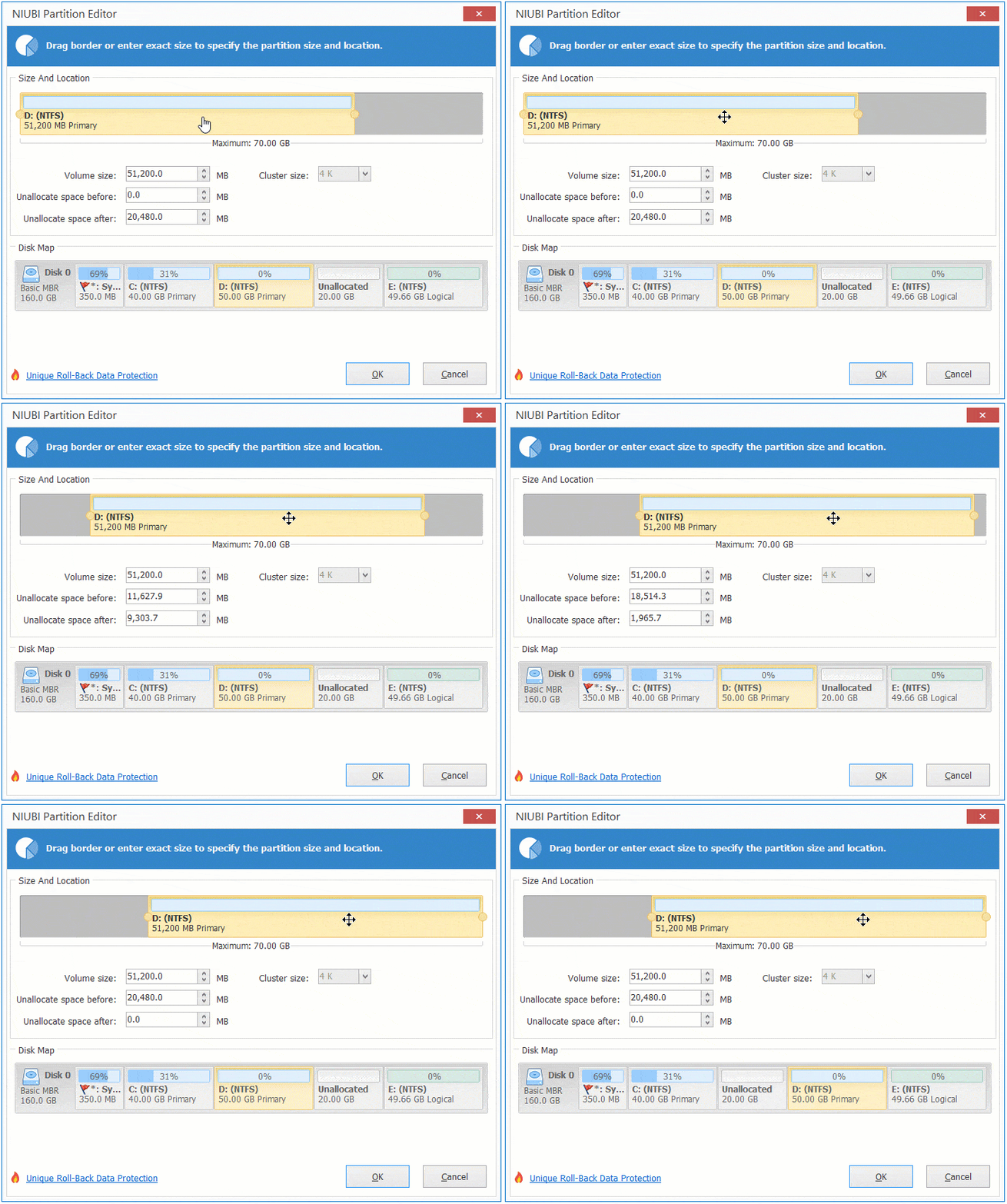
Then the unallocated space is moved to the left, and drive D: is moved to the right side.
How to move unallocated space to the right:
Right-click drive E: and select "Resize/Move Volume", then drag the middle of drive E to the left in the pop-up window:
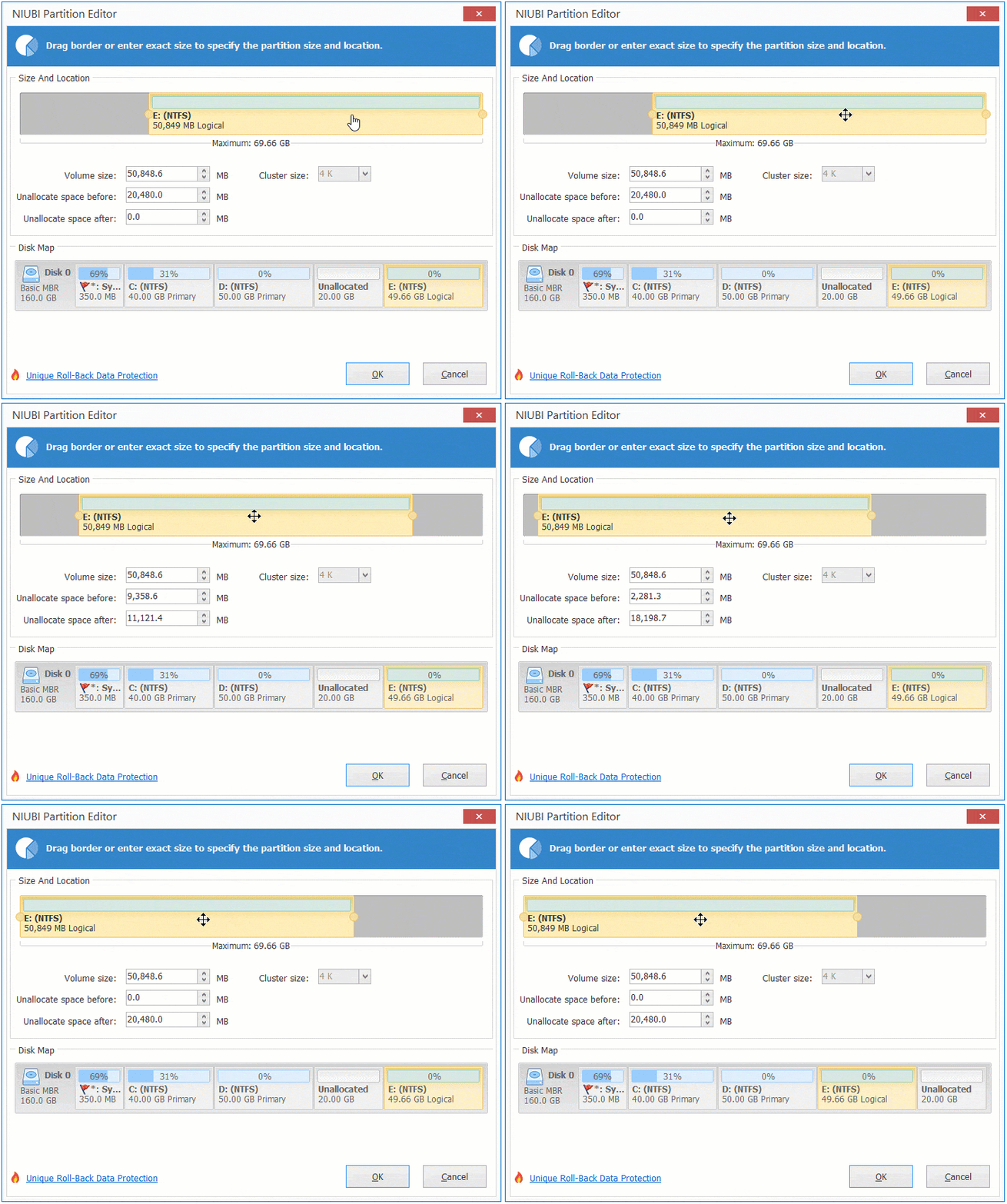
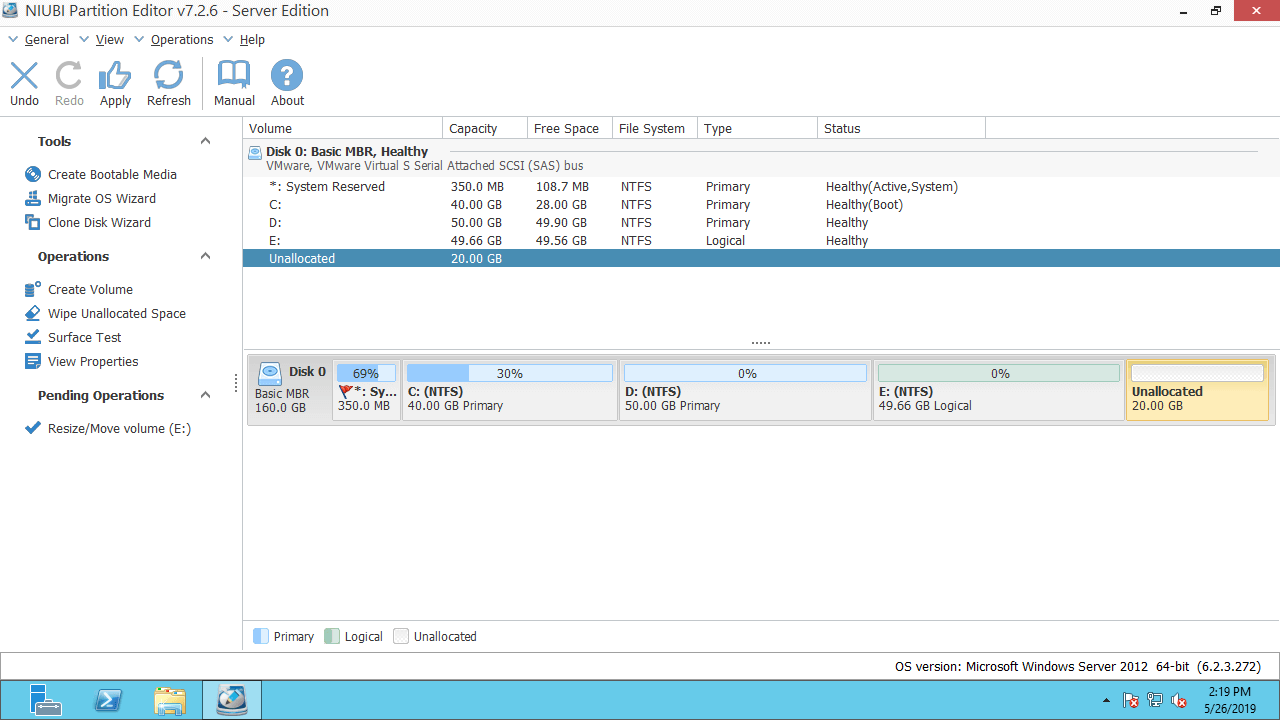
Then the unallocated space is moved to the right, and drive E: is moved to the left side.
When there is adjacent unallocated space on the left, you can extend drive E directly without moving the unallocated space to the right. To do this: right-click drive E: and select "Resize/Move Volume", then drag the left border to the left in the pop-up window.
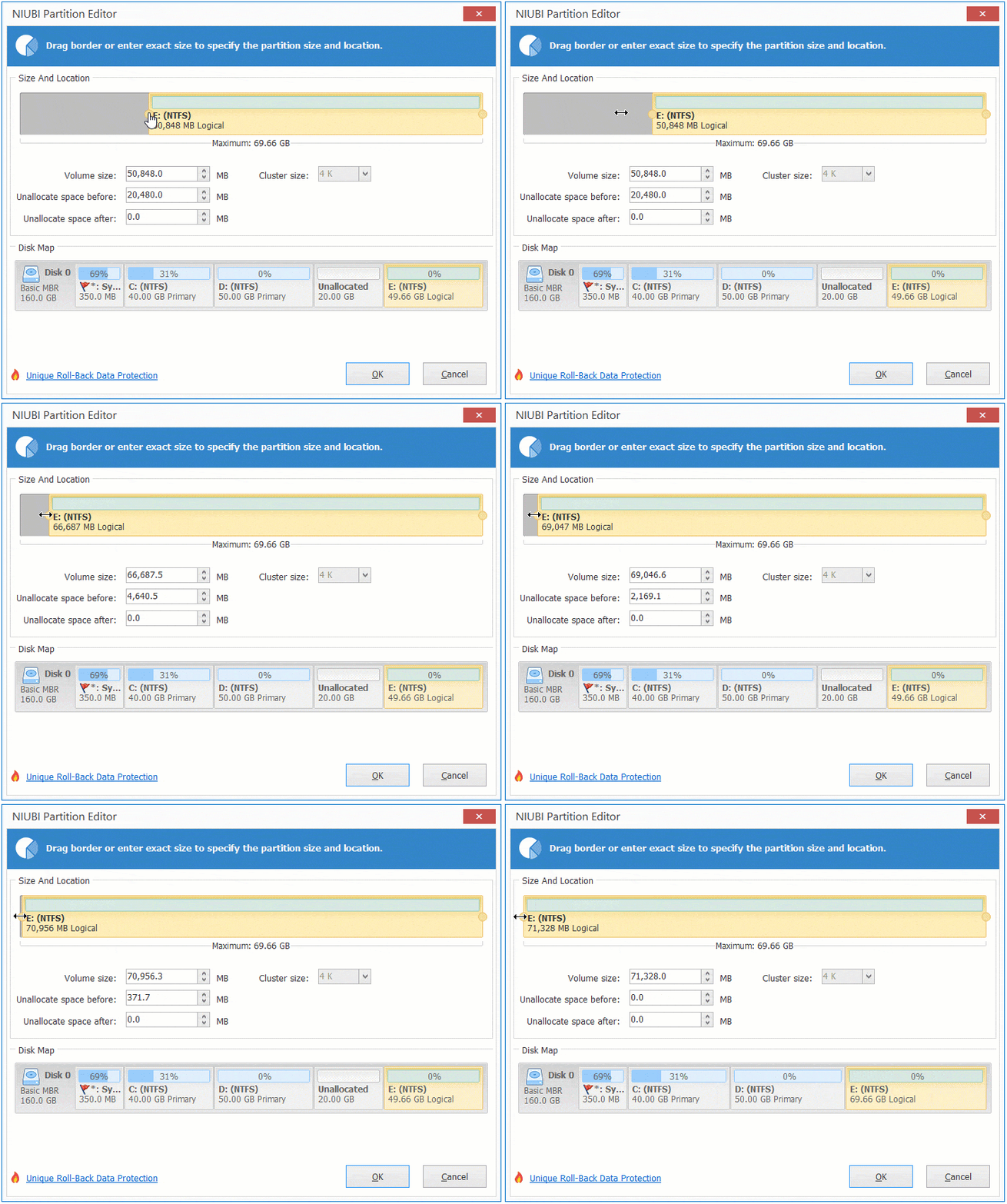
Then the unallocated space is merged into drive E.
Move Unallocated Space to the System C: Drive
In most cases, server 2012 administrators want to move unallocated space to the left and merge it into the C drive. Follow Option 1 above to move the unallocated space from the right of D: to the left side. Then follow the step below to expand the C: drive.
Right-click drive C: and select "Resize/Move Volume", then drag the right border to the right in the pop-up window.
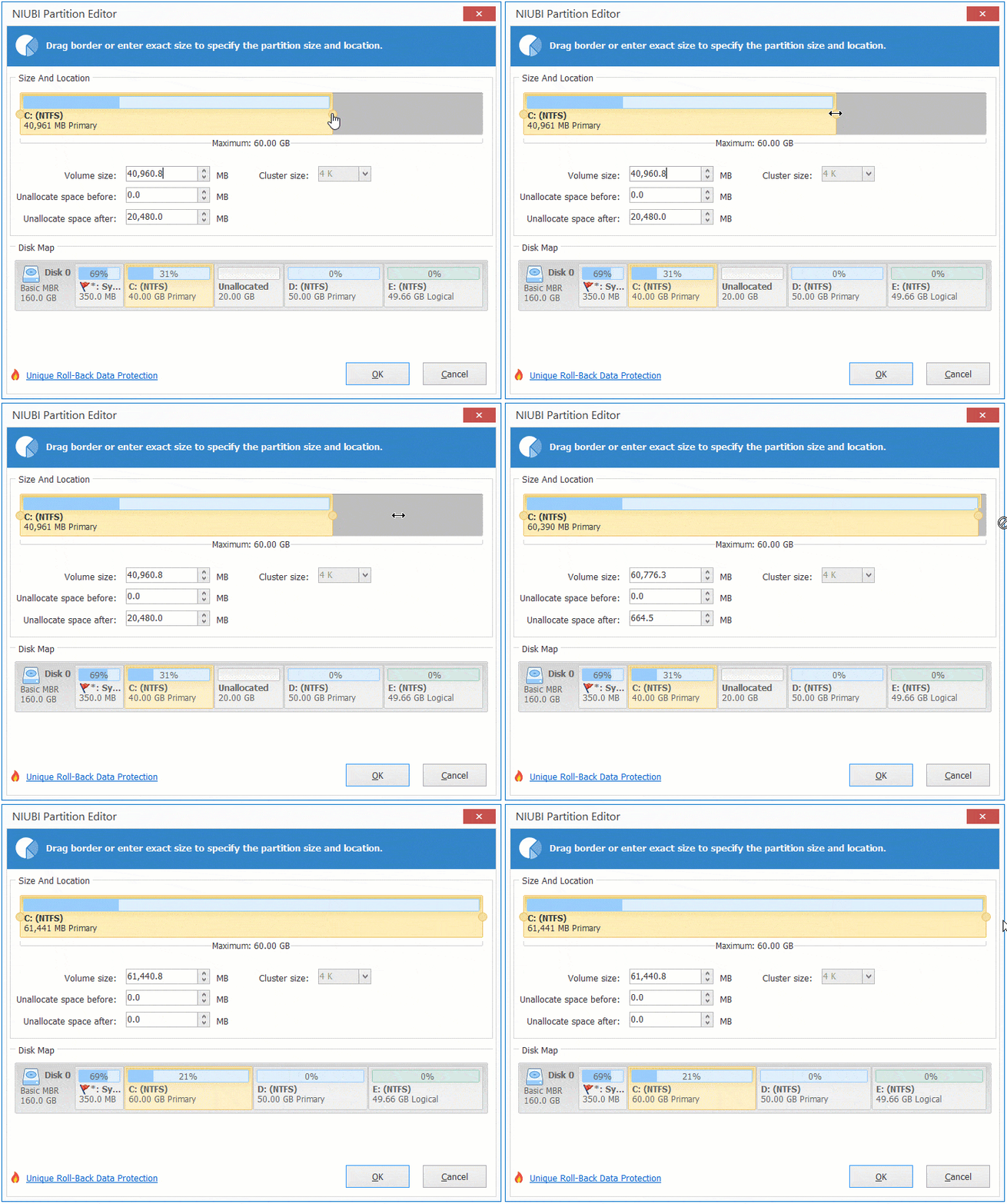
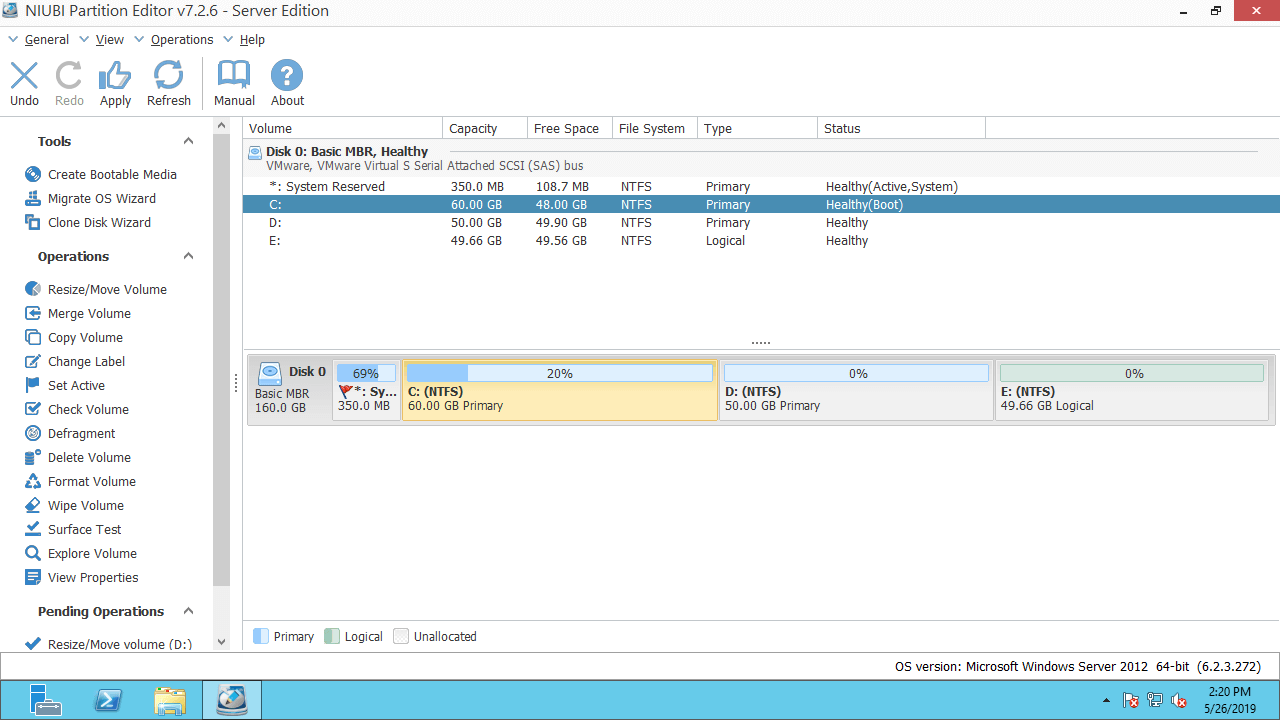
Then the unallocated space is merged into the C: drive.
Watch the video on how to move and merge unallocated space in Windows 2012 server:
Remember to click "Apply" to execute the changes to the physical disk partitions.
Move Unallocated Space to Another Disk
On some servers, the system partition C is full, but there is no other partition, or there is not enough free space on the same disk. Some people want to move unallocated space from another separate disk. Actually, this is impossible, because a hard disk is a physical unit and its size is fixed.
In this case, you can clone it to another larger disk and expand the C drive with the extra disk space. Follow the steps in the video:
In Summary
To move unallocated space in Windows Server 2012 R2, right-click either adjacent partition and run the "Resize/Move Volume" feature. Drag the middle of this partition in the pop-up window, and then you can exchange the position of this partition and the adjacent unallocated space. By dragging either border into the adjacent unallocated space, you can merge them.
Besides shrinking, extending, and moving partitions, NIUBI Partition Editor helps you merge, copy, convert, defrag, wipe, and hide partitions, and much more.
 © 2009 - NIUBI Technology All Rights Reserved. |