
As with other versions, the C drive gets full in Windows Server 2012 R2, whether you use an SSD, HDD, or RAID arrays. When the system C: drive is full in Server 2012 and R2, it will turn red in File Explorer.
When you see the C drive showing full or receive a "Low Disk Space" warning, you should try to fix this issue as quickly as possible. Otherwise, you will suffer from decreased server performance, and the server may freeze, reboot unexpectedly, or even crash.
To fix a full C drive in Windows Server 2012 R2, you may free up disk space with the built-in Windows Disk Cleanup or third-party tools. But in general, you cannot get a large amount of free space, so the C drive will become full again in the near future. It is highly recommended to add more free space from other partitions. This article introduces the 2 most effective methods to fix the Windows Server 2012 C drive full issue quickly and easily.
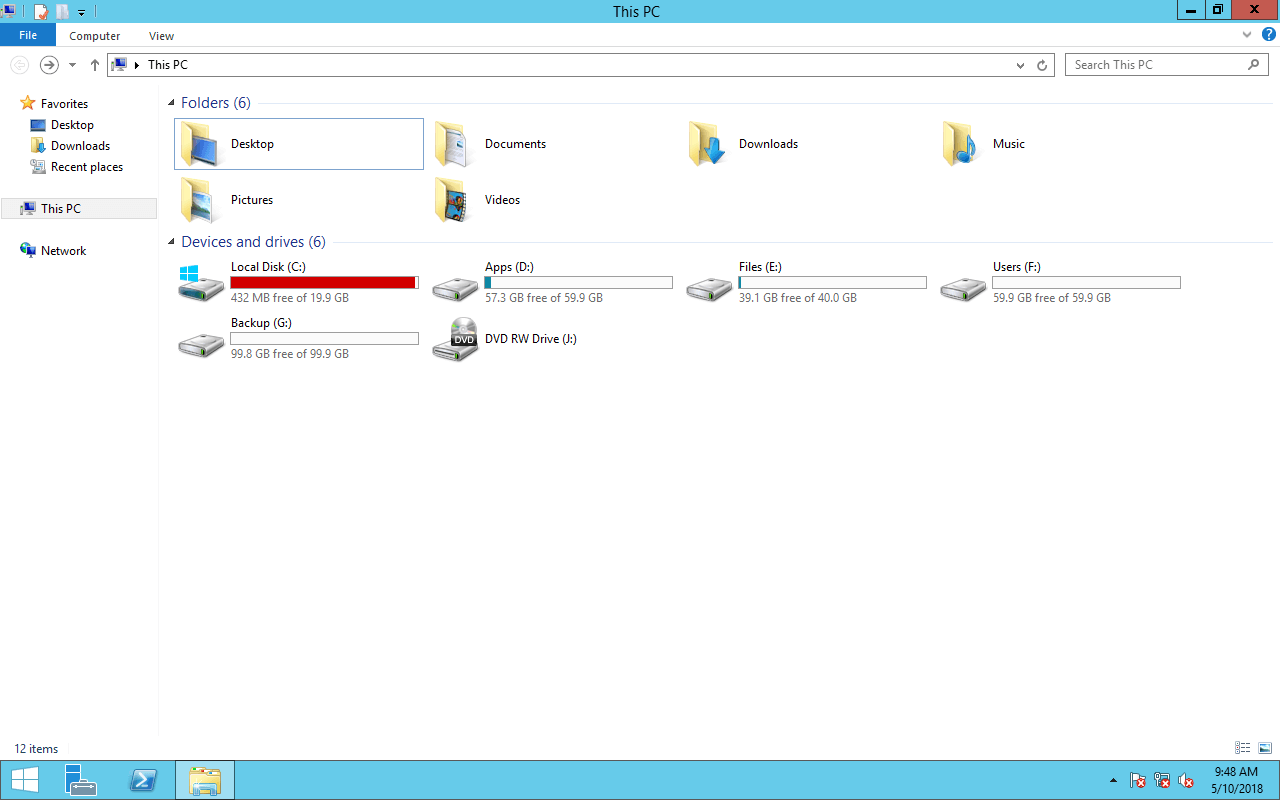
Method 1 - Clean Up C Drive
You can clean up the C: drive to reclaim disk space. To do this, you may use either the native "Disk Cleanup" in Server 2012 or run third-party optimization software. Windows Disk Cleanup is fast and effective enough to accomplish this task.
Steps to fix a full C drive in Windows Server 2012 R2 with the Disk Cleanup tool:
- Press Windows and R on your keyboard, type cleanmgr and press "Enter".
- Select C: drive in the drop-down list and click OK.
- Check the boxes next to the files that you want to delete and then click OK to execute.
Note: if you receive error message Windows cannot find 'cleanmgr', you need to install or enable Disk Cleanup on Server 2012 in advance.
By cleaning up the disk, you can reclaim space in the C drive, thus, the server can keep running properly. Furthermore, there is precious free space to install other tools. However, this space will be eaten up quickly by newly generated junk files. If you cannot reclaim over 20GB of free space, it is highly recommended to add more free space to the C drive from other partitions.
Method 2 - Add Free Space from Another Partition
On most servers, there are other volumes with plenty of free space on the same disk. You can transfer part of this free space to the C drive with NIUBI Partition Editor. By using this method, the C drive will have plenty of free space again. No other operations are needed; the Operating System, programs, and everything else remain the same as before. This is the fastest and most effective method to help fix the Server 2012 C drive full issue.
Download NIUBI Partition Editor, and you will see all connected disks with partition structure and other information on the right. Available operations to the highlighted disk or partition are listed on the left and can be accessed by right-clicking. As shown in the example below, drives C, D, and E are on Disk 0.
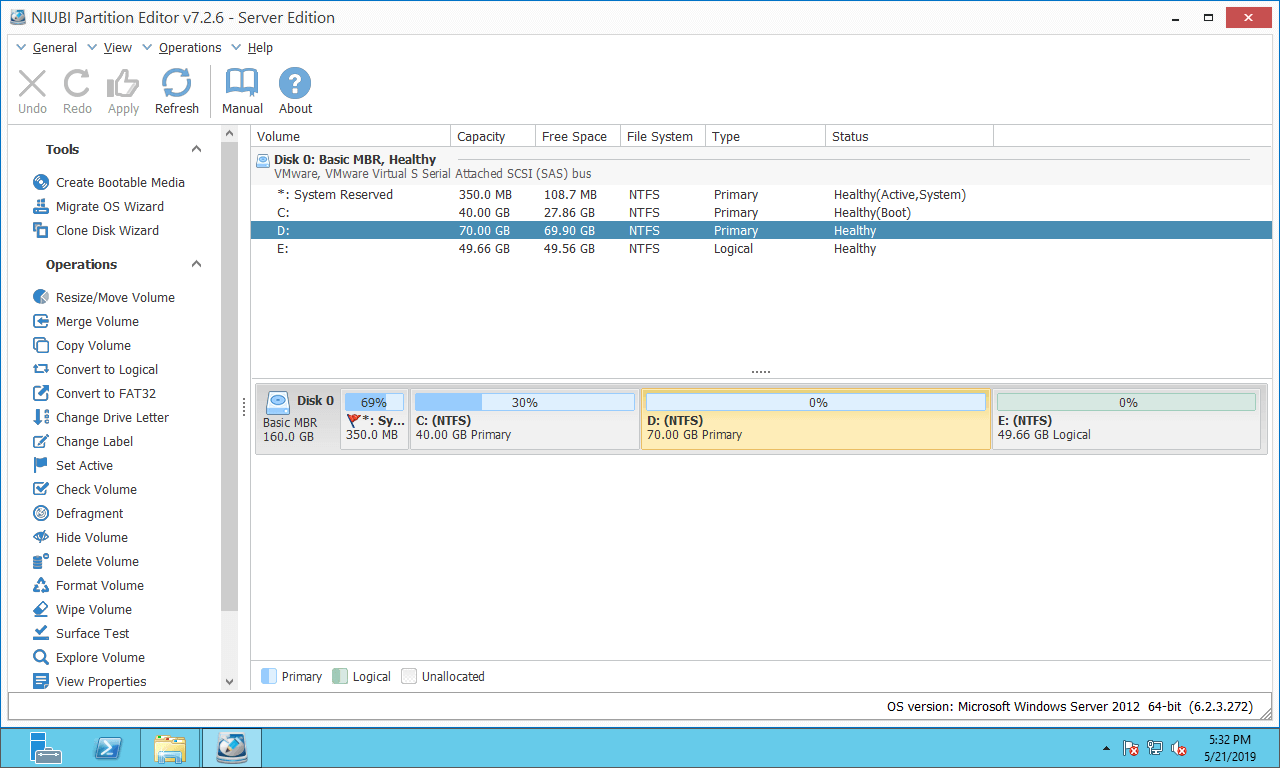
How to fix Windows Server 2012 C drive full issue by moving free space:
Step 1: Right click D: drive and select "Resize/Move Volume", drag the left border to the right in the pop-up window. (Or enter an amount in the box of "Unallocated space before".)
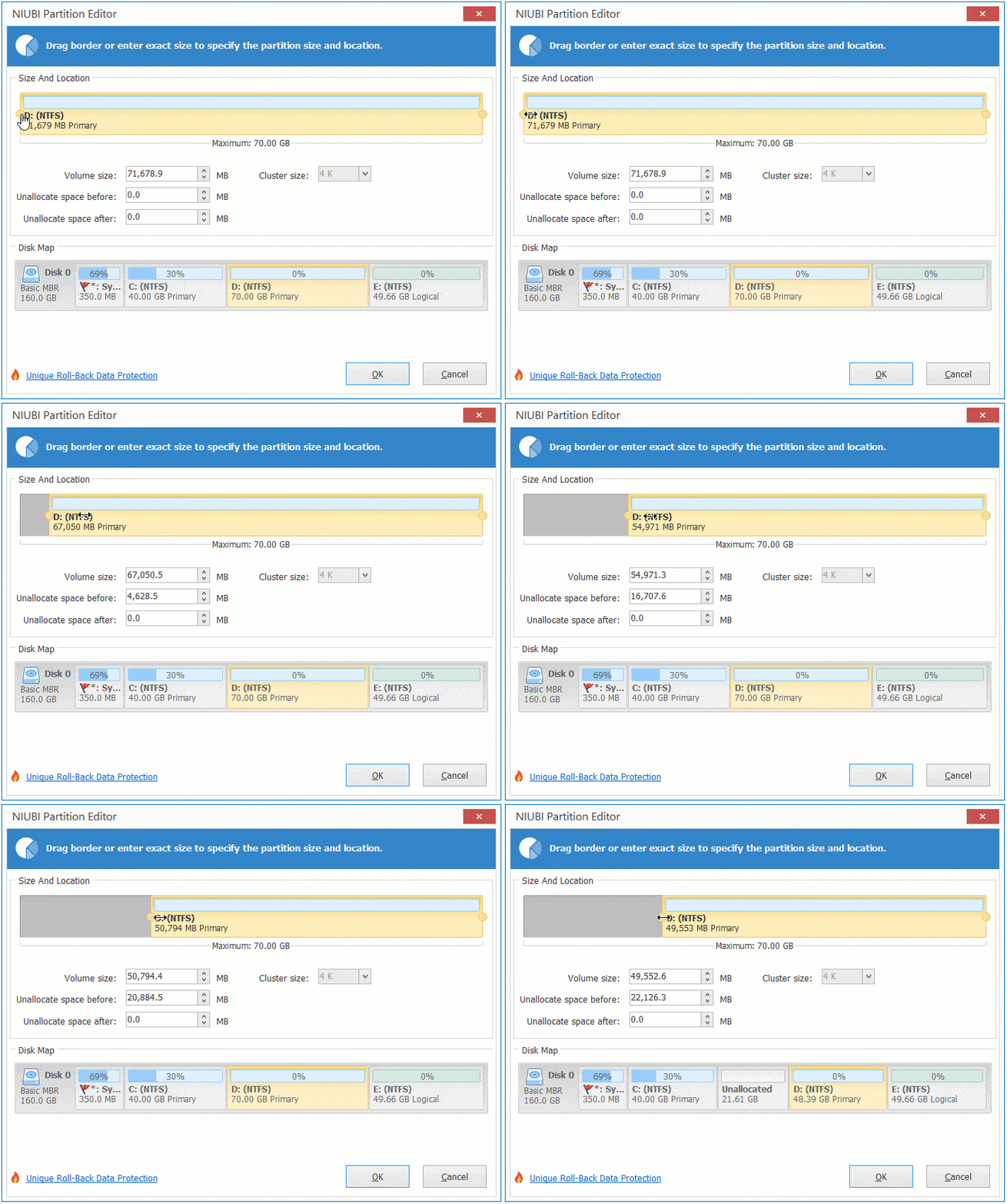
Then, 20GB of free space is converted to unallocated space on the left side of the D drive.
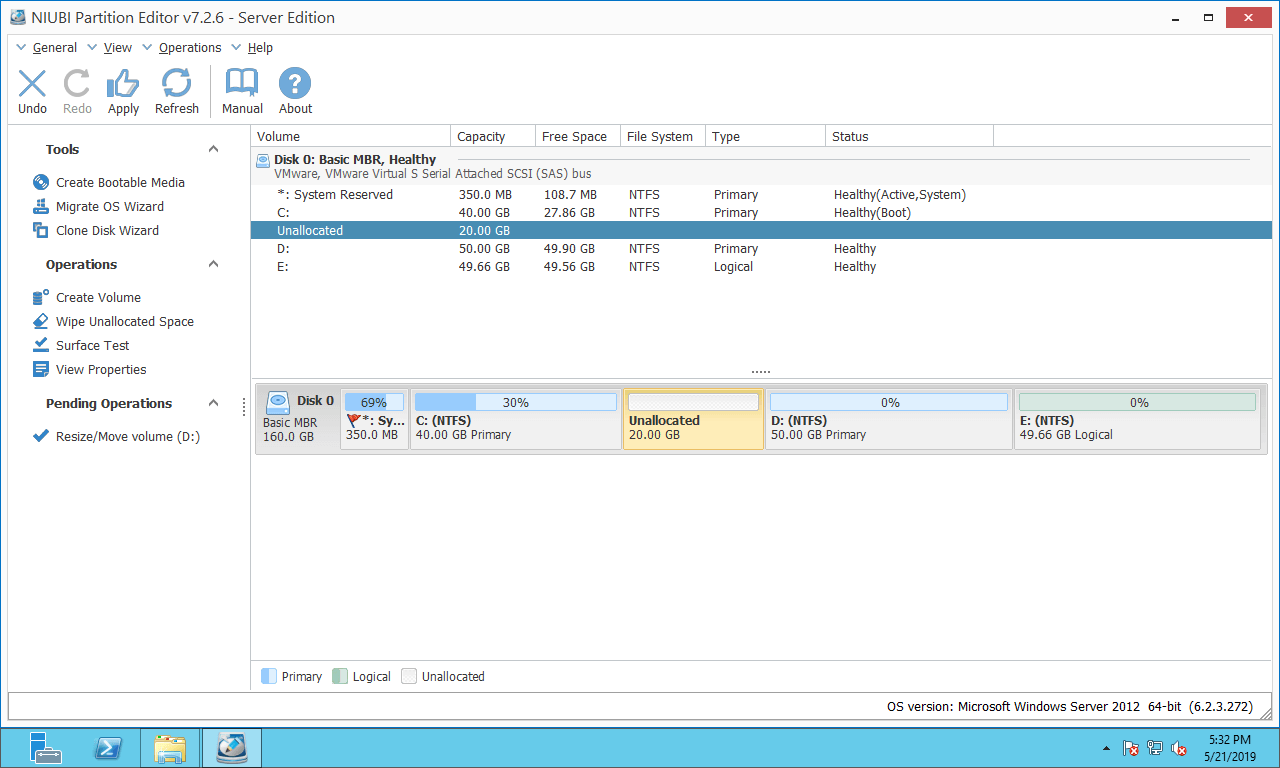
Step 2: Right click system partition C: and select "Resize/Move Volume" again, drag the right border to the right in the pop-up window.
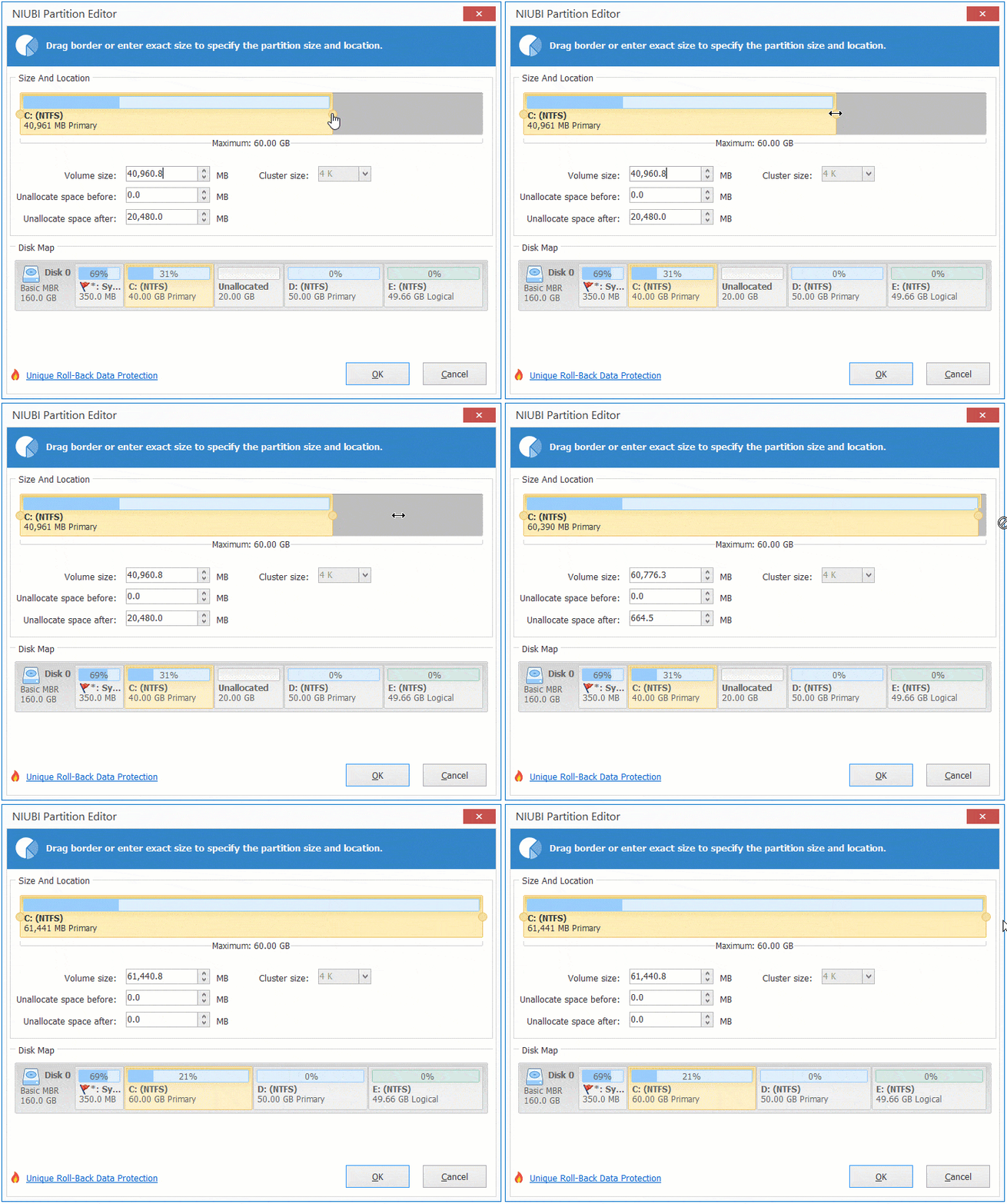
Then, the unallocated space is merged into the C drive.
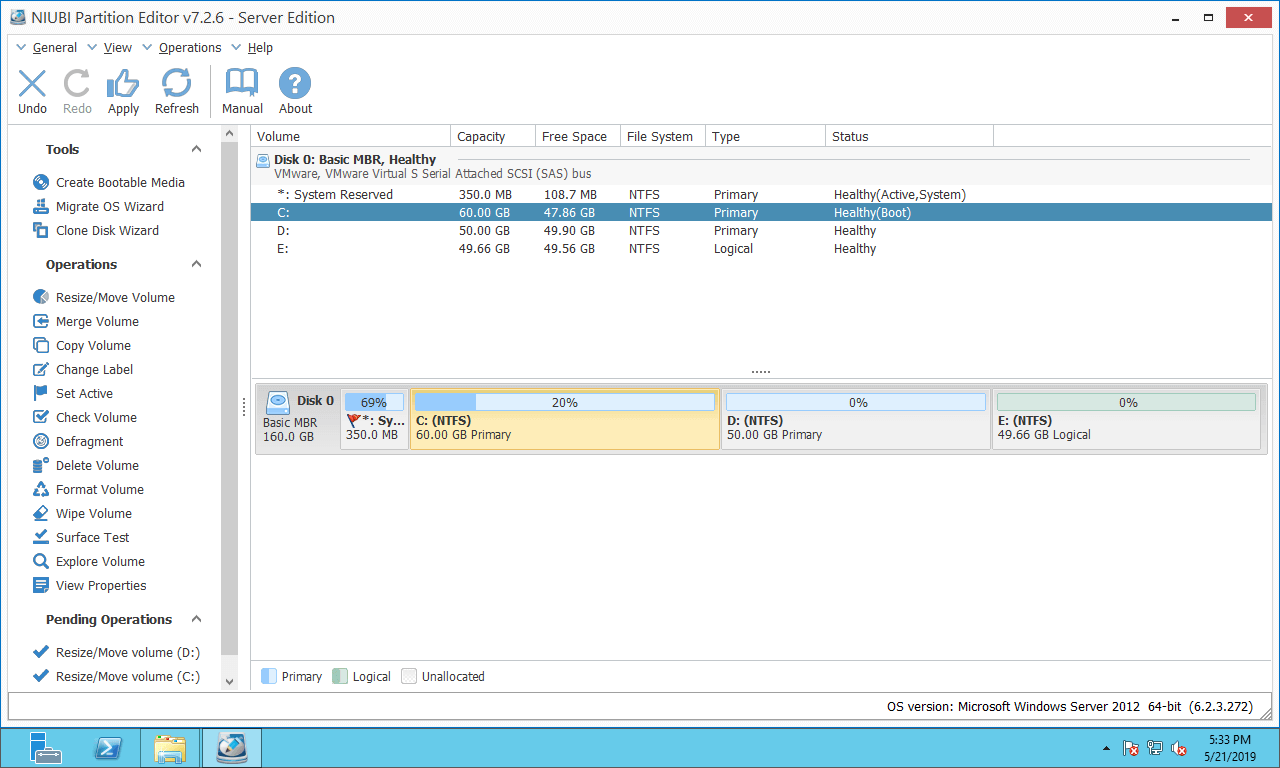
Step 3: Click "Apply" on top left to execute.
If there is not plenty of free space in the adjacent partition D, you can shrink any non-adjacent volumes to enlarge C drive. Follow the steps in the video:
If there's not plenty of free space in all partitions on the same disk, you can clone to a larger disk and enlarge C drive with extra disk space. Follow the steps:
Besides shrinking and extending partitions, NIUBI Partition Editor helps you merge, move, copy, convert, defrag, wipe, hide partition, scan bad sectors, etc.
Any Difference When RAID or a Virtual Machine is Configured?
It is very common to use hardware RAID arrays, or VMware/Hyper-V virtual machine for servers. While resizing partitions and extending C drive, there is no difference. Remember: don't break the array or perform any operations on the RAID controller.
In Summary
When the system C drive becomes full in Windows Server 2012 R2:
- Try to clean up C drive to reclaim disk space with native Disk Cleanup utility.
- Expand C drive as large as possible with NIUBI Partition Editor.
- Free up disk space monthly to delete newly generated junk files.
- Change server settings. Don't install all programs on the C drive in the future. Change the "Downloads" folder and program output paths to other partitions.
 © 2009 - NIUBI Technology All Rights Reserved. |