
After running the server for a period of time, sometimes you need to move a partition. For example, you cannot extend C drive in Server 2012 with Disk Management after shrinking D or E drive. To solve this problem, you need to move partition D/E to the right and make unallocated space adjacent to C drive. If all these partitions are getting full, you can move a volume to another disk, then delete it and add its disk space to C drive. On some servers, there is a Recovery or EFI partition between the C and D drives. This article introduces how to move a partition in Windows Server 2012 R2 with safe partition software.
Cannot Move Partition in Server 2012 via Disk Management
As with previous versions, Windows Server 2012 has Disk Management to perform basic operations such as creating, deleting, and formatting partitions. Although it has advanced Shrink Volume and Extend Volume functions to help resize partition, it is useless if you want to extend a volume by shrinking another one, because Disk Management has many restrictions:
- It cannot shrink a volume in some situations.
- It can only make unallocated space on the right when shrinking a partition.
- It can only expand volume with adjacent unallocated space on the right side.
- "Free space" deleted from a logical drive cannot be extended to any primary partition, and vice versa.
- It can only shrink/extend NTFS partitions; FAT32 and other partitions are not supported.
As shown in the screenshot, Extend Volume is greyed out for both drives C and E after shrinking D, because the 20GB unallocated space is non-adjacent to C and is on the left side of E.
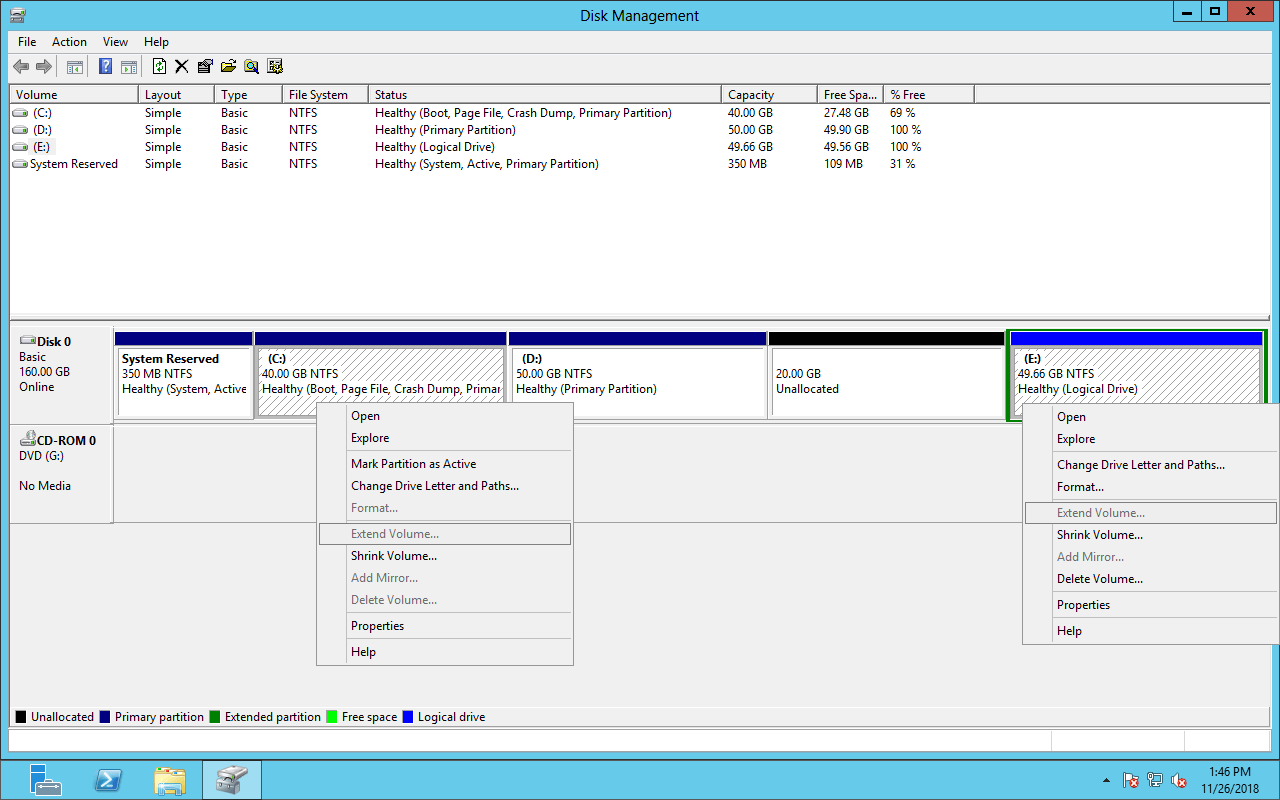
To extend C: drive, you must move partition D to the right and move the 20GB unallocated space next to C drive, then 'Extend Volume' will be enabled. When you right click drive D in Disk Management, there is no 'Move Volume' function. Actually, Disk Management's restrictions on shrinking and extending partitions exist because it cannot change the start position of a volume. To move a normal data volume or move Recovery/EFI partition in Windows Server 2012, partition software is needed.
Move Server 2012 Partition to the Left/Right with Safest Tool
Before starting to move partition in Windows Server 2012 R2, it is highly recommended to make a backup and select safe disk partition software.
When resizing and moving partition in Server 2012 and other versions, the start and end position as well as other parameters must be modified correctly. In addition, all files in the partitions must be moved to new locations, too. Thus, any slight error could cause system/partition damage.
Better than other tools, NIUBI Partition Editor features unique technologies like Virtual Mode, 1-Second Rollback, Cancel-at-Will, and Hot Clone, along with an advanced file-moving algorithm to help resize/move partitions safely and much faster.
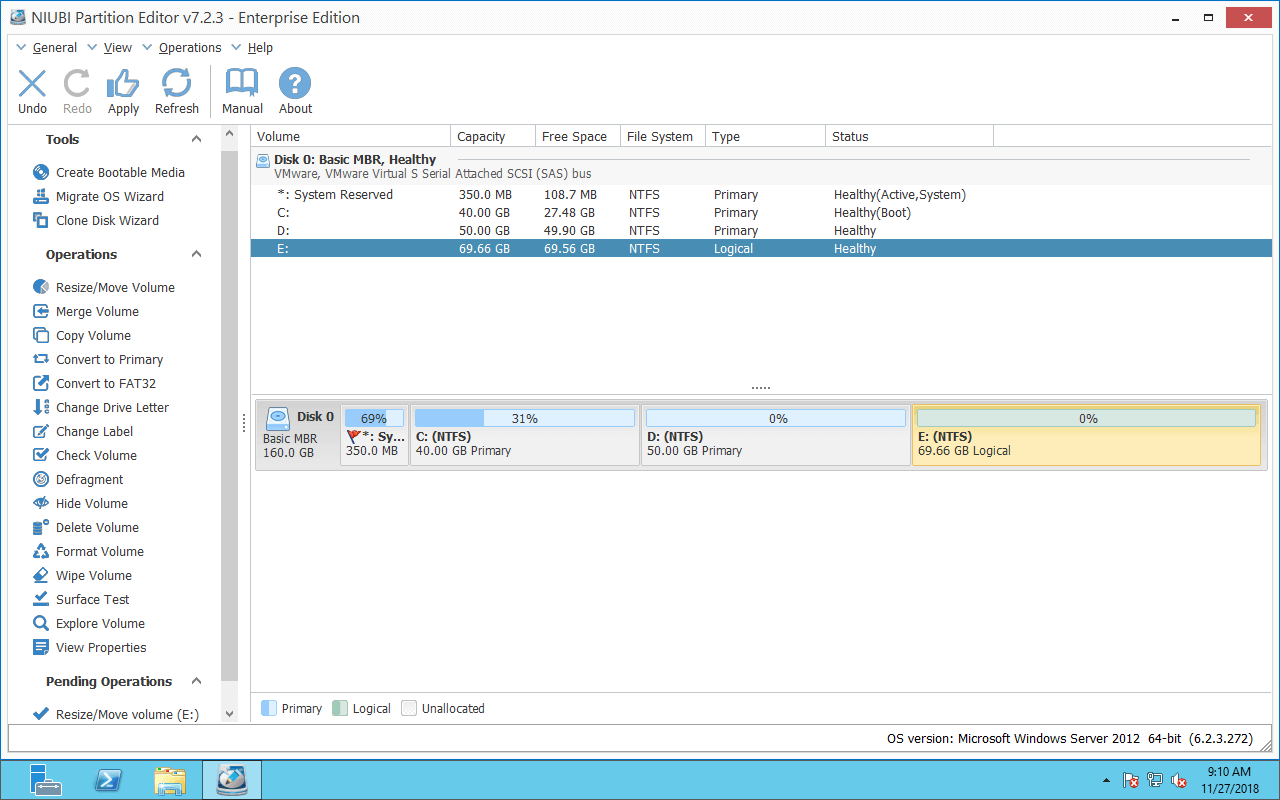
Download this tool, you'll see all disks with partition structure and other information on the right. Available operations are listed on the left panel and can be accessed by right-clicking.
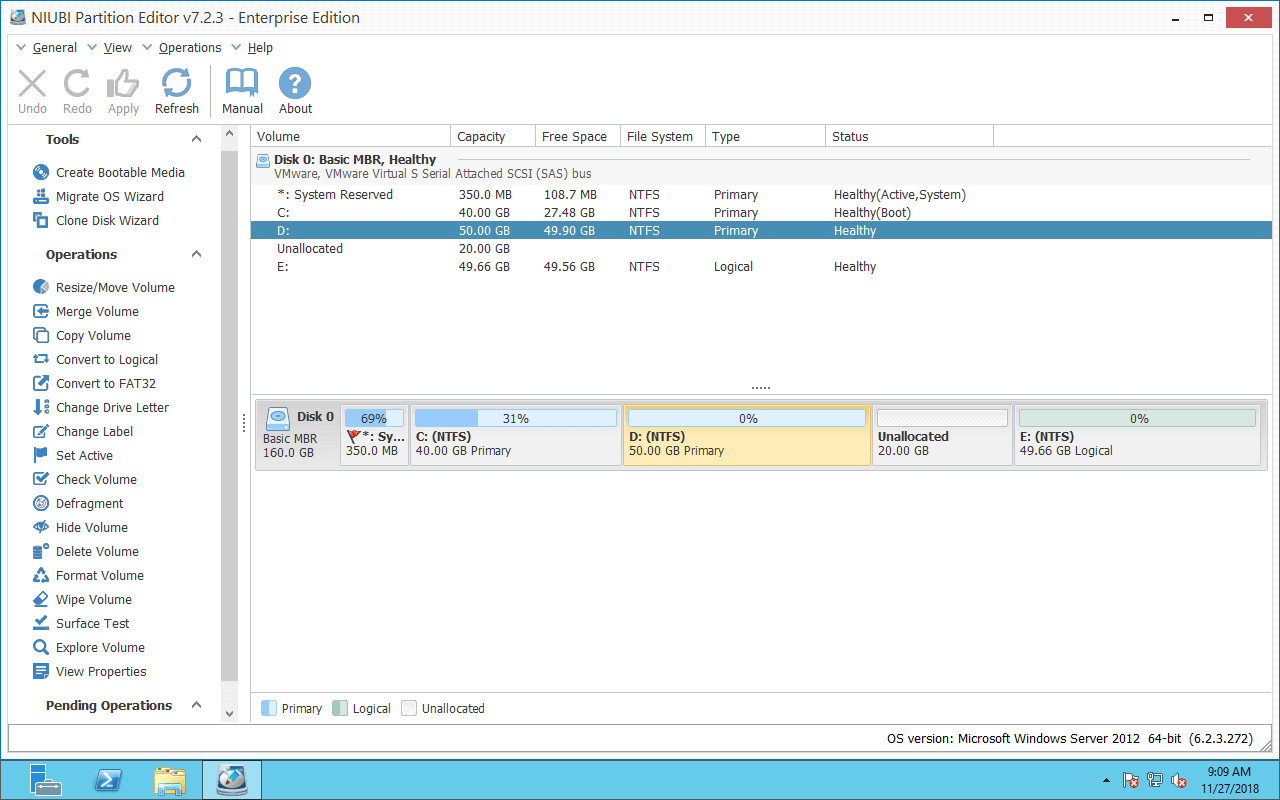
How to move partition D to the right in Windows Server 2012 R2:
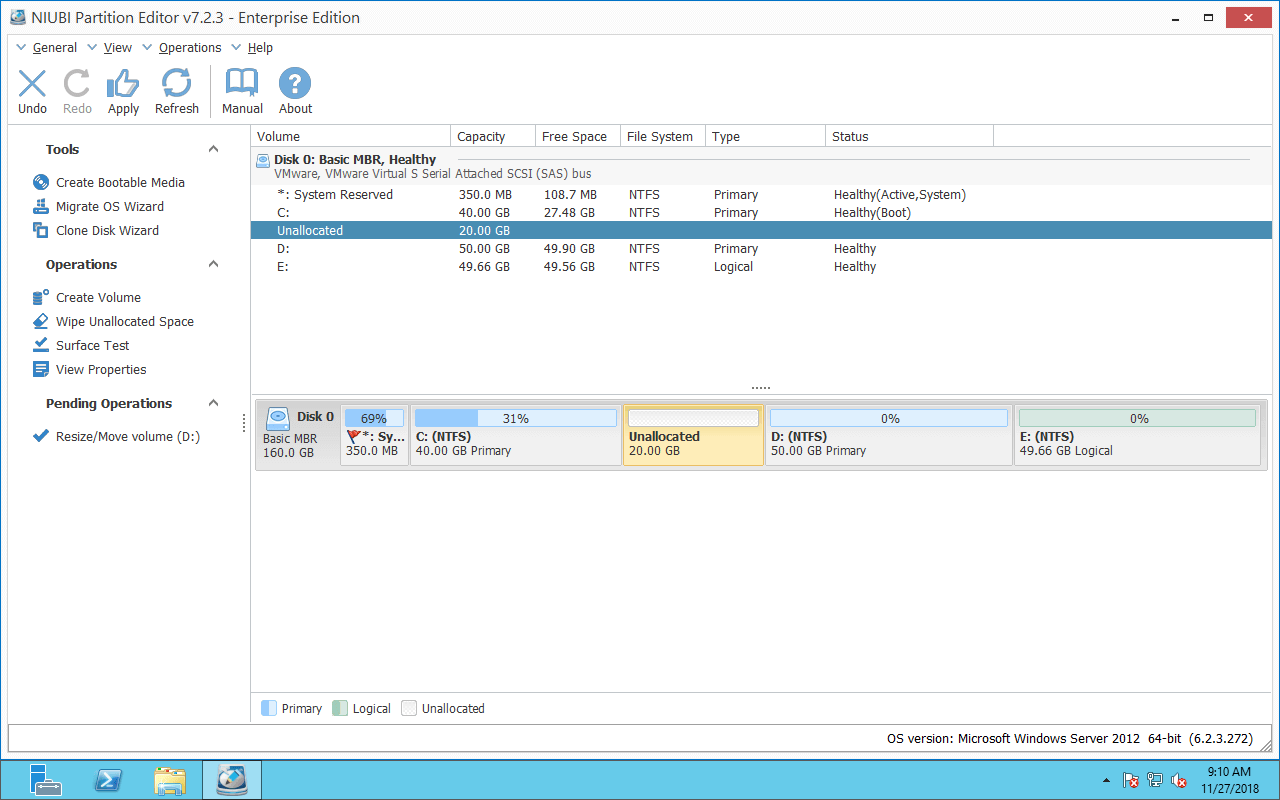
Right click drive D: and select 'Resize/Move Volume', put the mouse pointer in the middle and drag the D drive to the right in the pop-up window.
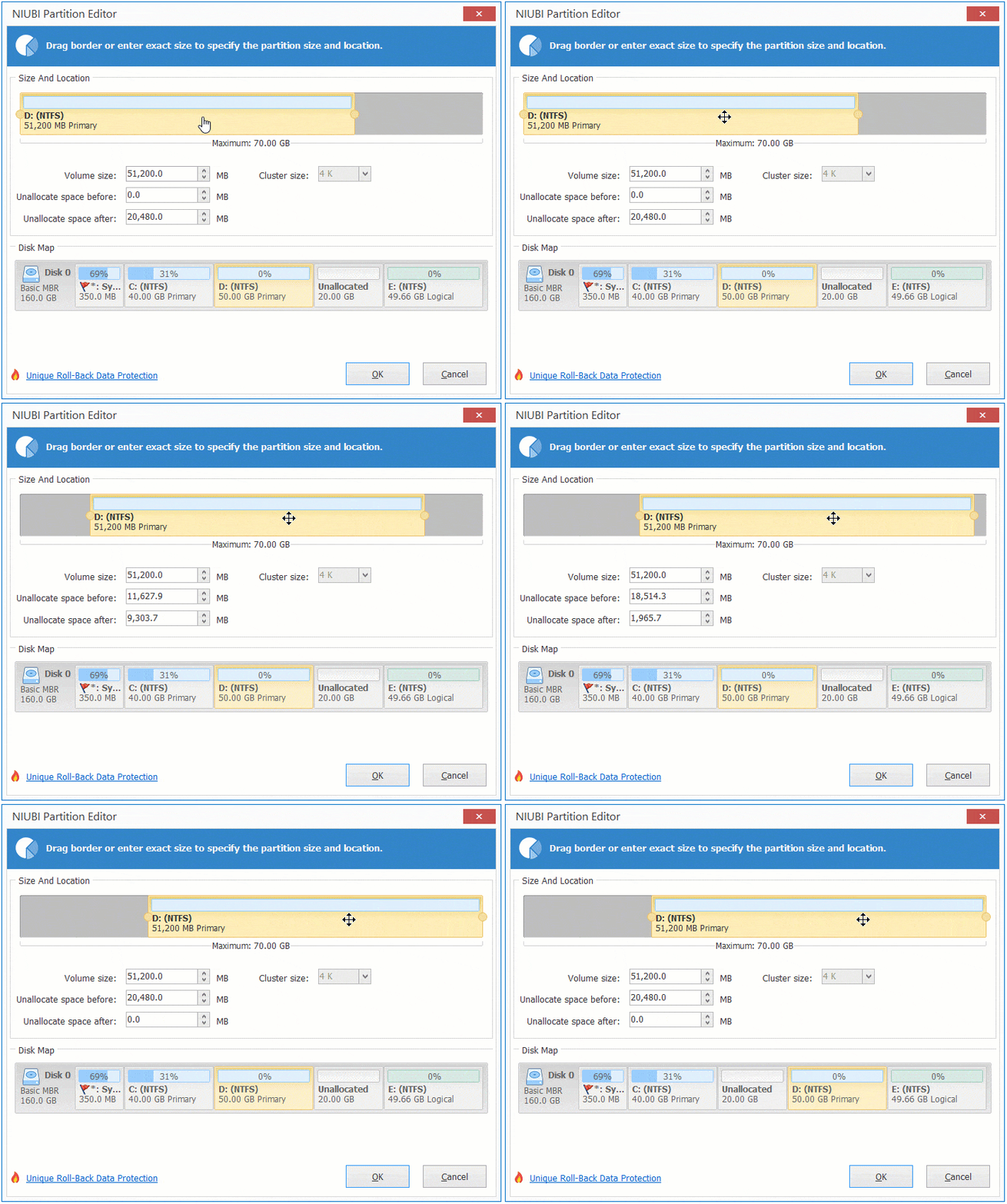
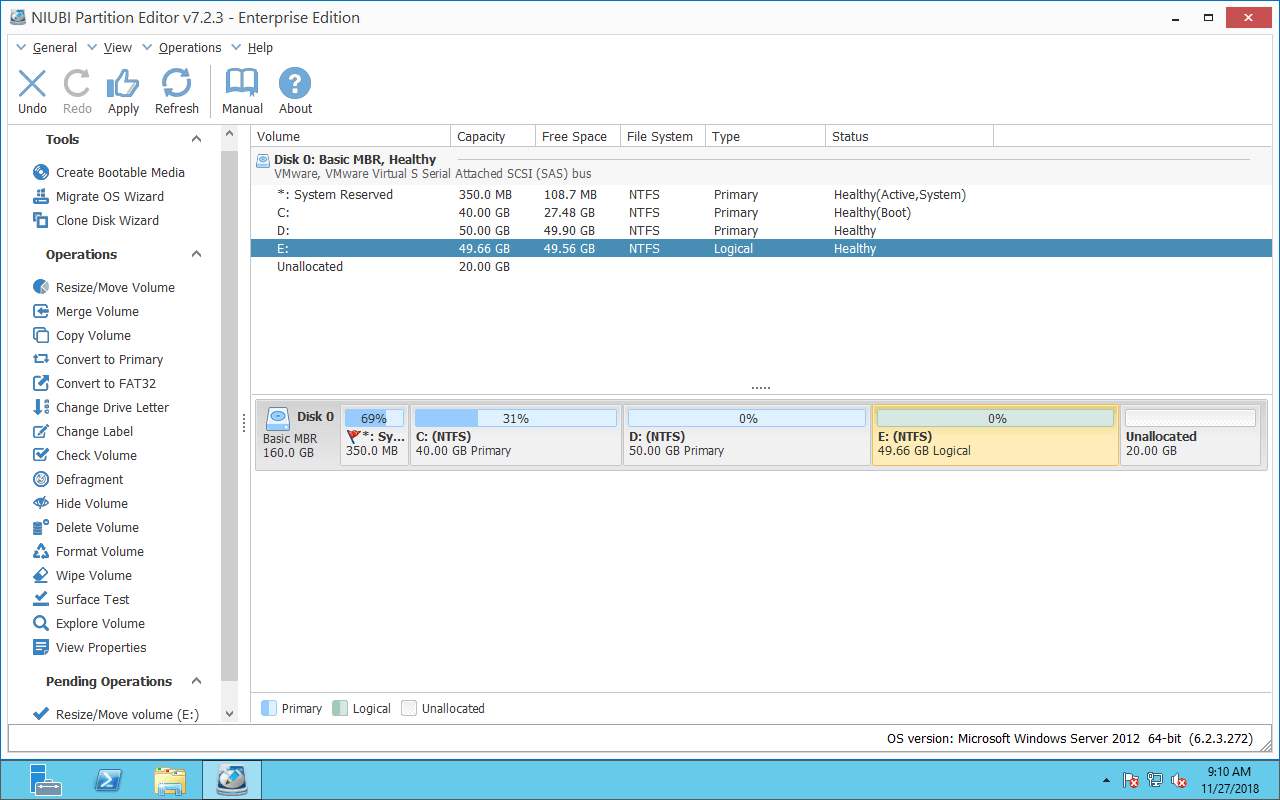
Then, the D drive is moved to the right side, and the unallocated space is moved to the left simultaneously.
To extend C drive: right click it and select 'Resize/Move Volume' again, drag the right border to the right in the pop-up window.
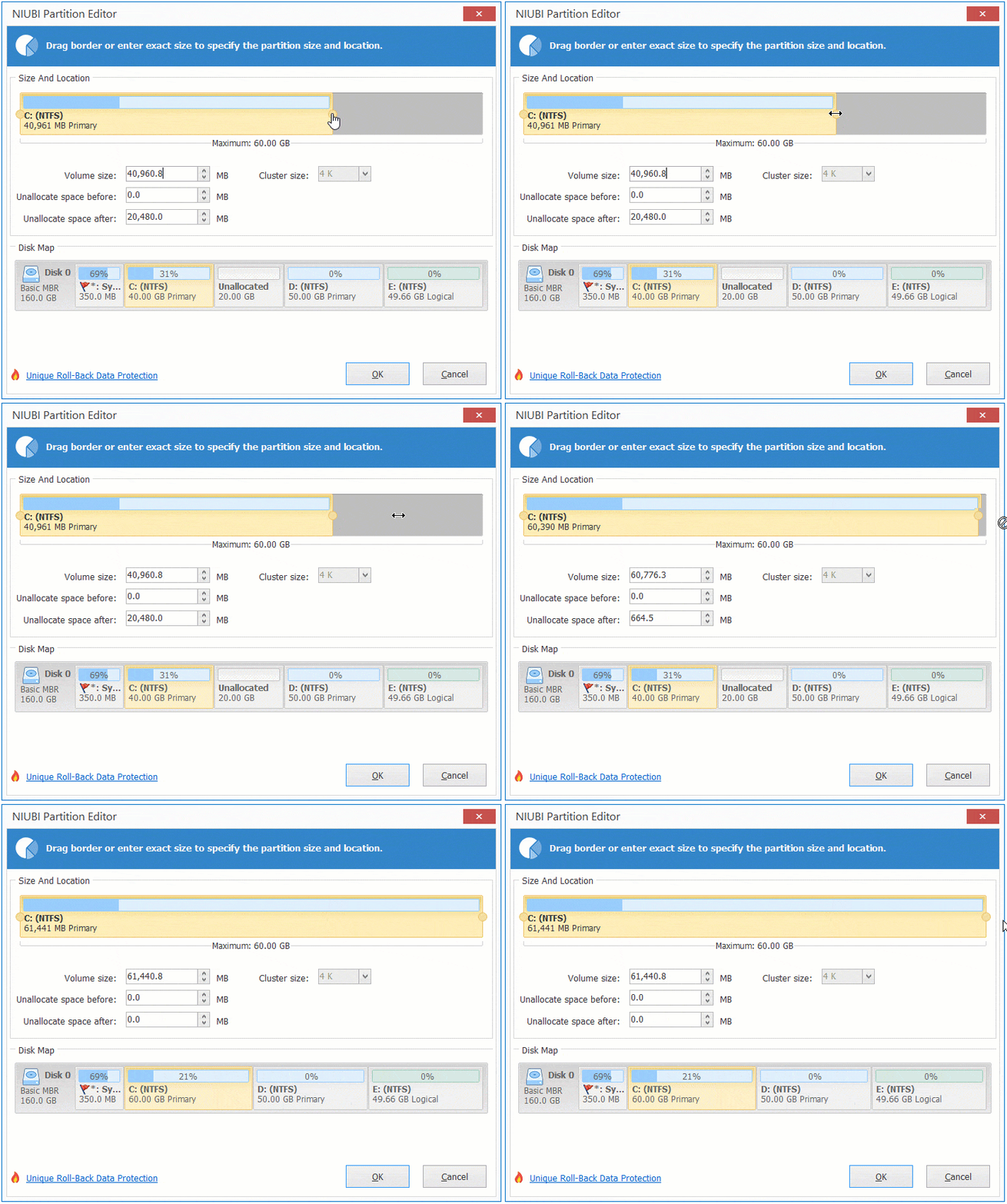
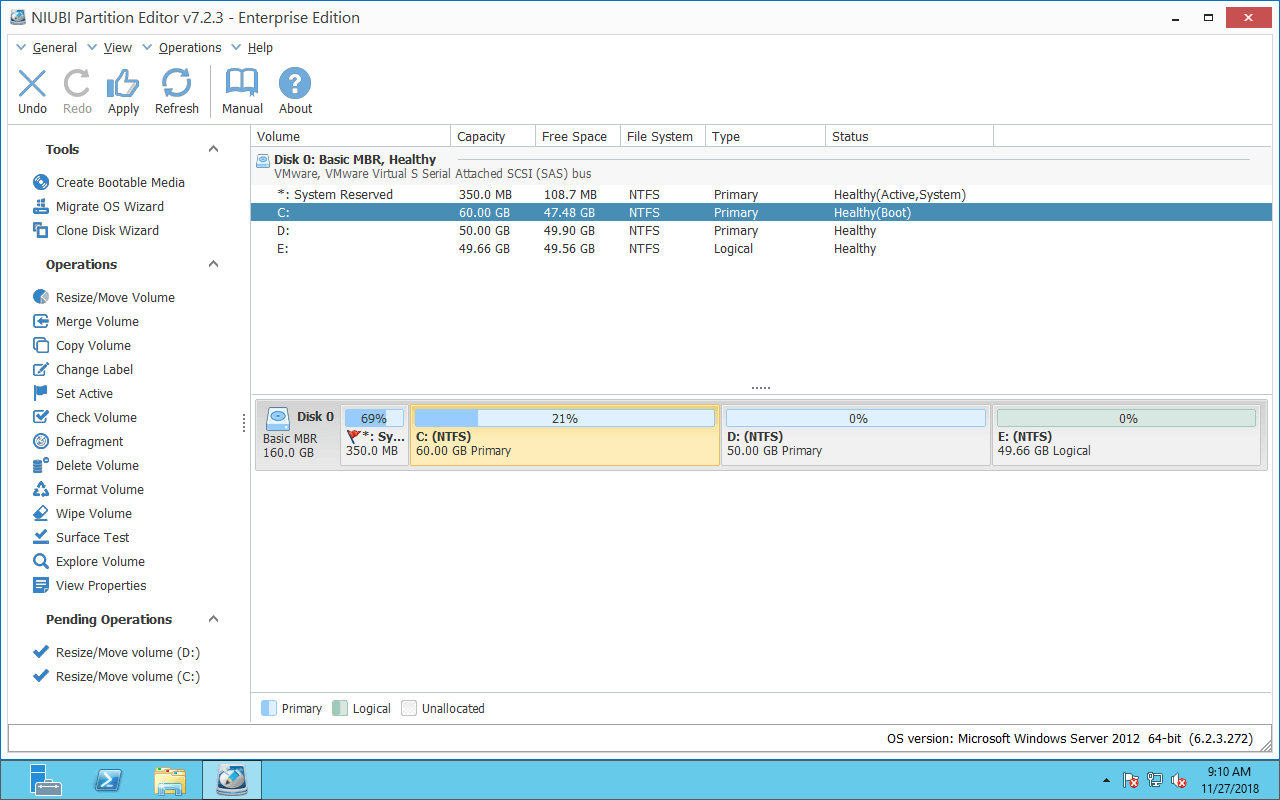
Then, the unallocated space is merged into the C drive.
How to Move Partition E to the Left in Windows Server 2012 R2:
If you want to extend E drive after shrinking D, you can merge this contiguous unallocated space directly without moving it to the right side. To do this, right click drive E and select 'Resize/Move Volume', drag the left border to the left in the pop-up window.
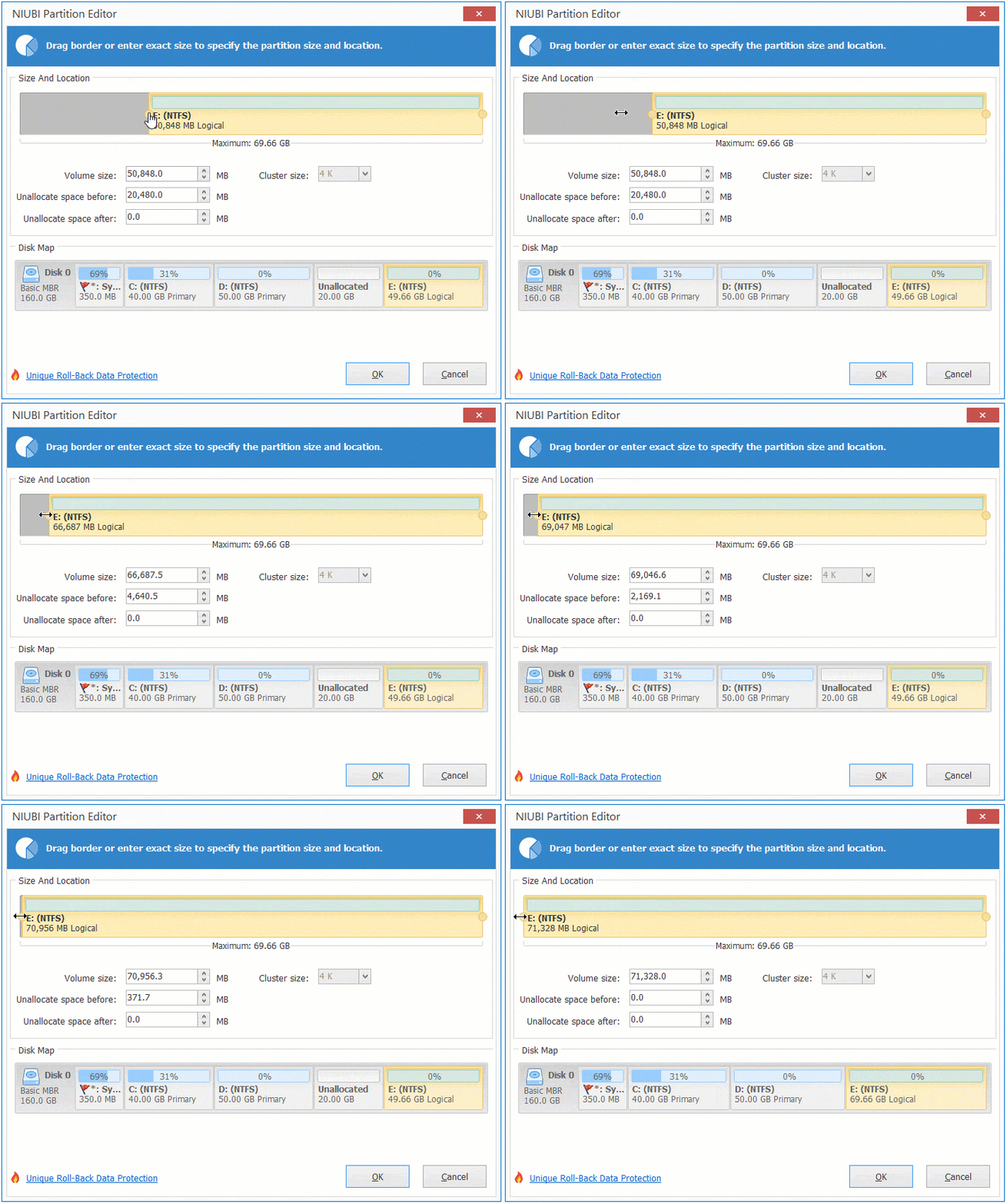
Then, the unallocated space is merged into the E drive.
If there is another drive F at the end and you want to extend it with this nonadjacent unallocated space, you need to move partition E to the left in advance. Similarly, right click drive E and select 'Resize/Move Volume', drag the middle of the E drive to the left in the pop-up window.
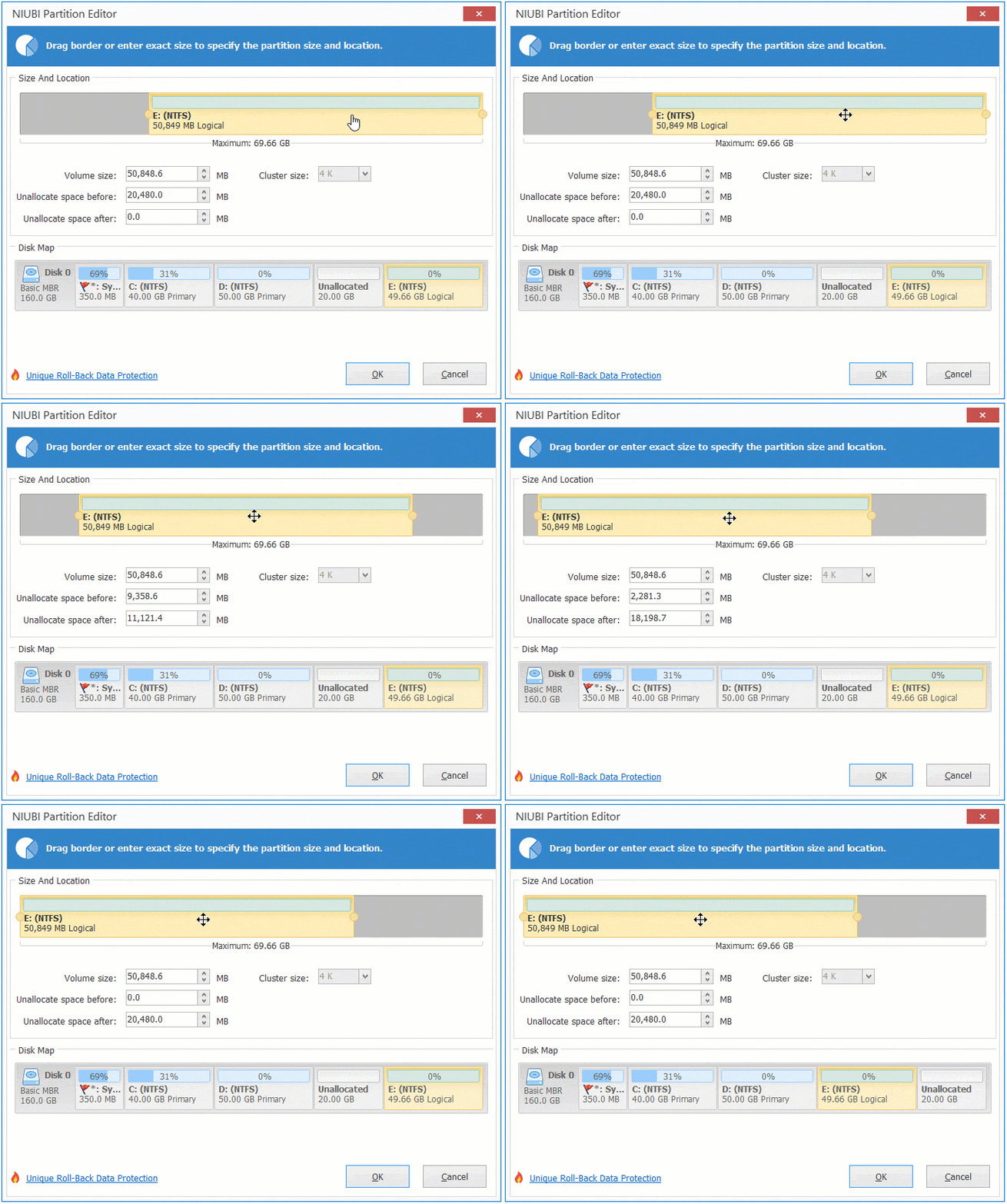
Then partition E is moved to the left and unallocated space is moved to the end of disk.
How to Move Partition to Another Disk in Windows 2012 Server
If the whole disk is full, besides cloning the disk to a larger one, you can move a partition to another disk. Then, delete this partition and add its space to the C drive.
- (optional) Shrink a large volume on another disk to get unallocated space.
- Right click drive D and select 'Copy Volume'.
- Select the unallocated space in the pop-up window.
- Change letter of original drive D to another one.
- Change letter of cloned drive to D.
For other data volumes that have no programs or Windows services, you may ignore the step to change drive letter.
How to move partition to another disk on Server 2012:
Besides moving partitions in Windows Server 2012/2016/2019/2022/2025 and previous Server 2003/2008, NIUBI Partition Editor helps you perform many other disk and partition management operations, such as shrinking, extending, merging, converting, wiping partitions, optimizing file systems, and scanning for bad sectors.
 © 2009 - NIUBI Technology All Rights Reserved. |