
This article explains why you cannot extend volume in Windows Server 2012 R2 with Disk Management or with Diskpart command, and how to fix this issue easily.
1. Why Cannot Extend Volume in Server 2012 with Diskpart Cmd
Many server administrators like to use command-line tools. To extend a partition in Windows Server 2012, Diskpart is one of the options; it is a native tool integrated since Windows XP. However, it only works under restricted conditions. Many people receive error while extending partition with this native tool such as:
- "The volume cannot be extended because the file system does not support it."
- "There is not enough usable free space on specified disk(s) to extend the volume."
- "The size of the extend is less than the minimum."
Press Windows and R together on the keyboard, input diskpart and press "Enter", type help extend in command prompt and press Enter again, then you'll see the reasons why Diskpart cannot extend volume in Server 2012 R2.
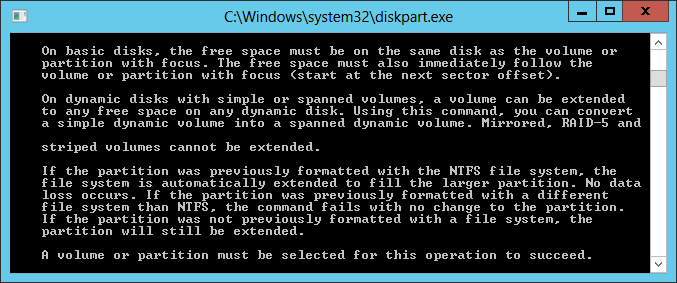
In short:
- To extend a partition on basic disk, there must be adjacent unallocated space on the right side and on the same disk.
- Only the partitions that are formatted with NTFS or without a file system (RAW) can be extended.
In other words, Diskpart can only extend NTFS partition by deleting its adjacent volume on the right.
2. Why Cannot Extend Partition on Server 2012 via Disk Management
Similar to Diskpart, Server 2012 Disk Management cannot extend a partition by shrinking another one. Additionally, a FAT32 partition cannot be shrunk or extended.
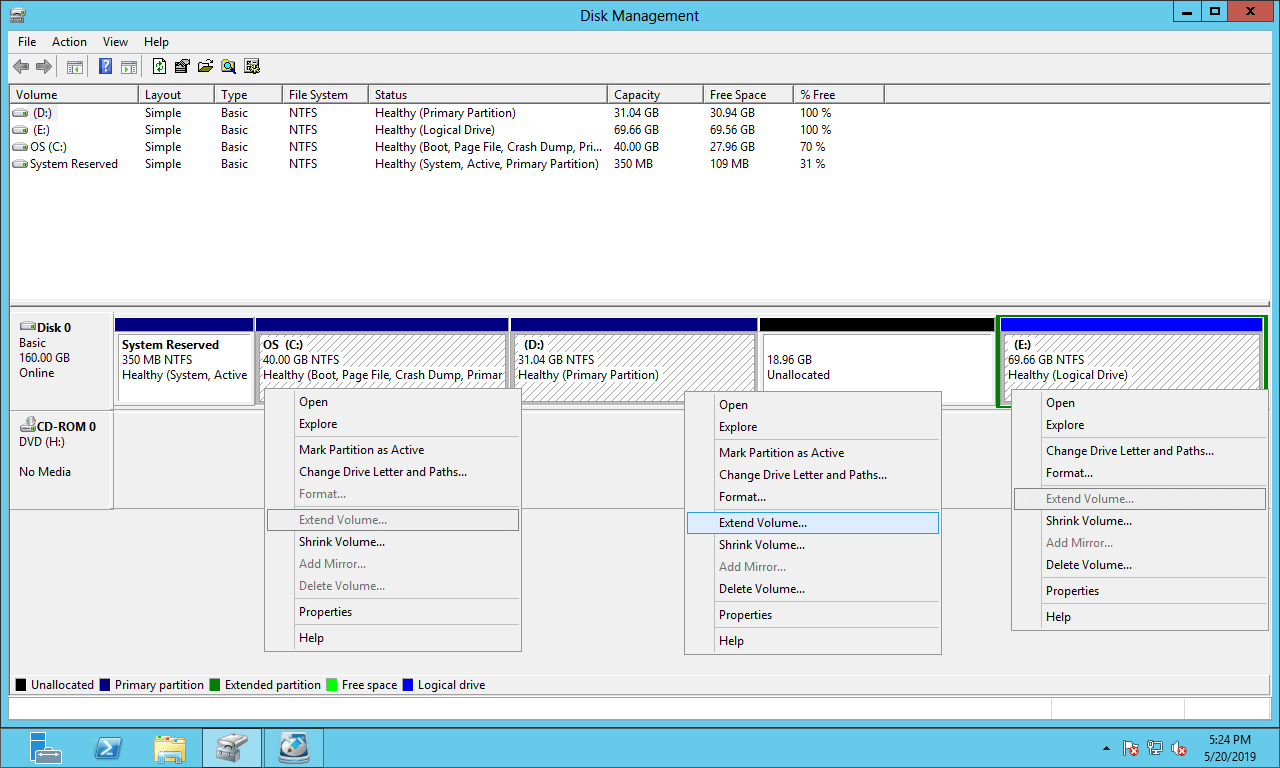
Unallocated space can only be generated on the right side when shrinking a partition with Diskpart or Disk Management. This space cannot be added to the non-adjacent C: drive or the right-adjacent E: drive using these native tools.
As shown in the screenshot, Extend Volume greyed out for C and E drive after shrinking D.
There are two additional reasons why Disk Management cannot extend partition in Windows 2012 server on MBR disk.
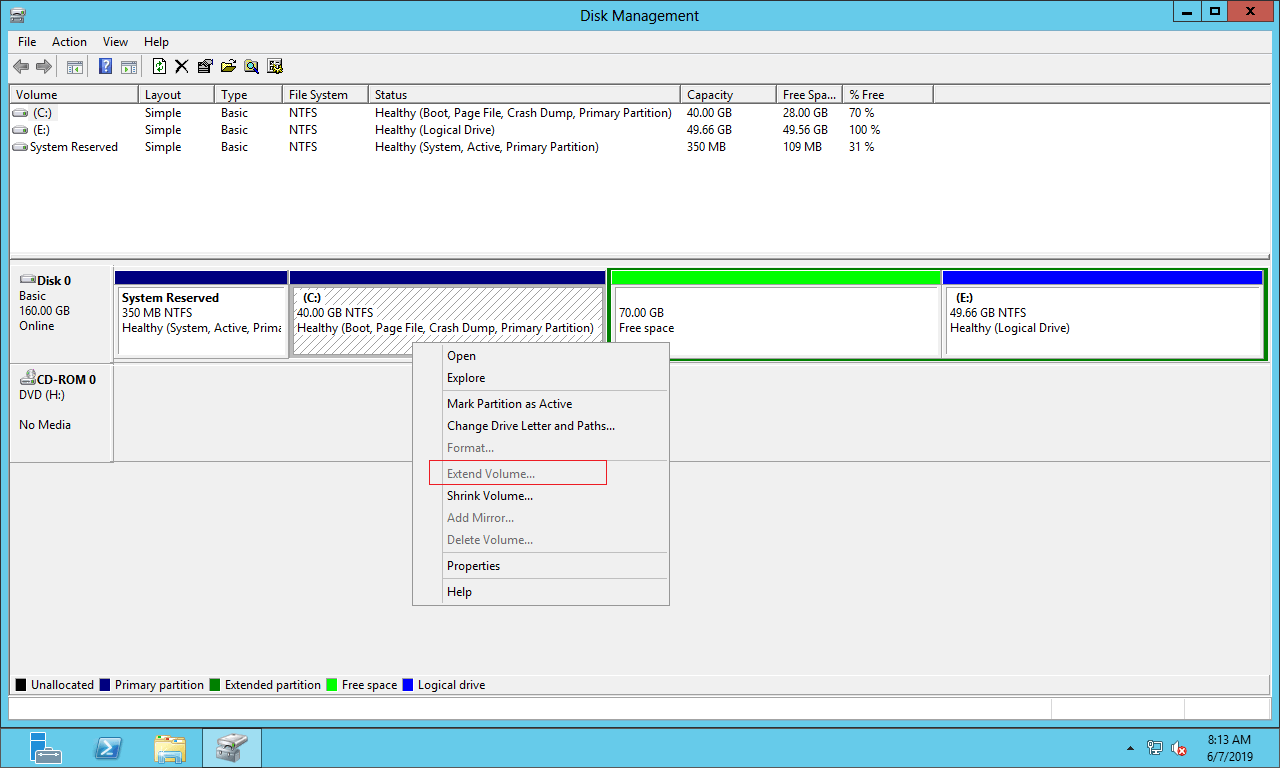
① Unallocated space deleted from a primary partition cannot be extended to any logical drive. Conversely, "Free space" deleted from a logical drive cannot be extended to any primary partition.
On an MBR disk, there is a maximum of 4 entries in the Master Boot Record sector, so you can create a maximum of 4 primary partitions, or 3 primary plus an extended partition. More partitions can only be created as logical in the extended partition.
As shown in the screenshot, the disk space of logical drive D is converted to "Free space" after deletion. This "Free space" is still part of the extended partition. When right clicking C drive, Extend Volume is still disabled.
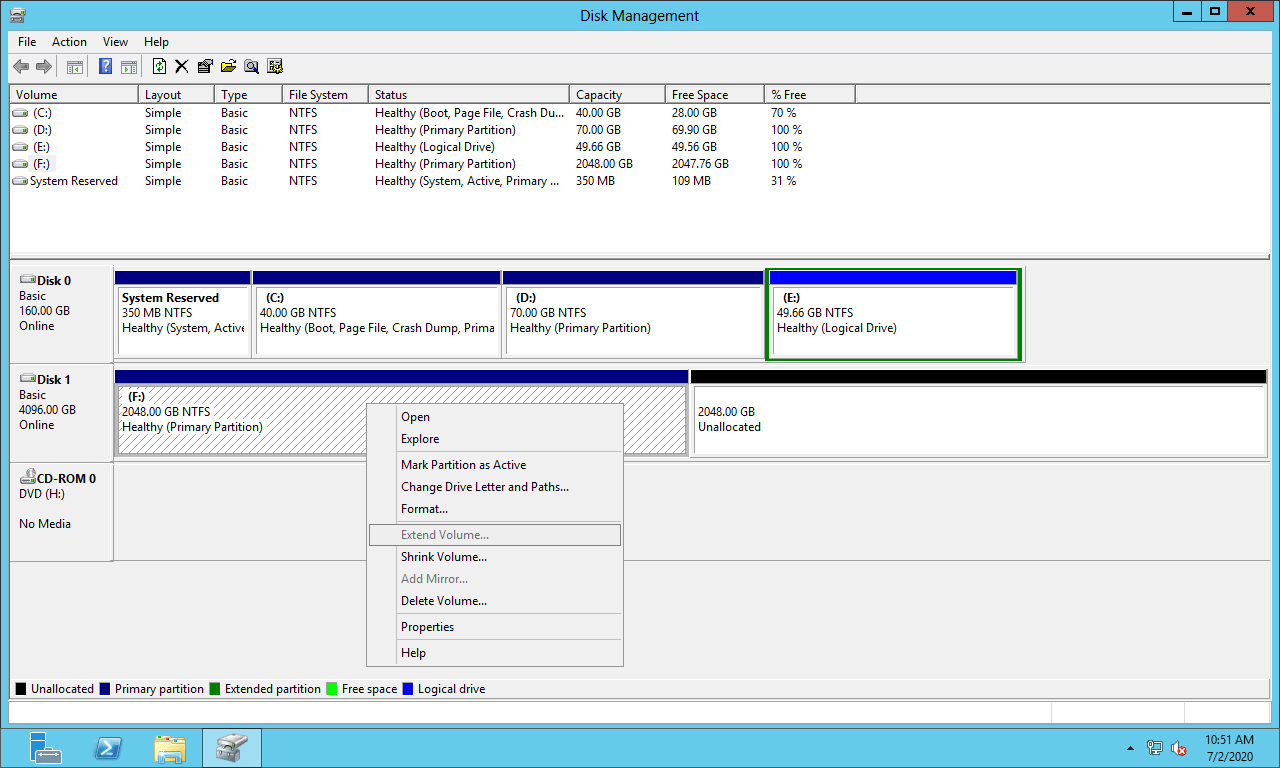
② You cannot extend a partition past 2TB in Windows Server 2012 Disk Management.
As shown in the example below, the F: drive is NTFS and there is contiguous unallocated space on the right, but Extend Volume is disabled, too.
This is because, the maximum partition size on MBR disk is 2TB. If you initialized a 4TB disk as MBR, only 2TB space can be used. The remaining 2TB space shows as unallocated, and it cannot be used to create a new volume or expand an existing one with Disk Management.
3. What to Do If Unable to Extend Volume on Windows Server 2012
In most cases, the reason why you cannot extend a volume in Server 2012 Disk Management is because the unallocated space is non-adjacent. To fix this issue, you need to move partition D to the right and make unallocated space contiguous to C drive.
What to do if you cannot extend volume C on Windows Server 2012 r2 after shrinking D or E:
Step 1: Download NIUBI Partition Editor, right click the contiguous partition D (E: in some servers) and select "Resize/Move Volume", drag the middle of this partition to the right in the pop-up window:
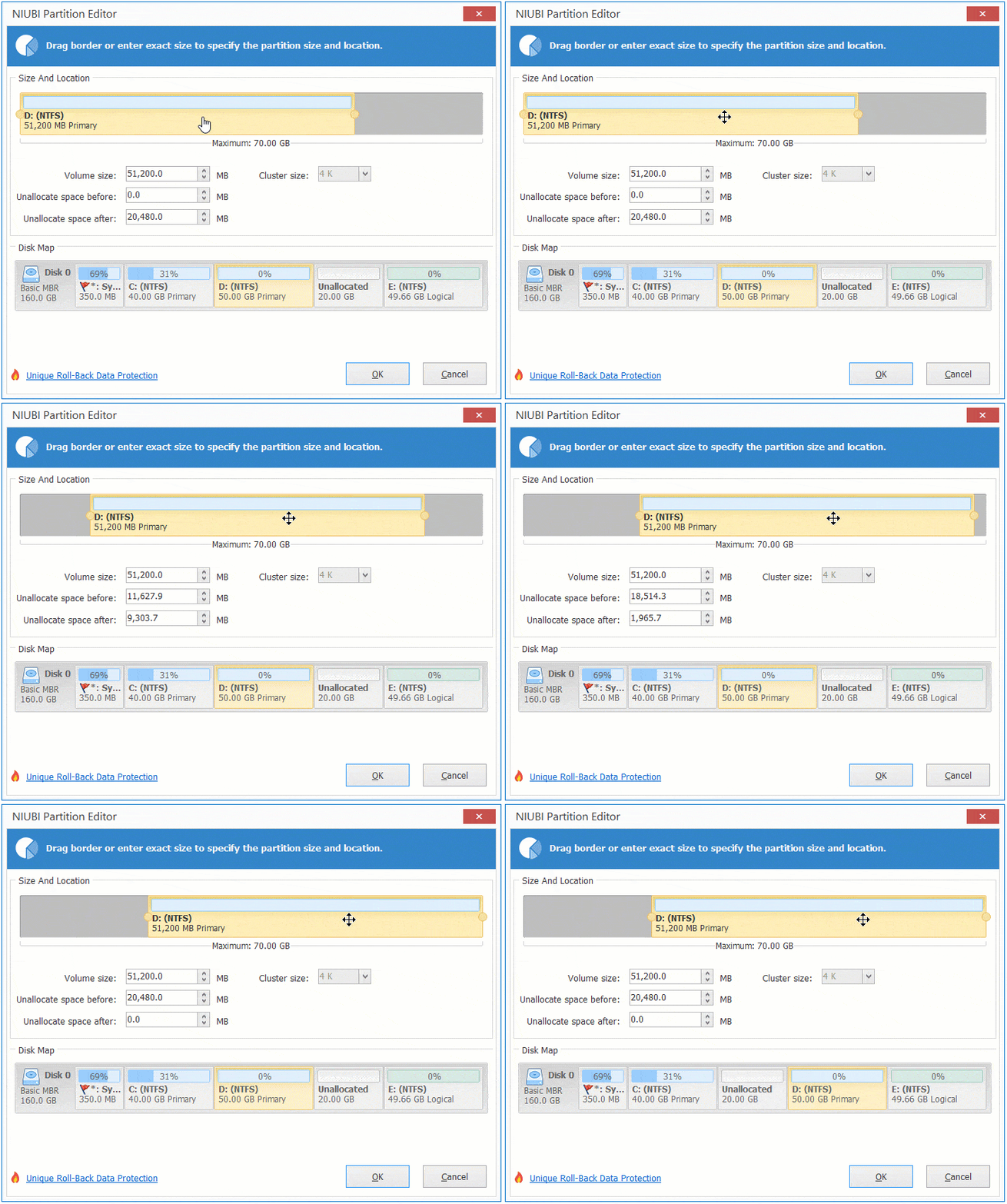
Then, the unallocated space is moved to the left side.
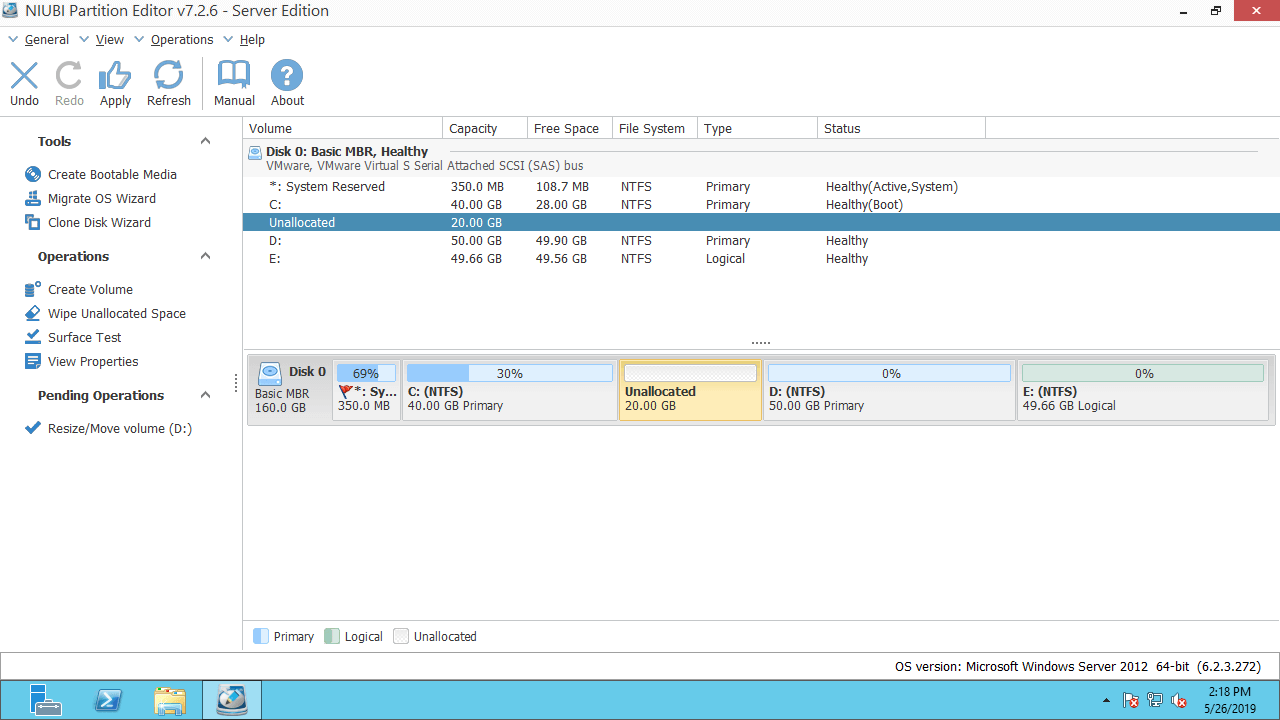
Step 2: Right click C: drive and select "Resize/Move Volume" again, drag the right border to the right in the pop-up window.
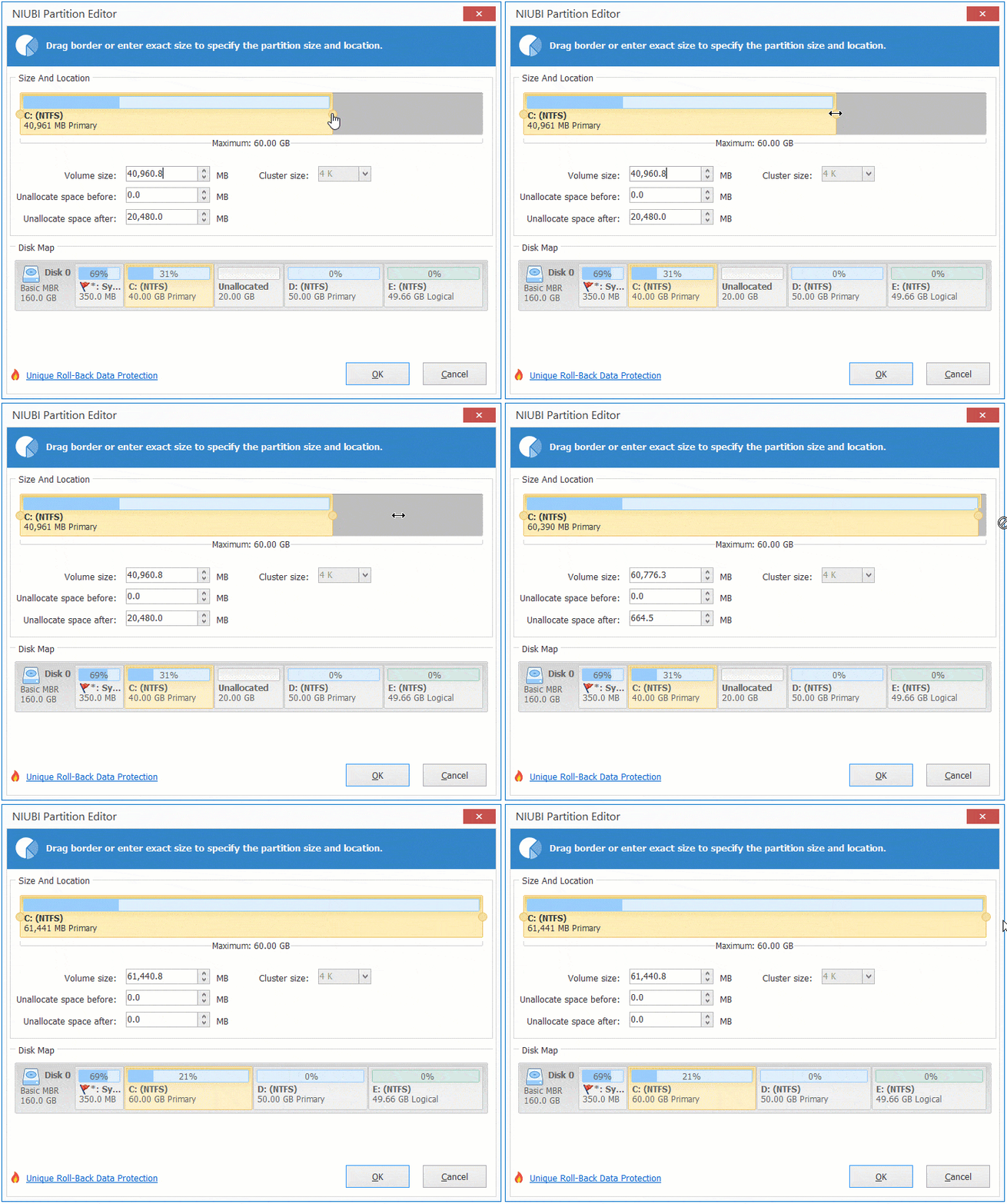
Then, the unallocated space is merged into the C: drive.
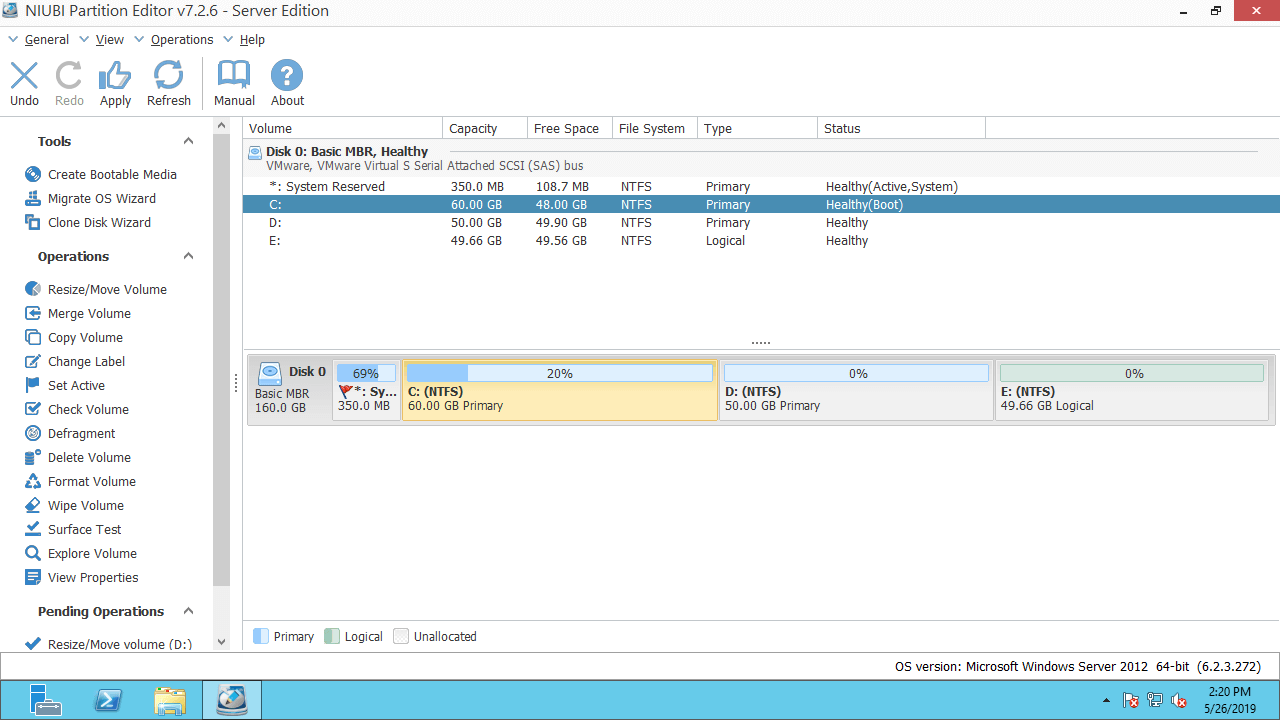
Step 3: Click "Apply" on top left to take effect.
If you already shrunk D drive and cannot extend volume E with Server 2012 Disk Management , or if you cannot extend FAT32 partition, follow the steps in the video to resize partition with NIUBI:
If you cannot extend a partition past 2TB on Windows Server 2012 Disk Management, follow the steps in the video to convert MBR disk to GPT and then extend partition with unallocated space:
In addition to helping fix the issue of not being able to extend volumes on Windows Server 2012/2016/2019/2022/2008/2003, NIUBI Partition Editor also helps you merge, copy, convert, defragment, wipe, hide, scan partitions, and much more. Better than other tools, it features unique technologies like Virtual Mode, 1-Second Rollback, Cancel-at-Will and Hot Clone to protect your system and data.
 © 2009 - NIUBI Technology All Rights Reserved. |