
This article introduces how to add space to the C: drive in Windows Server 2012 R2. It provides 3 ways to add space to the system partition using unused or unallocated space.
How to Add Unallocated Space to C Drive
There are two kinds of disk space that can be added into the C drive to increase partition size: unallocated space and unused space inside a partition.
After deleting a partition, all its disk space will be converted into unallocated space. By shrinking a partition, a portion of its unused space will be converted into unallocated space. No matter in which way, finally you'll add unallocated space to the C: drive (or other partition). Obviously, it's better to get unallocated space by shrinking, so you won't lose data in it.
In the native Windows Server 2012 Disk Management tool, there is a Shrink Volume function to make unallocated space and an Extend Volume function to combine unallocated space into a partition. Thus, many server administrators try to add more space to the C drive by shrinking D. Actually, it is impossible with Disk Management if you want to increase C: drive space in this way.
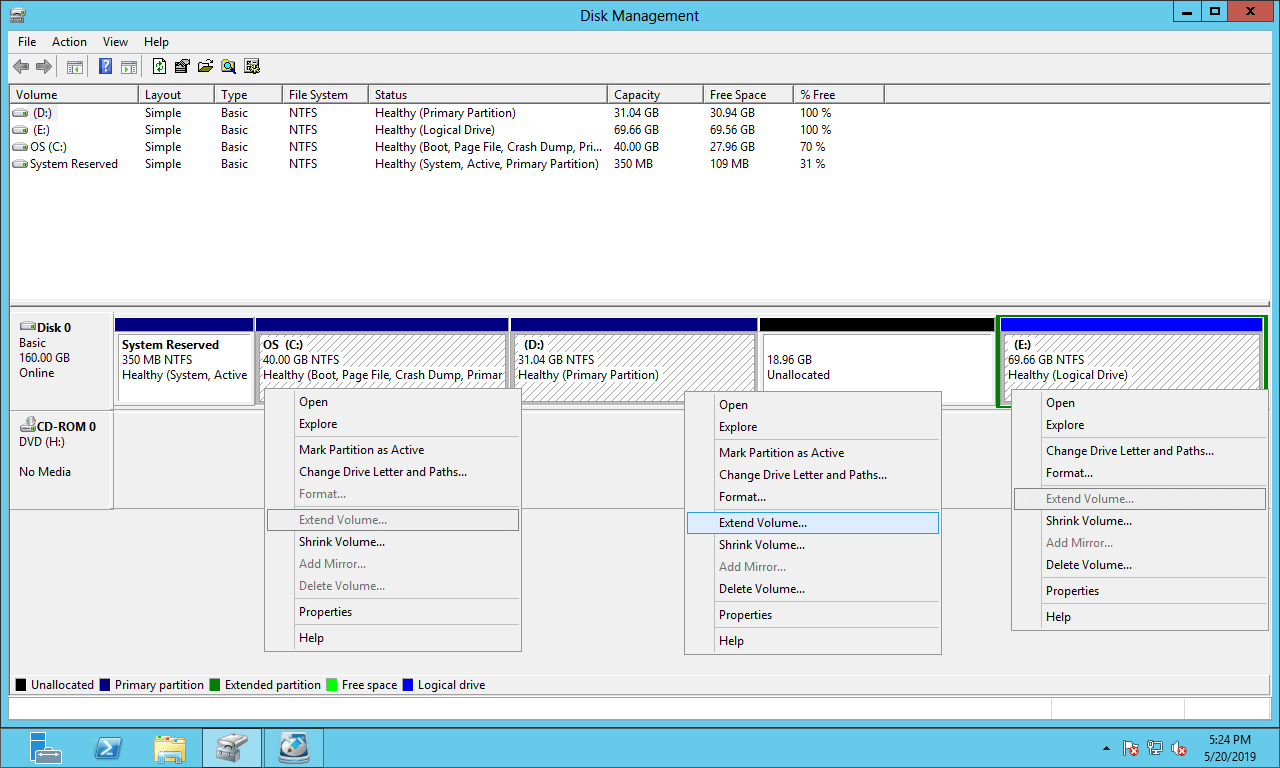
The Shrink Volume function can only generate unallocated space on the right side of the shrunk partition. Furthermore, the Extend Volume function cannot combine unallocated space into a non-adjacent partition or a partition to its right.
So, Extend Volume is disabled for both C: and E: drive after shrinking D.
On most servers, there are programs or some Windows services running from drive D, so you can't delete it to get adjacent unallocated space.
In this situation, you need to run NIUBI Partition Editor to move unallocated space to the left side and then add it into the C drive.
Watch the video below to see how to add unallocated space to the C: drive in Windows Server 2012 R2:
How to Add Free Space to C Drive
If you have not shrunk D or other partition in Server 2012 Disk Management, it's better to shrink with NIUBI Partition Editor, then unallocated space can be made on the left side without moving.
Steps to add space to C drive in Windows Server 2012 R2 without data loss:
Step 1: Download NIUBI Partition Editor, right click drive D: and select "Resize/Move Volume", drag the left border to the right in the pop-up window. (or enter an amount manually)
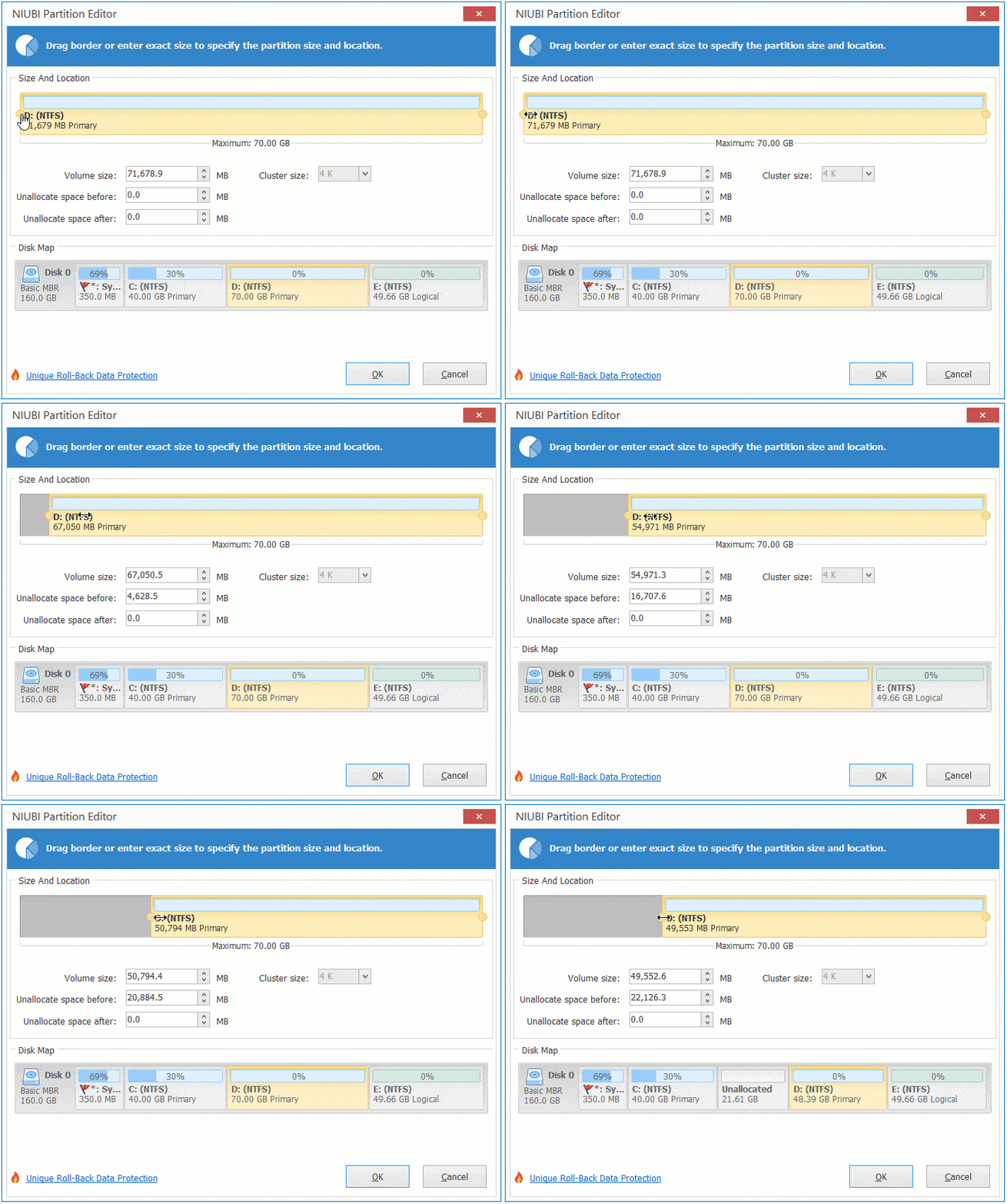
Then, 20GB of unused space from the D drive is converted into unallocated space on its left side.
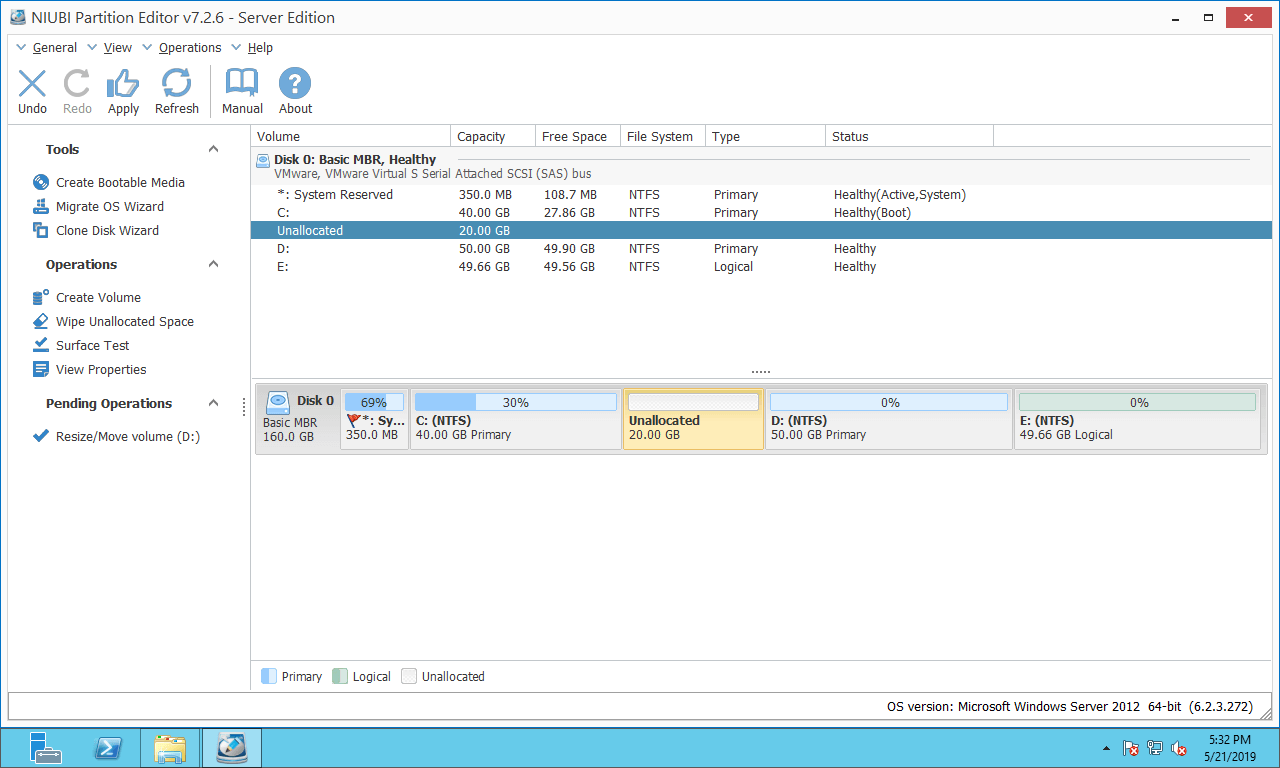
Step 2: Right click system partition C: and select "Resize/Move Volume" again, drag the right border to the right in the pop-up window.
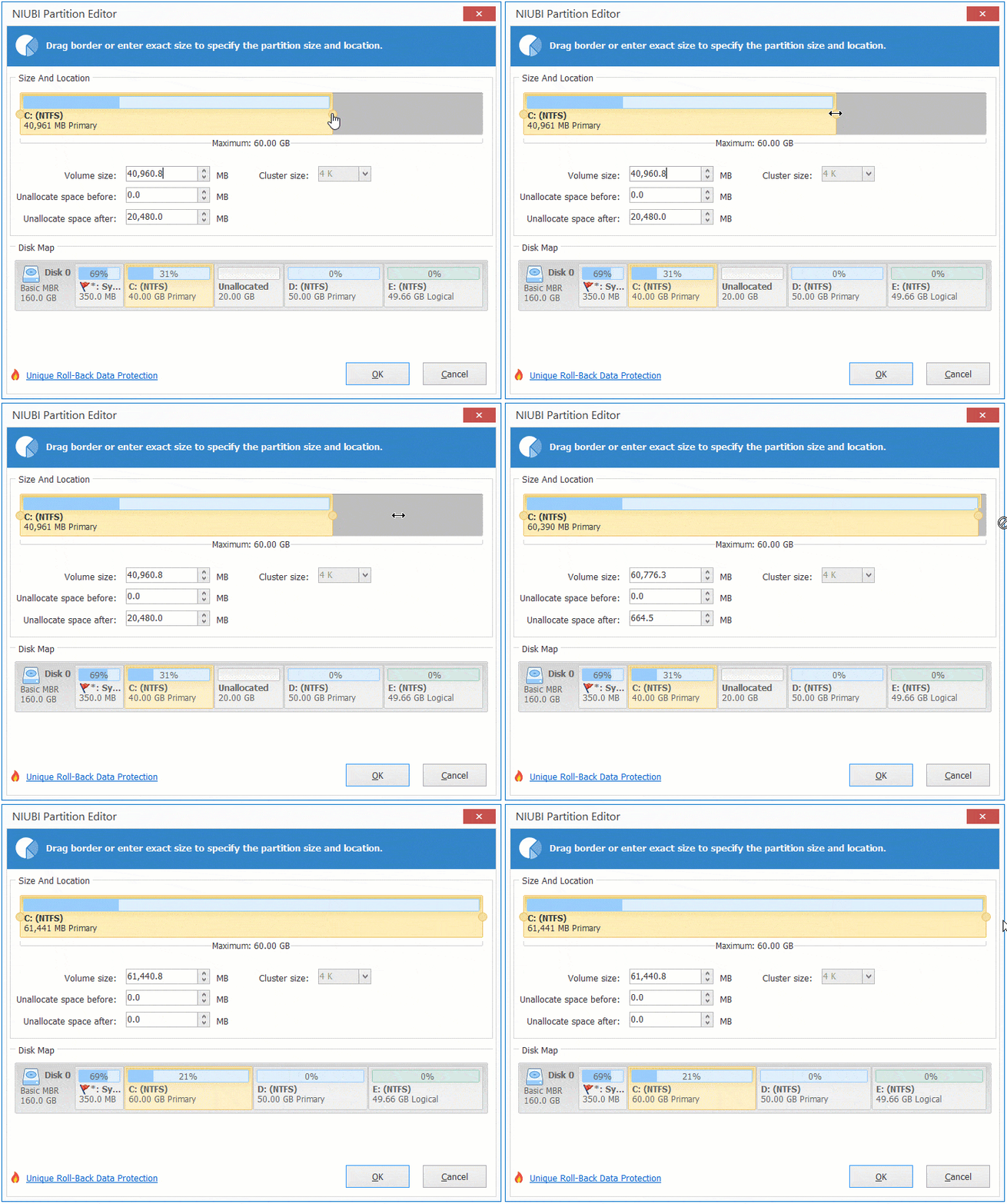
Then the 20GB unallocated space is added into the C drive.
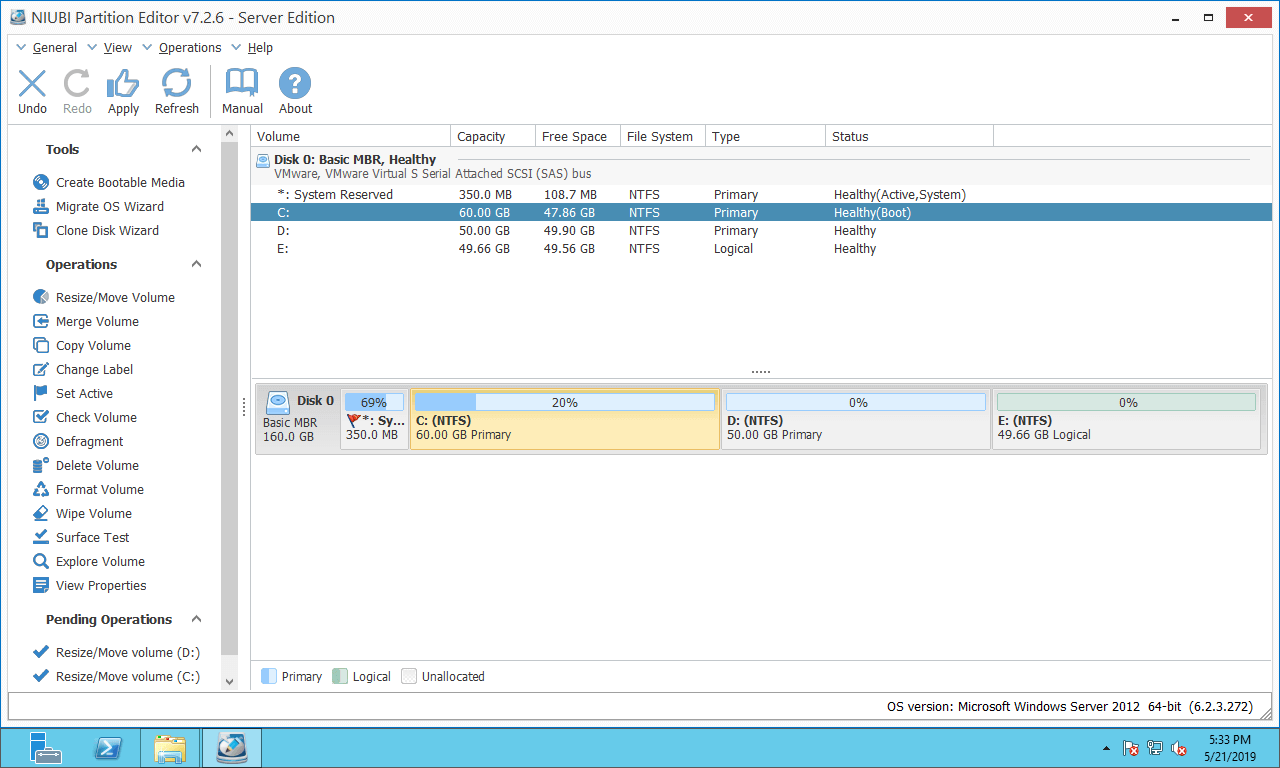
Remember to click "Apply" to take effect, otherwise, the real disk partitions won't be changed.
Watch the video below to see how to add space to system C: drive in Windows Server 2012 R2 from other volumes:
How to Add Space to C Drive with Other Disk
On some servers, Disk 0 is small and there is not enough unused space in other partitions (or even no other volume) in the same disk. In that case, no software can shrink a partition on a separate disk (such as Disk 1) to add space to the C drive (on Disk 0), because a physical hard disk has a fixed size.
In this situation, you can clone Disk 0 to another larger one and extend the C drive with extra disk space. After that, replace Disk 0 or change BIOS to boot from the larger disk.
How to add space to C: drive in Server 2012 R2 by cloning disk to a larger one:
In Summary
The built-in Windows Disk Management tool has severe limitations in most cases. To add more space to system partition C, NIUBI Partition Editor is much better. It provides several ways according to your disk partition structure.
Compared to other software, it is safer and faster because of its unique technologies:
- 1 Second Rollback - automatically reverts disk partitions to their previous state instantly if it detects any error.
- Virtual Mode - all operations you performed are listed as pending for preview, and real disk partitions won't be changed until you click Apply to confirm.
- Cancel-at-will - if you applied incorrect operations, you can cancel the ongoing operations without causing damage.
- Hot Clone - clone disk partitions in Windows without server interruption.
- Advanced file-moving algorithm - resize and move partition 30% to 300% faster.
Besides shrinking and moving partitions to add more space to the C drive in Windows Server 2012/2016/2019/2022/2025, NIUBI Partition Editor helps you perform many other disk partition management operations.
 © 2009 - NIUBI Technology All Rights Reserved. |