
If you want to change the size of allocated partitions without losing data, Windows Server 2012 has a built-in Disk Management tool to help you. The "Shrink Volume" function can release part of the free space from a partition and convert it to unallocated space. The "Extend Volume" function can merge unallocated space into the left adjacent partition. Shrink Volume is helpful if you want to decrease a partition to create a new volume. However, some users report that "Shrink Volume" is disabled in Server 2012 Disk Management. This article introduces why "Shrink Volume" is greyed out in Windows Server 2012 R2 and how to solve this problem.
Why Shrink Volume Is Disabled in Server 2012 Disk Management
There are 2 common reasons why Disk Management cannot shrink a volume in Server 2012 R2.
1. FAT32/EFI/Recovery Partitions Are Not Supported
Only NTFS partitions are supported; FAT32 and other types of partitions cannot be shrunk with Disk Management.
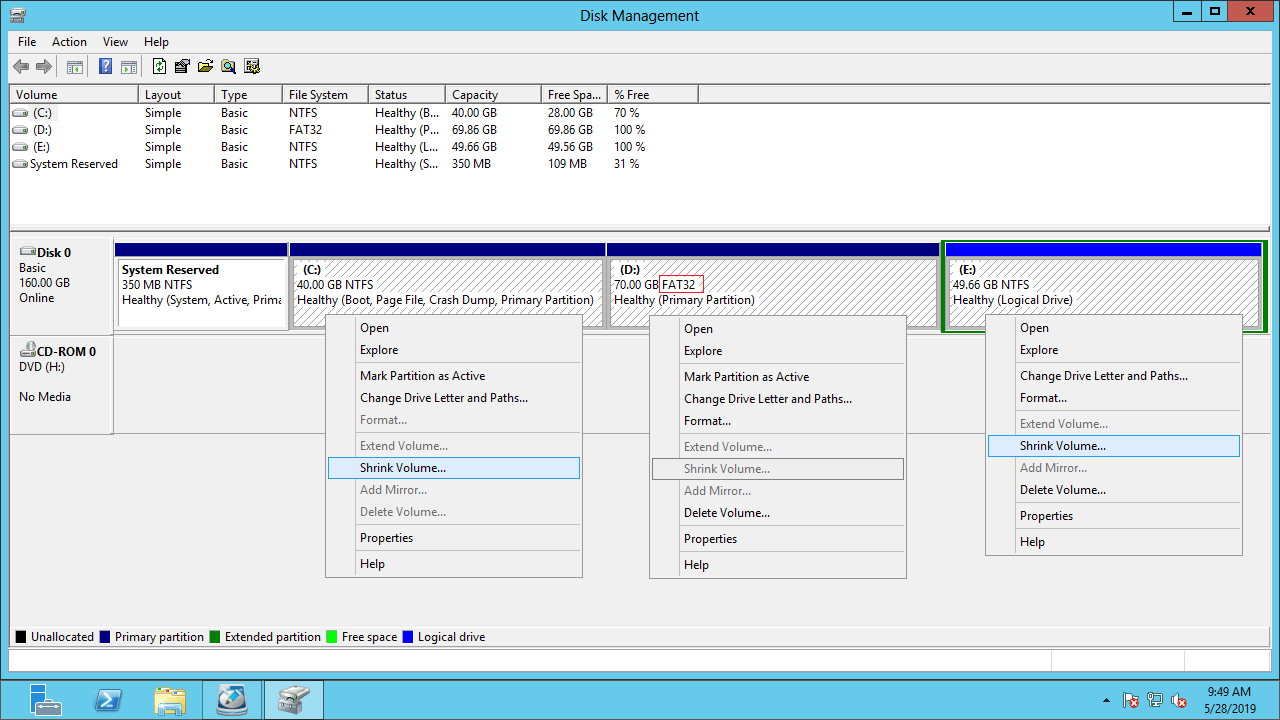
As shown in the example below, drive D: is formatted as FAT32, so Shrink Volume is grayed out. Other NTFS partitions can be shrunk.
If this disk is GPT style, both Shrink and Extend Volume options are grayed out for all EFI, Recovery, and OEM partitions.
2. Unmovable Files and Filesystem Errors
On some servers, "Shrink Volume" is activated when you right-click a drive, but Disk Management can only shrink a little space.
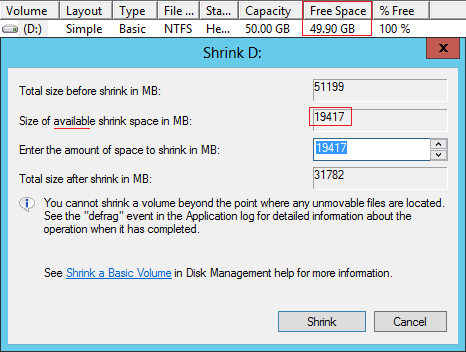
The D drive in the example below is blank, but in the shrinking window, Disk Management shows only 19417MB (18.96GB) of available shrink space, meaning the D drive can only be shrunk to 31.04GB.
On some computers, the available free space shows as 0, which is a common issue across various Windows versions.
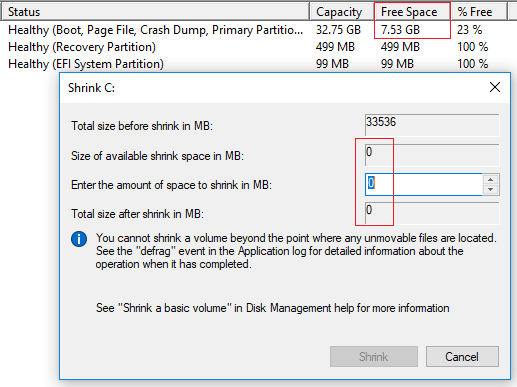
As the notice shows, you cannot shrink a partition beyond the point where unmovable files are located. If there's plenty of free space in a partition but the available shrink space shows 0, it indicates that this partition has a filesystem error.
What to Do When Shrink Volume Is Greyed Out in Server 2012 R2
Compared with the "Shrink Volume" function in Server 2012 Disk Management, NIUBI Partition Editor offers several advantages:
- Both NTFS and FAT32 partitions are supported.
- Unallocated space can be created on either the left or right when shrinking a partition.
- It can move "unmovable" files, allowing you to shrink a volume to a smaller size.
- Unallocated space can be merged into any other partition on the same disk.
How to shrink a partition in Windows Server 2012 R2 with NIUBI:
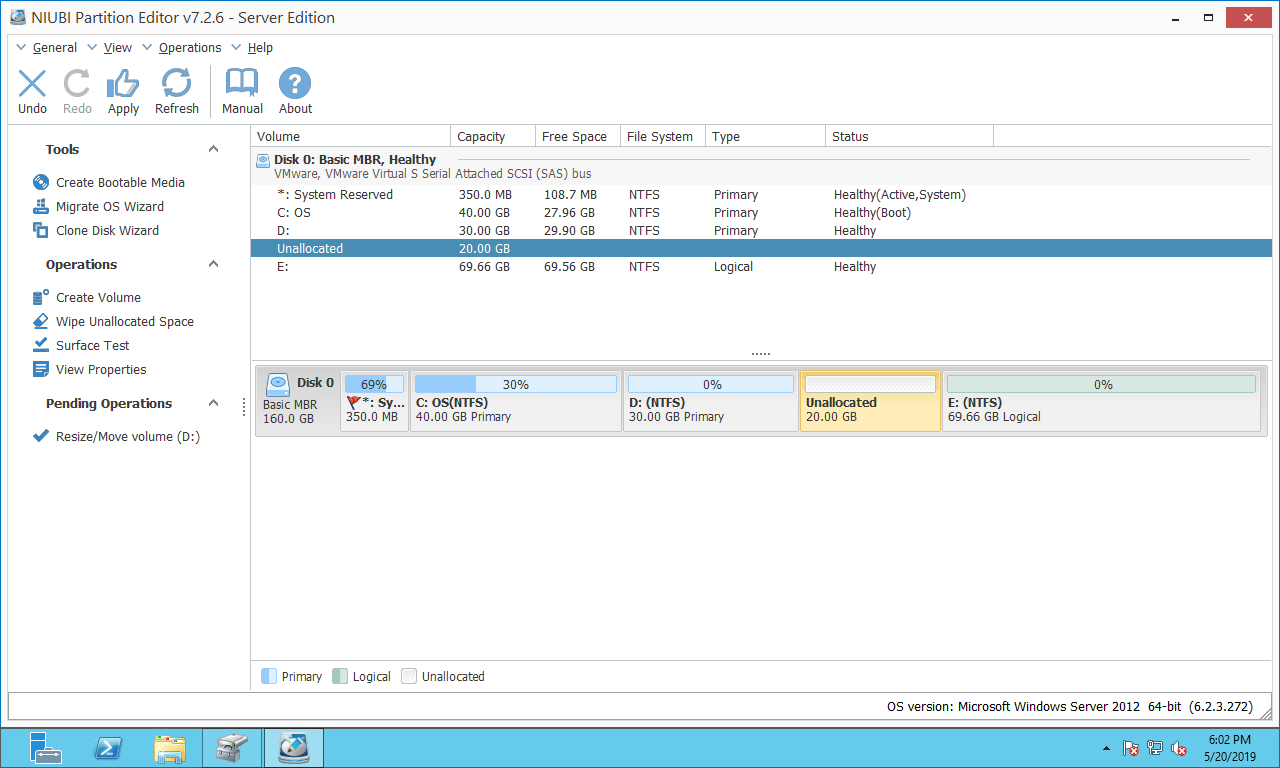
Download NIUBI and you'll see all disk partitions with structure and other information in the main window.
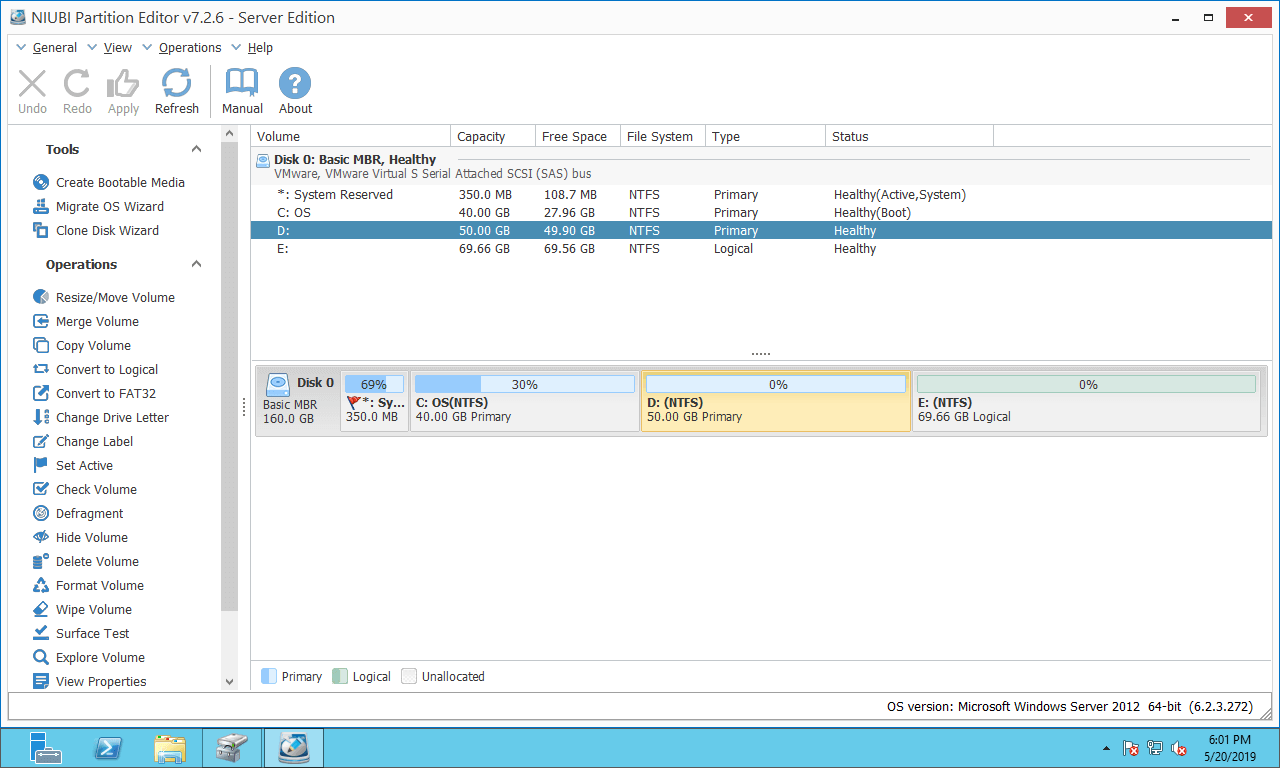
You just need to drag and drop on the disk map, and unallocated space can be created on either side.
Right-click a partition (such as D:) and select "Resize/Move Volume", then drag either border to the other side in the pop-up window:
Option 1: If you drag the left border to the right:
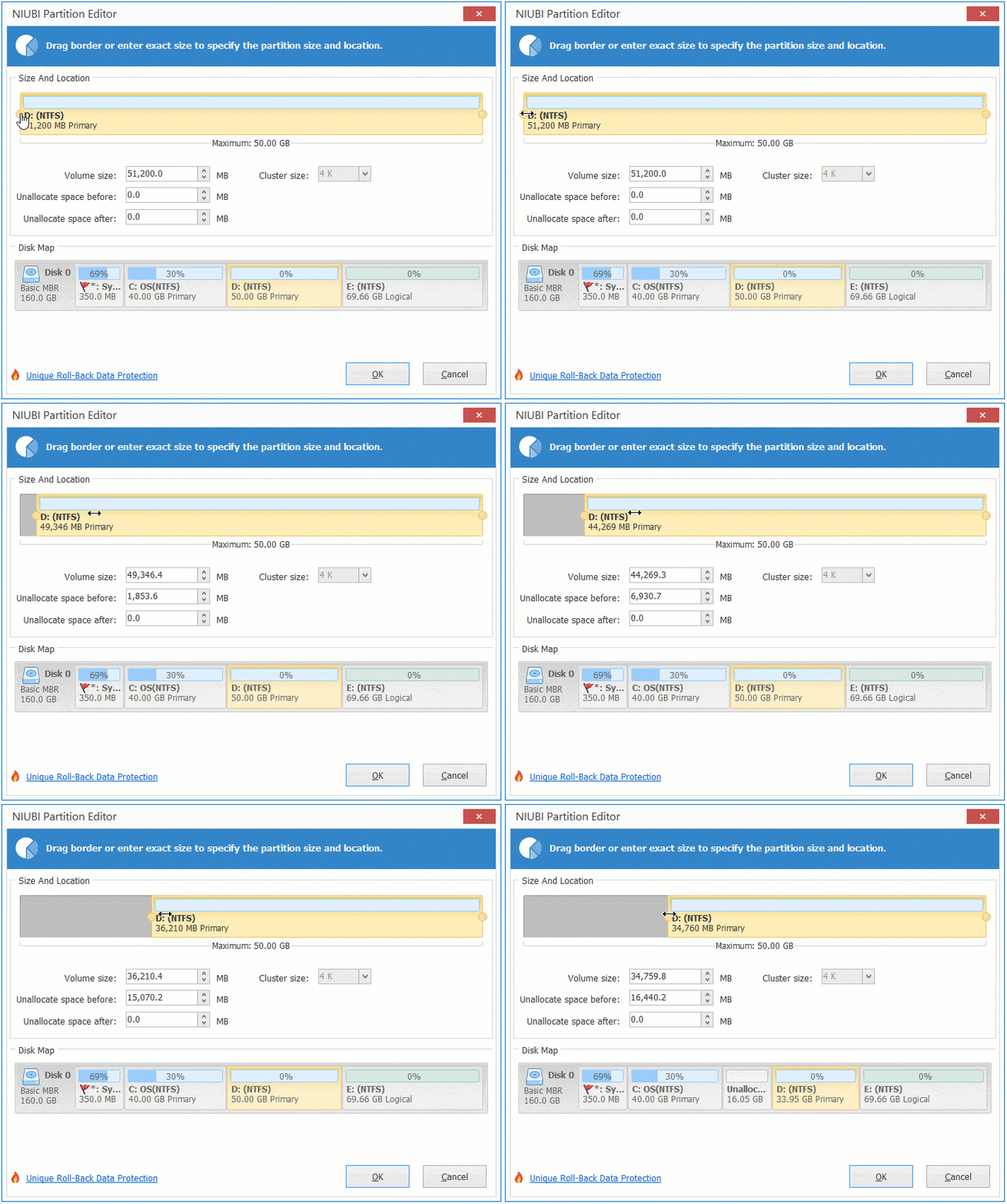
Drive D: is shrunk to the right, and unallocated space is created on the left.
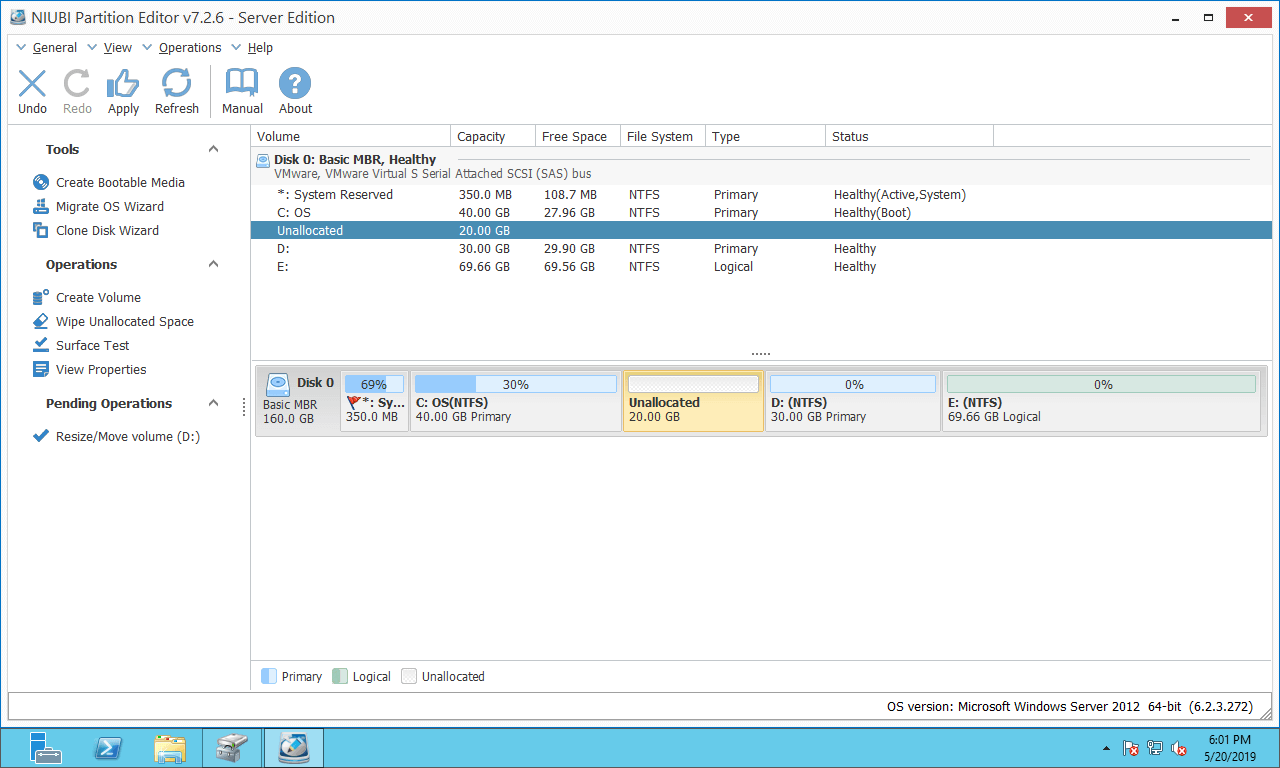
Option 2: If you drag the right border to the left:
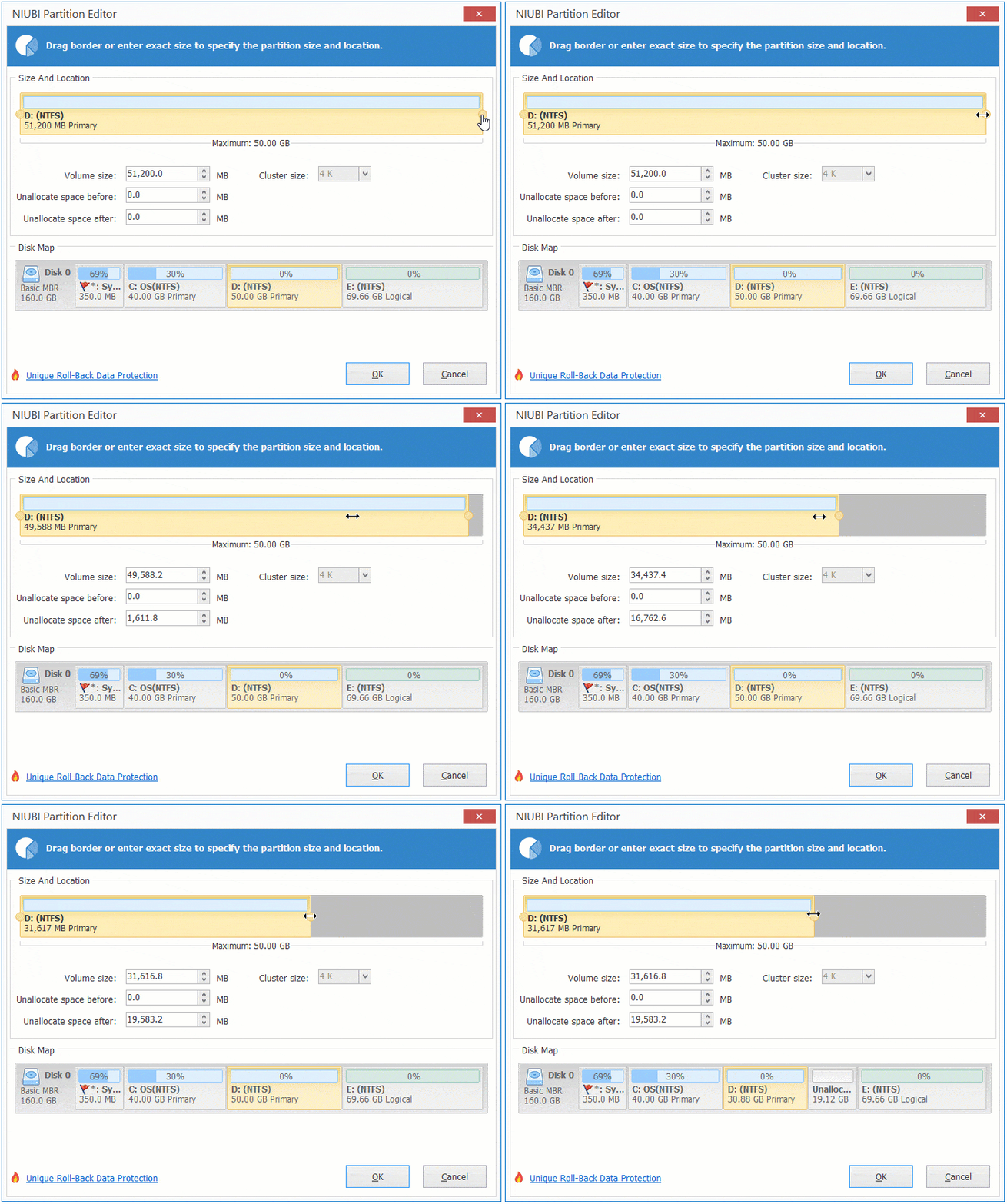
Drive D: is shrunk to the left, and unallocated space is created on the right.
How to Extend Volume After Shrinking
After getting the unallocated space, you can create a new volume or expand other partitions with it. Follow the steps in the video if you want to extend another partition in Windows 2012 Server.
Besides shrinking and extending partitions, NIUBI Partition Editor helps you merge, copy, convert, defrag, hide, wipe partitions, scan bad sectors, etc.
 © 2009 - NIUBI Technology All Rights Reserved. |